> For the complete documentation index, see [llms.txt](https://cube.ewelink.cc/llms.txt). Markdown versions of documentation pages are available by appending `.md` to page URLs; this page is available as [Markdown](https://cube.ewelink.cc/getting-started/quickstart/virtual-machine/proxmox.md).
# Proxmox
This is a generic guide to installing CUBE OS on Proxmox, the host can be an old PC, or a Mini PC.
### 1. Preparation
{% stepper %}
{% step %}
**Download the CUBE OS image**
Visit this [repo](https://github.com/eWeLinkCUBE/CUBE-OS/releases/latest) to download the latest CUBE OS image and extract it after downloading.
For Proxmox VE 9, download the disk image archive (commonly `sdcard.vmdk.xz`).
Extract it to get the `.vmdk` file.
{% endstep %}
{% step %}
**Prepare a Proxmox VE host**
* A running **Proxmox VE** host with admin access (Web UI + Shell/SSH)
* If you haven’t installed Proxmox VE yet, follow the official [guide](https://www.proxmox.com/en/products/proxmox-virtual-environment/get-started).
* Recommended resources for the VM:
* **CPU**: 2 cores
* **Memory**: 4096 MB (4 GB) or more
{% endstep %}
{% step %}
**Zigbee Adapter (Optional)**
If you need to add Zigbee devices, prepare a Zigbee Dongle. Tested Zigbee Dongles include:
> SONOFF ZBDongle-MAX\
> SONOFF ZBDongle-PMG24\
> SONOFF ZBDongle-LMG21\
> SONOFF ZBDongle-E\
> SONOFF ZBDongle-P\
> [Others listed](https://darkxst.github.io/silabs-firmware-builder/) by developer @darkxst
{% hint style="info" %}
For more information on Zigbee configurations and compatibility, please refer to this [guide](/compatibility-check/zigbee.md).
{% endhint %}
You can pass the dongle through to the VM in Proxmox (see the optional section below).
{% endstep %}
{% endstepper %}
### 2. Create a Virtual Machine (Proxmox)
{% stepper %}
{% step %}
In Proxmox Web UI, click **Create VM**.
{% endstep %}
{% step %}
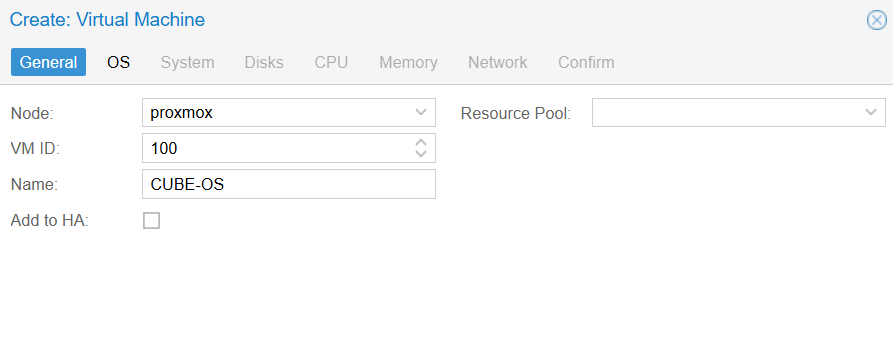
**General -** Set a VM ID and a name, e.g. `CUBE OS`.
{% endstep %}
{% step %}
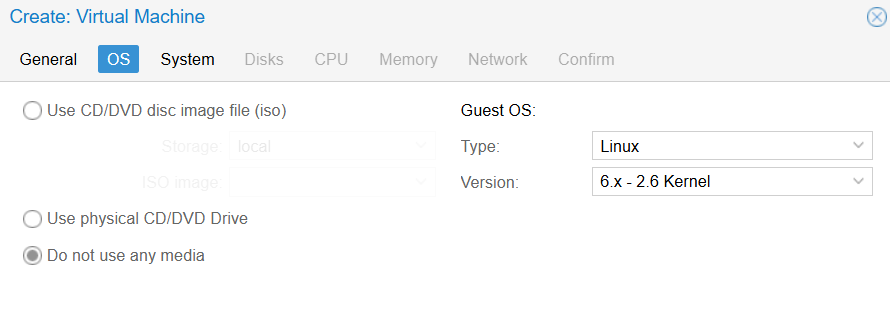
**OS -** Choose **Do not use any media**.
{% hint style="info" %}
CUBE OS is provided as a prebuilt disk image. In Proxmox, you will **import the disk image** and then boot from it.
{% endhint %}
{% endstep %}
{% step %}
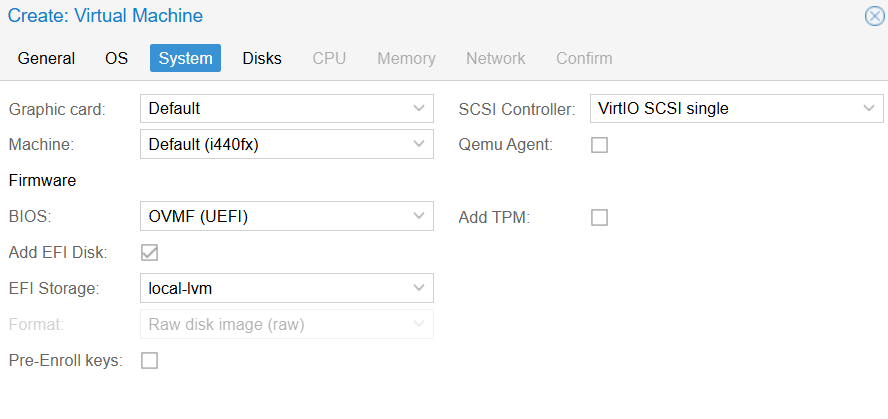
**System -** Recommended settings:
* **BIOS**: `OVMF (UEFI)`
* **EFI Disk**: add an EFI disk (default size is fine)
* **Pre-Enfoll keys**: Uncheck
{% hint style="info" %}
Just like the VirtualBox/VMware guides, **UEFI is required**. If you can’t boot, double-check the BIOS is set to **OVMF (UEFI)**.
{% endhint %}
{% endstep %}
{% step %}
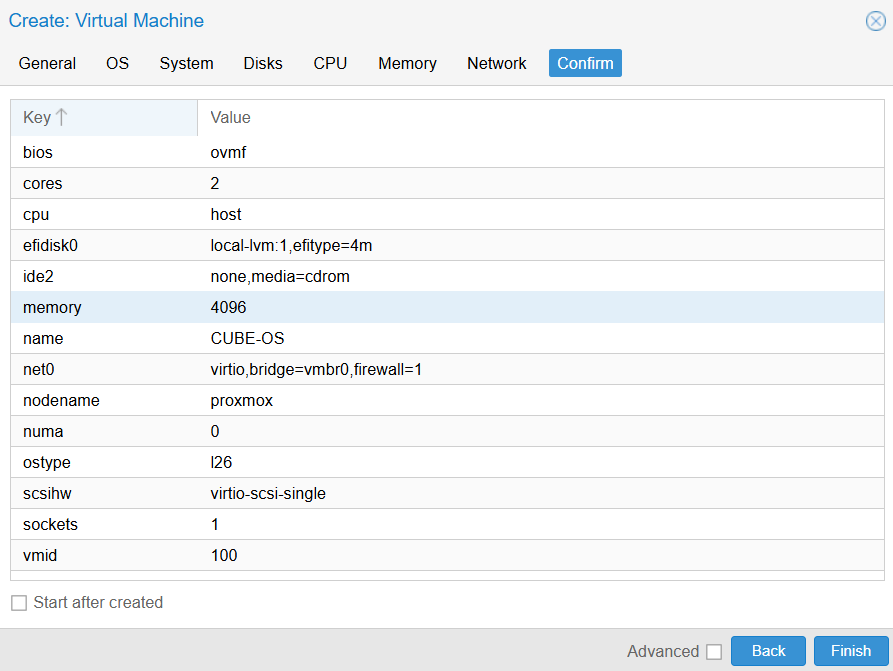
**Disk / CPU / Memory / Network**
* **Disk**: do **not** create a new empty disk. You will import the CUBE OS disk image in the next section.
* **CPU**: 2 cores (CPU type `host` recommended)
* **Memory**: 4096 MB (4 GB) or more
* **Network**:
* **Bridge**: `vmbr0` (or your LAN bridge)
* **Model**: `VirtIO (paravirtualized)`
{% hint style="warning" %}
For LAN discovery and `cube.local` to work reliably, avoid NAT-style networking. Use a **bridged** network connected to your home/office LAN.
{% endhint %}
{% endstep %}
{% endstepper %}
### 3. Import the CUBE OS disk image into Proxmox
You’ll import the extracted CUBE OS image (for example `CUBE-OS.vmdk`) and attach it as the VM’s boot disk.
{% stepper %}
{% step %}
**Find the right storage (`local`, not `local-lvm`).** In the Proxmox Web UI left sidebar, click **local** (not **local-lvm**).
{% endstep %}
{% step %}
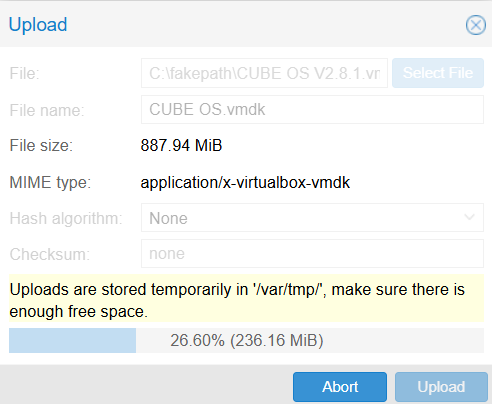
**Upload the `.vmdk` into `local`**
1. Click **Import**
2. Select the extracted disk image on your computer, for example:
* `sdcard.vmdk`
3. Wait for the upload to complete (800+ MB can take a while)
After it finishes, you should see the file in the **Content** list.
{% endstep %}
{% step %}
**Attach the imported disk and set it as boot disk.** In the CUBE OS VM:
1. Go to **Hardware**
2. Select the imported **Add** → **Import Hard Disk**
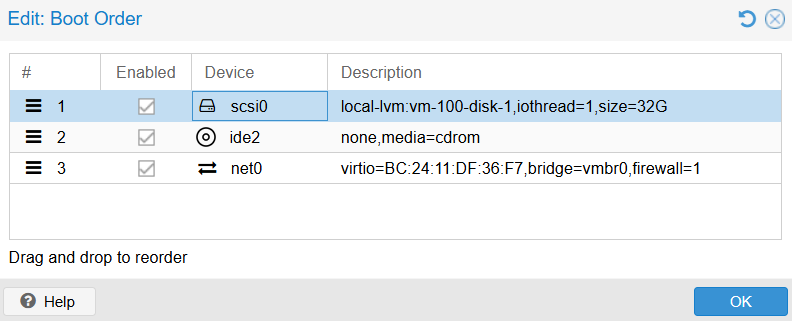
3. Then go to **Options → Boot Order** and set the imported disk as the first boot device.
{% endstep %}
{% endstepper %}
### 4. Boot CUBE OS
{% stepper %}
{% step %}
Click to the VM and open the **Console**.
{% endstep %}
{% step %}
Wait a few moments for CUBE OS to initialize.
Once boot is complete, you should see the **IP address** displayed on the console.
{% endstep %}
{% step %}
Open the CUBE OS Web UI
* Visit `http:///`, or
* Try:
Upon successful access, a short ID can be viewed on the settings page. Subsequently, access the CUBE OS Web management page using `cube-{short id}.local`, which is useful for differentiating multiple CUBE OS instances on the same local network.
{% endstep %}
{% endstepper %}
### 5. (Optional) Zigbee USB Dongle passthrough (Proxmox)
{% stepper %}
{% step %}
Plug the Zigbee dongle into the Proxmox host.
{% endstep %}
{% step %}
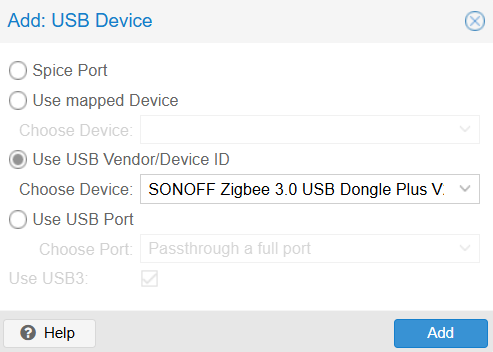
In the VM, go to **Hardware → Add → USB Device**.
* Prefer selecting by **Vendor/Device ID** (more stable than by port if you move USB ports).
* If your dongle exposes a serial interface, it may also appear under **Add → Serial Port** depending on your setup.
{% endstep %}
{% step %}
Reboot the VM (if required) and then add Zigbee devices in CUBE OS.
{% endstep %}
{% endstepper %}
---
# Agent Instructions
This documentation is published with GitBook. GitBook is the documentation platform designed so that both humans and AI agents can read, navigate, and reason over technical content effectively. Learn more at gitbook.com.
## Querying This Documentation
If you need additional information that is not directly available in this page, you can query the documentation dynamically by asking a question.
Perform an HTTP GET request on the current page URL with the `ask` query parameter, and the optional `goal` query parameter:
```
GET https://cube.ewelink.cc/getting-started/quickstart/virtual-machine/proxmox.md?ask=&goal=
```
`ask` is the immediate question: it should be specific, self-contained, and written in natural language.
`goal` is optional and describes the broader end goal you are ultimately trying to accomplish on behalf of the user. GitBook uses it to tailor the answer towards what is most useful for that goal.
The response will contain a direct answer to the question and relevant excerpts and sources from the documentation.
Use this mechanism when the answer is not explicitly present in the current page, you need clarification or additional context, or you want to retrieve related documentation sections.