> For the complete documentation index, see [llms.txt](https://cube.ewelink.cc/llms.txt). Markdown versions of documentation pages are available by appending `.md` to page URLs; this page is available as [Markdown](https://cube.ewelink.cc/feature-exploration/remote-access-and-notification.md).
# Remote Access & Notification
CUBE OS has a built-in feature allowing you to access your smart home devices remotely with a link. This guide will walk you through the initial setup.
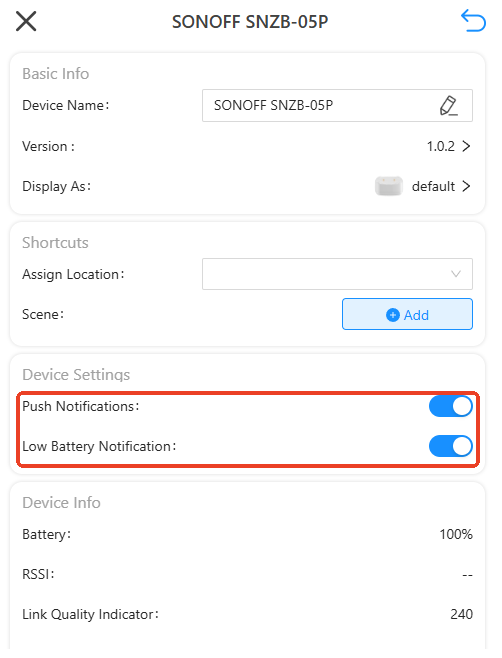
Before moving forward, please make sure you enable the push notification feature of the devices you have on the device settings page.
{% stepper %}
{% step %}
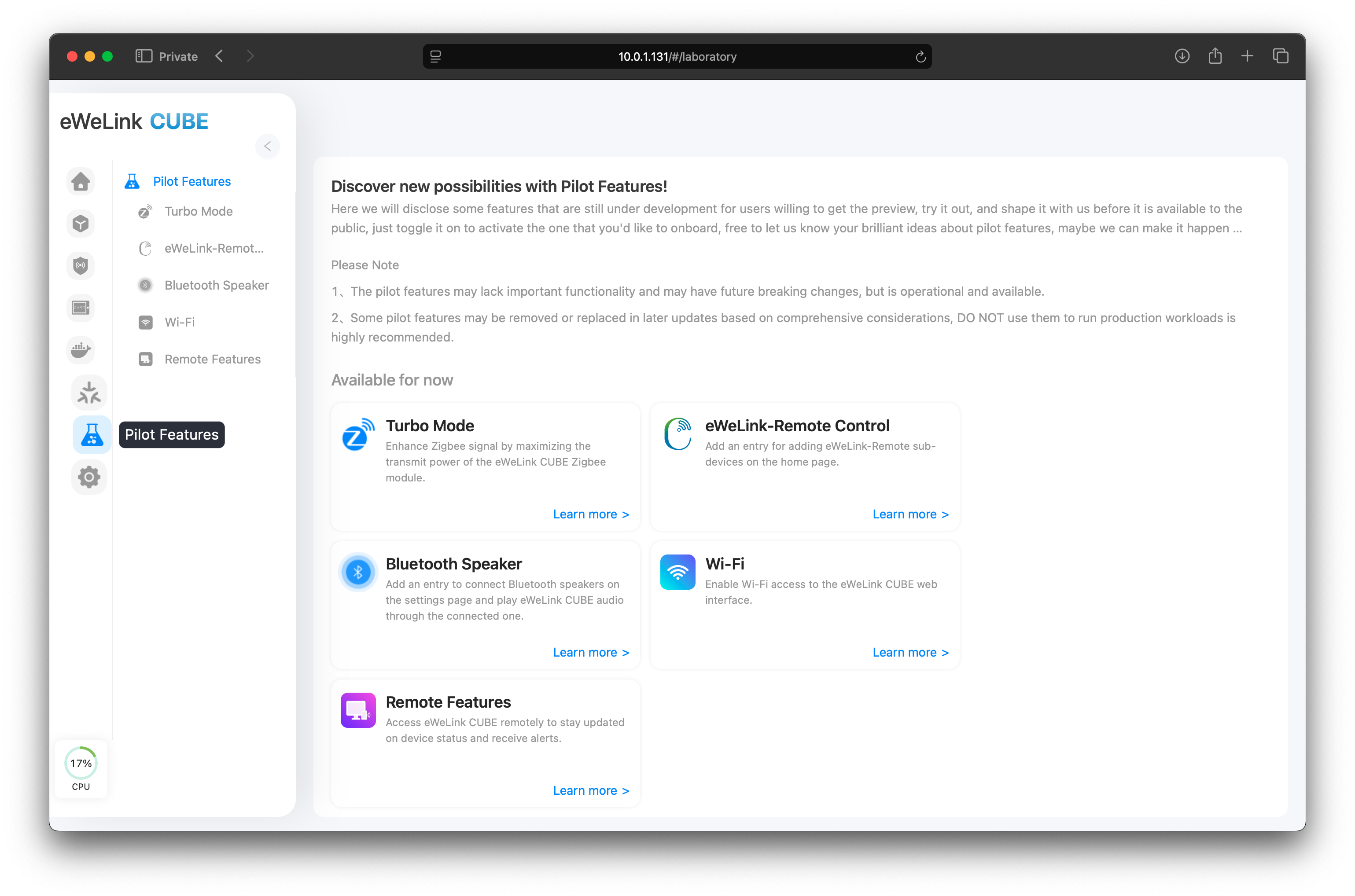
Please visit CUBE OS via browser. Click on Pilot Features, and then select Remote Features.
{% endstep %}
{% step %}
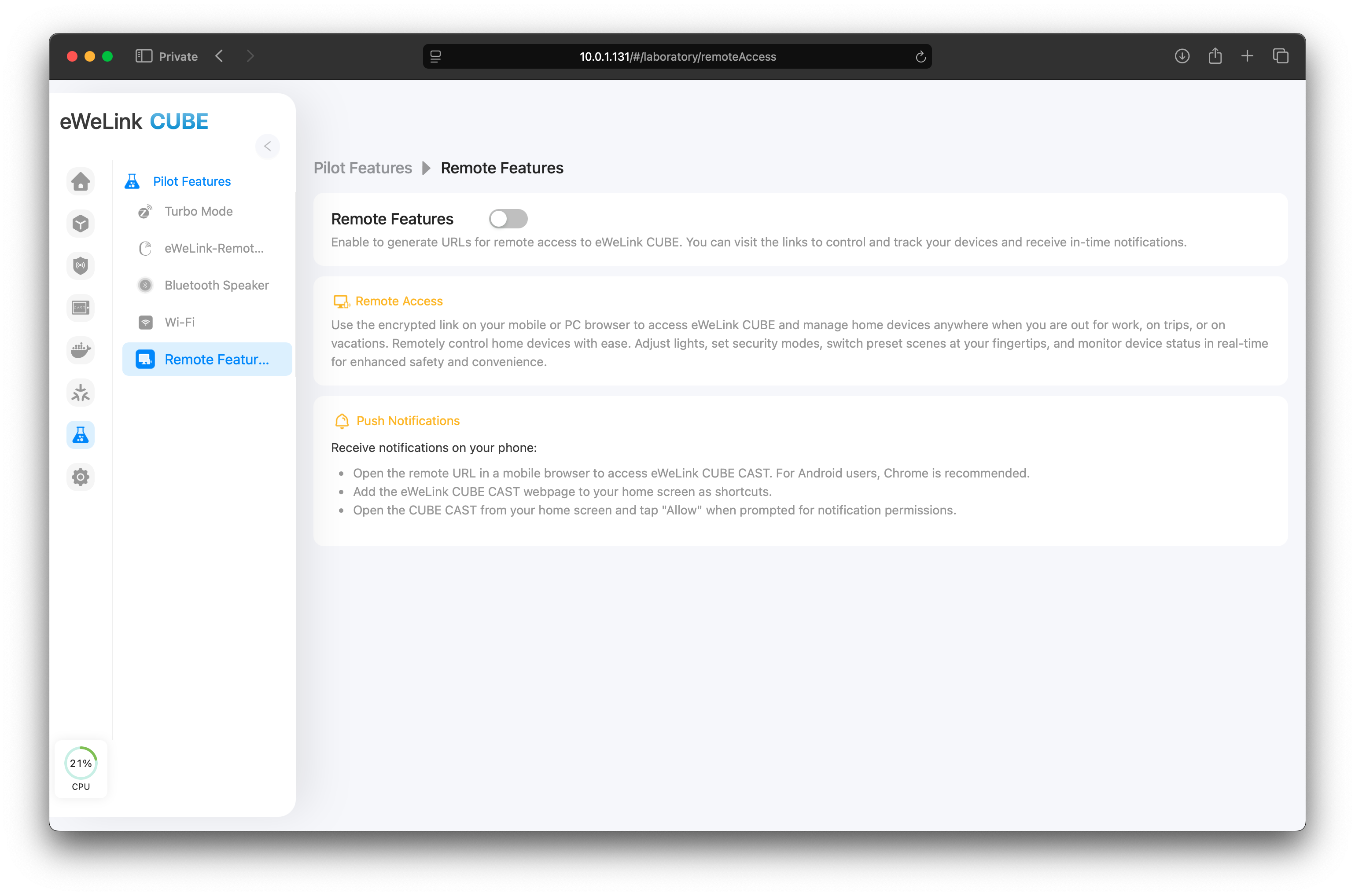
Toggle on Remote Features.
{% hint style="info" %}
The features rely on WAN access, please ensure your CUBE OS has proper access to the internet.
{% endhint %}
{% endstep %}
{% step %}
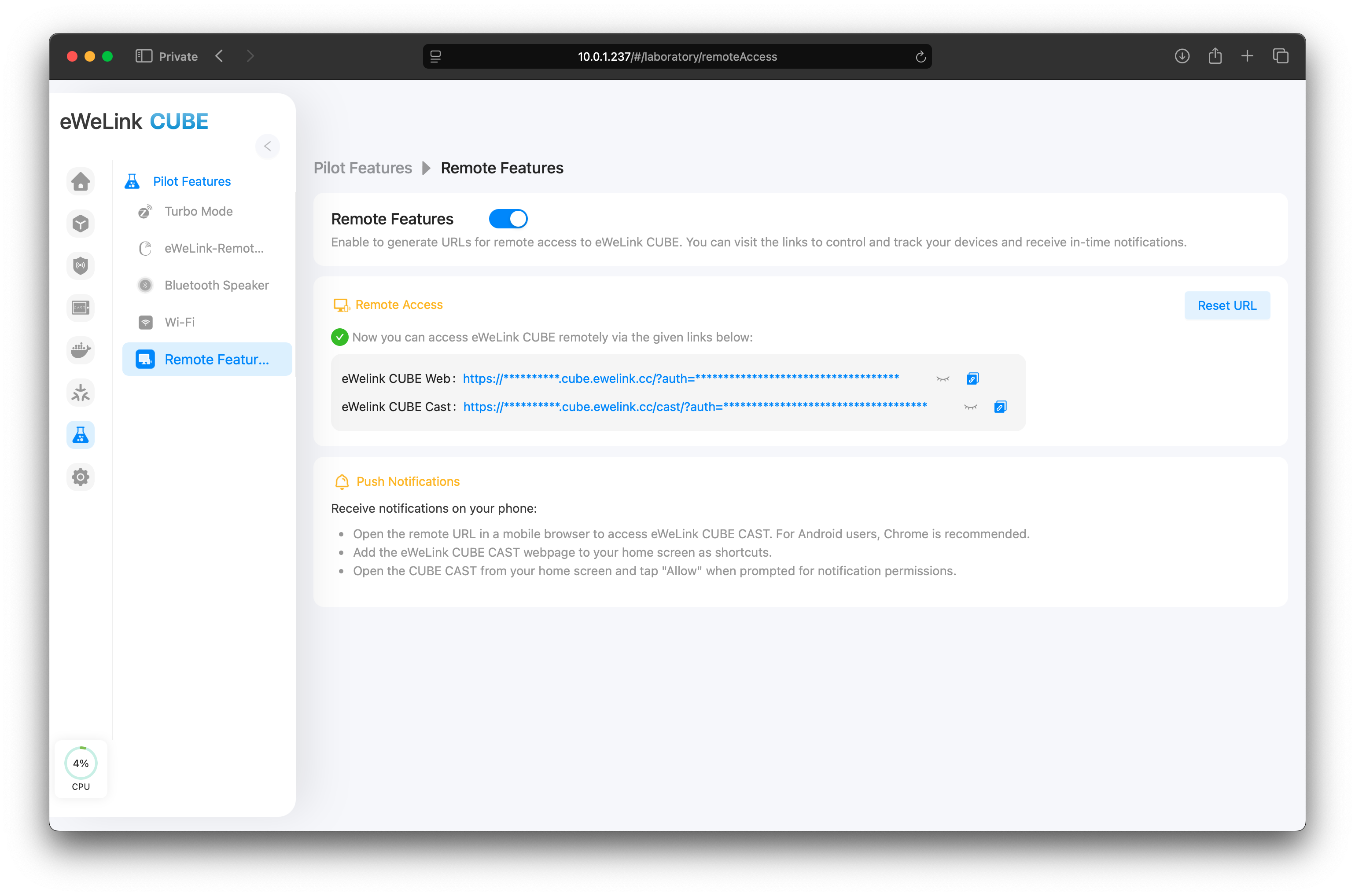
CUBE OS will generate two links to visit your CUBE OS web console and the CAST dashboards. Feel free to copy and save them in your bookmarks.
{% hint style="danger" %}
Please secure your remote access link and PIN to your CUBE OS!
{% endhint %}
{% endstep %}
{% step %}
Copy the link for eWeLink CUBE CAST and open the link on your phone's web browser (Safari and Chrome are recommended for full features)
{% hint style="warning" %}
When using Remote Access on your phone, only the CAST dashboard can be accessed currently.
{% endhint %}
{% endstep %}
{% step %}
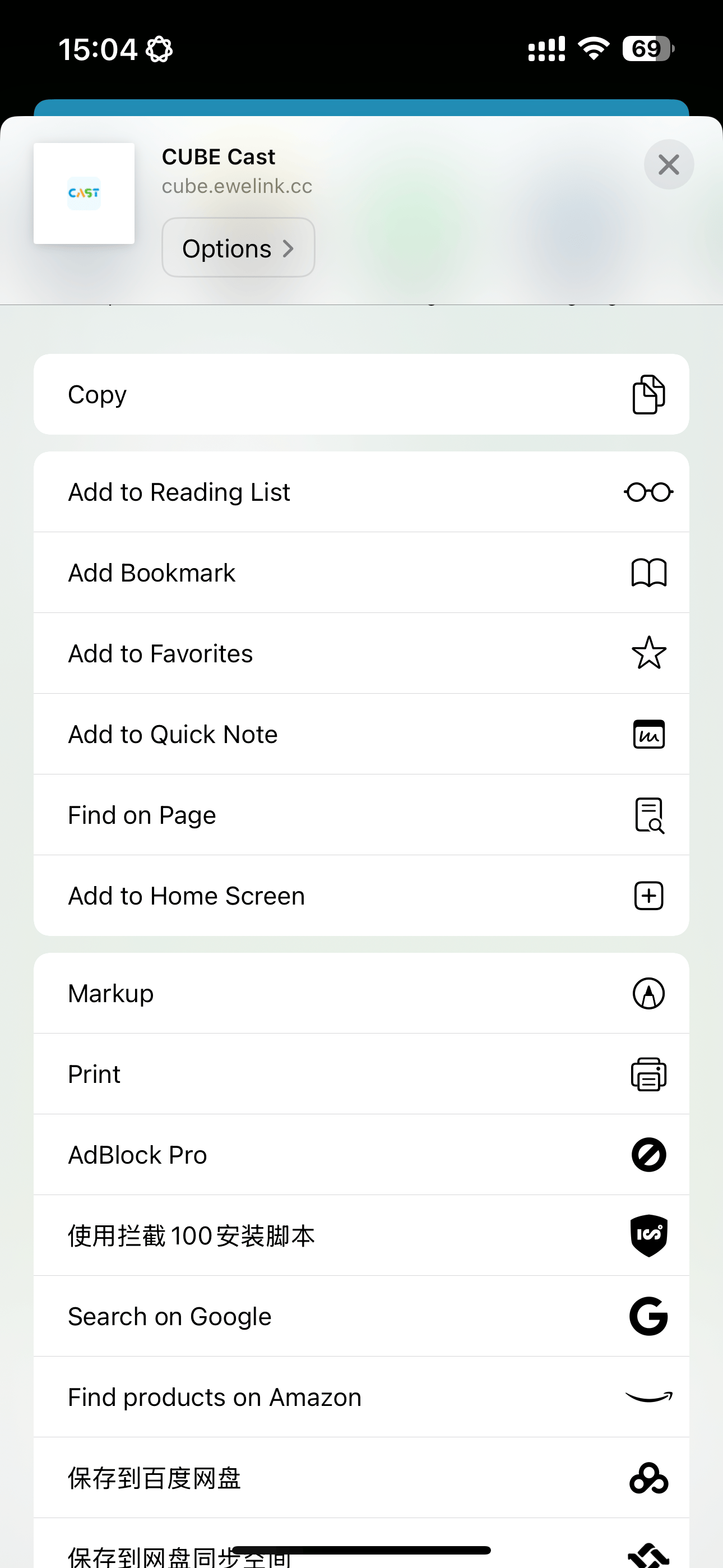
Add the web page to your Home Screen. On Safari, click on the share button in the middle of the bottom tab.
{% endstep %}
{% step %}
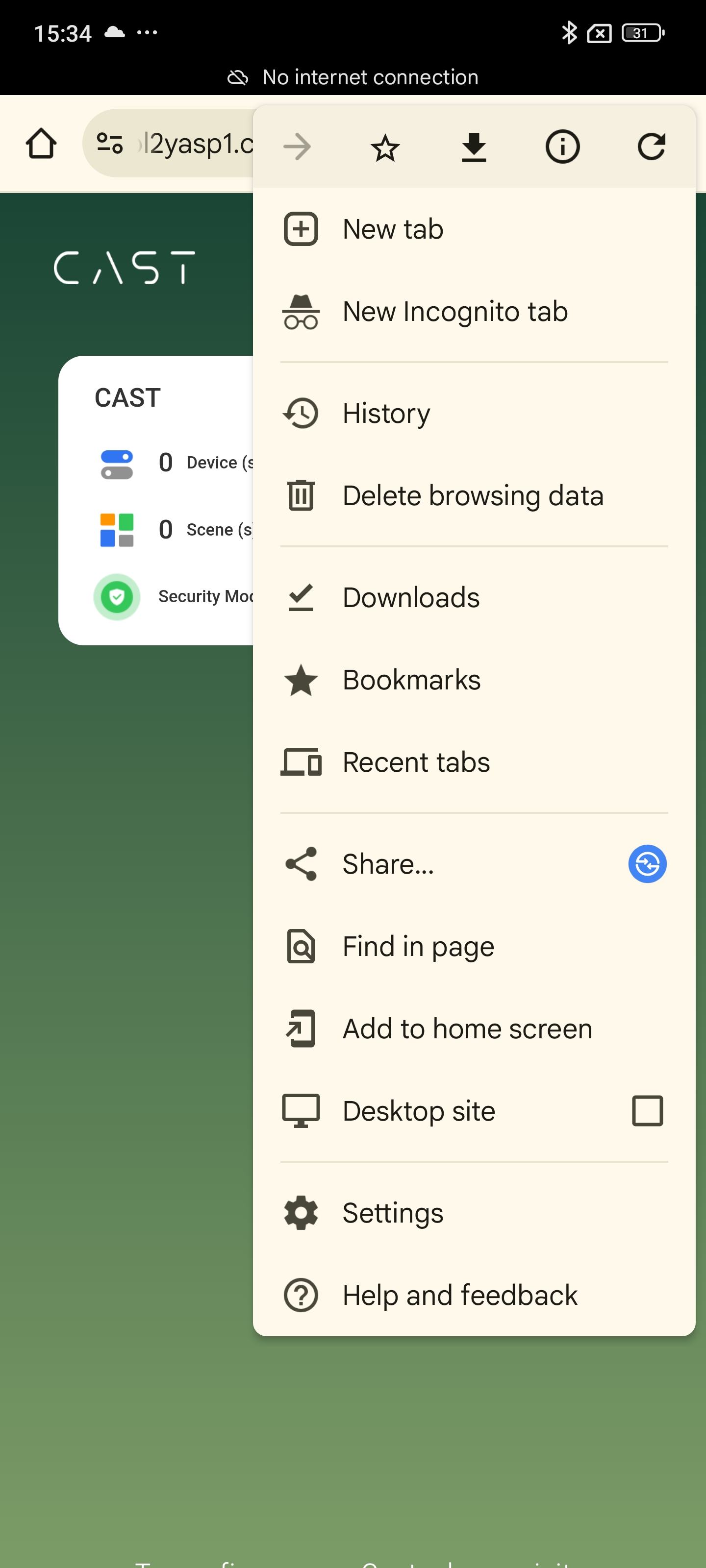
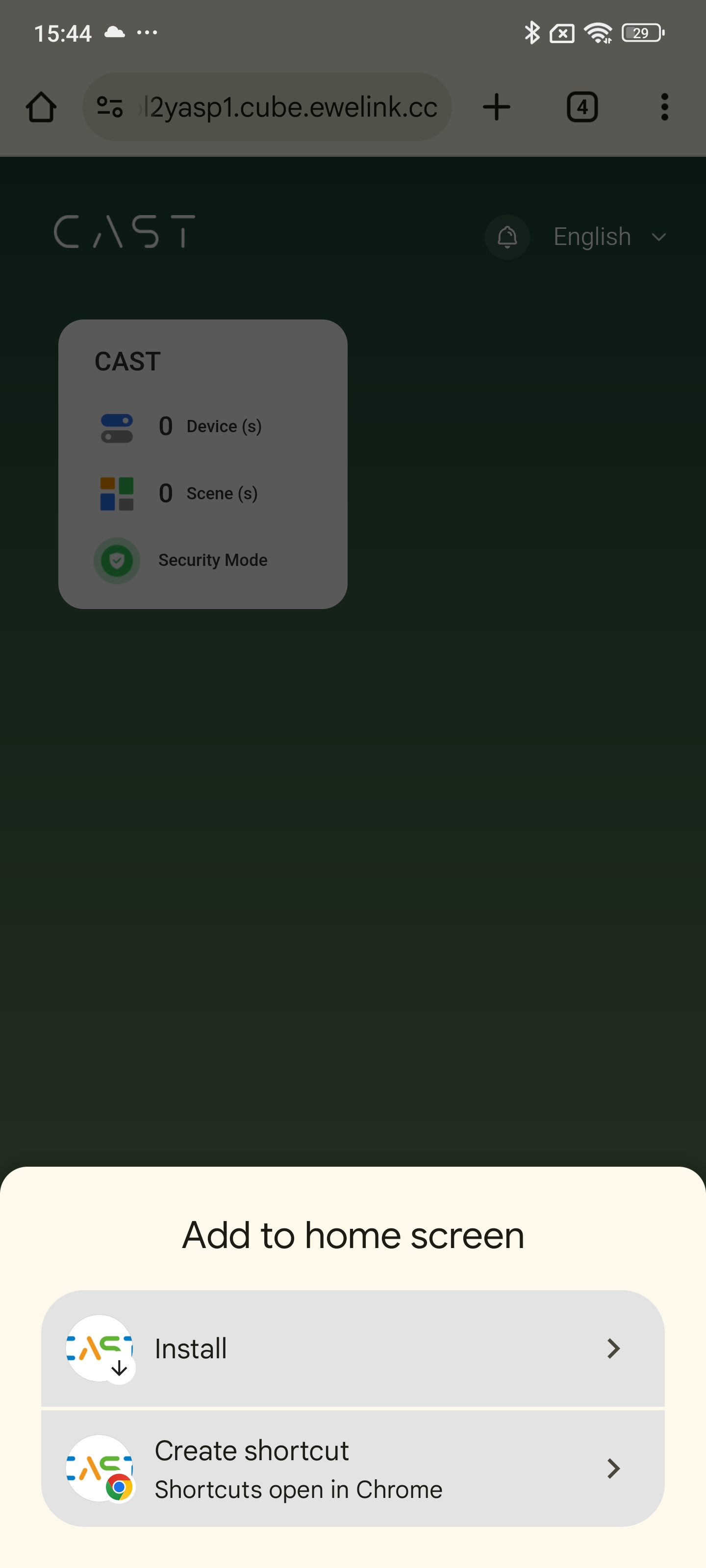
For Chrome, tap on the button next to the address bar, and select "Add to home screen".
Chrome may give you option to add CAST as a shortcut or an app, select Install.
{% endstep %}
{% step %}
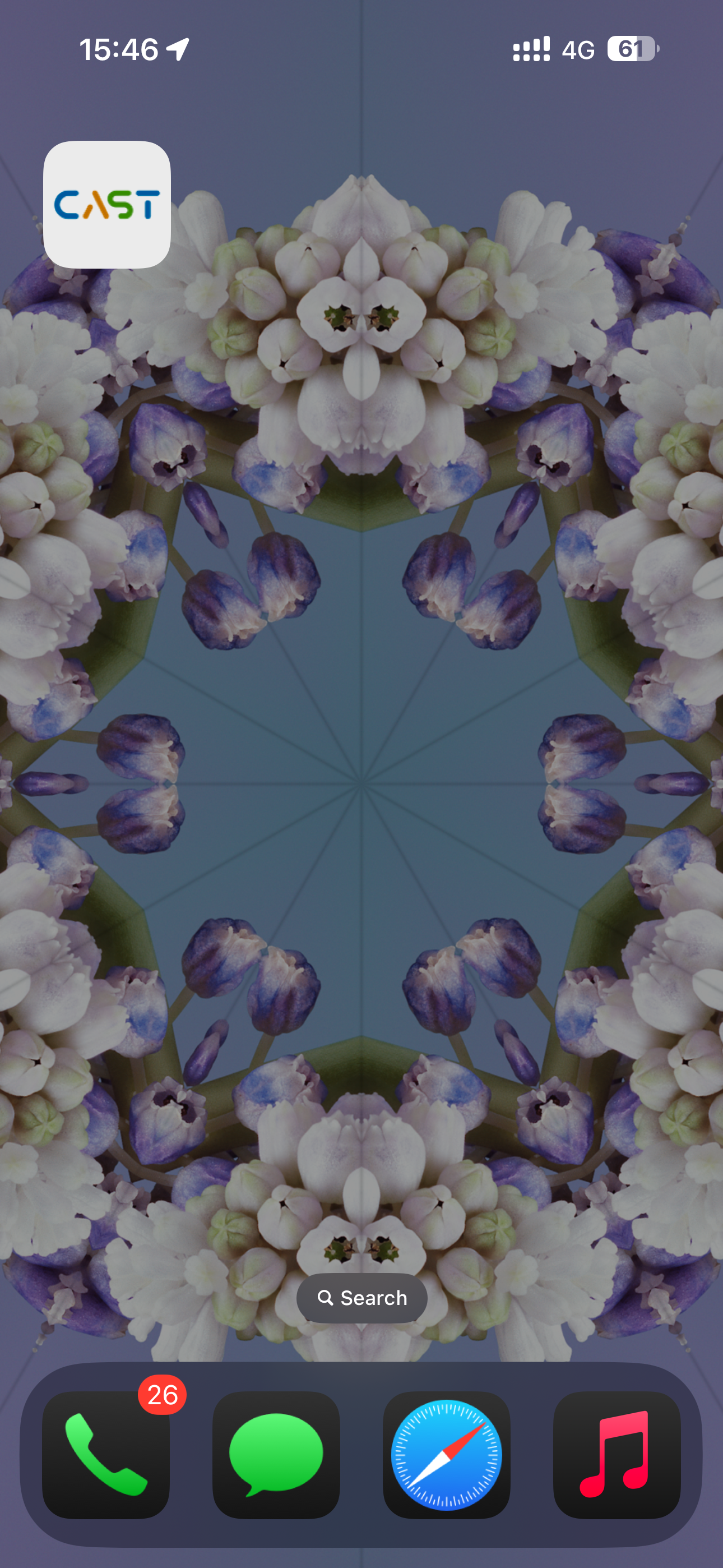
Close your browser, and click on the CAST icon you just added to your Home Screen.
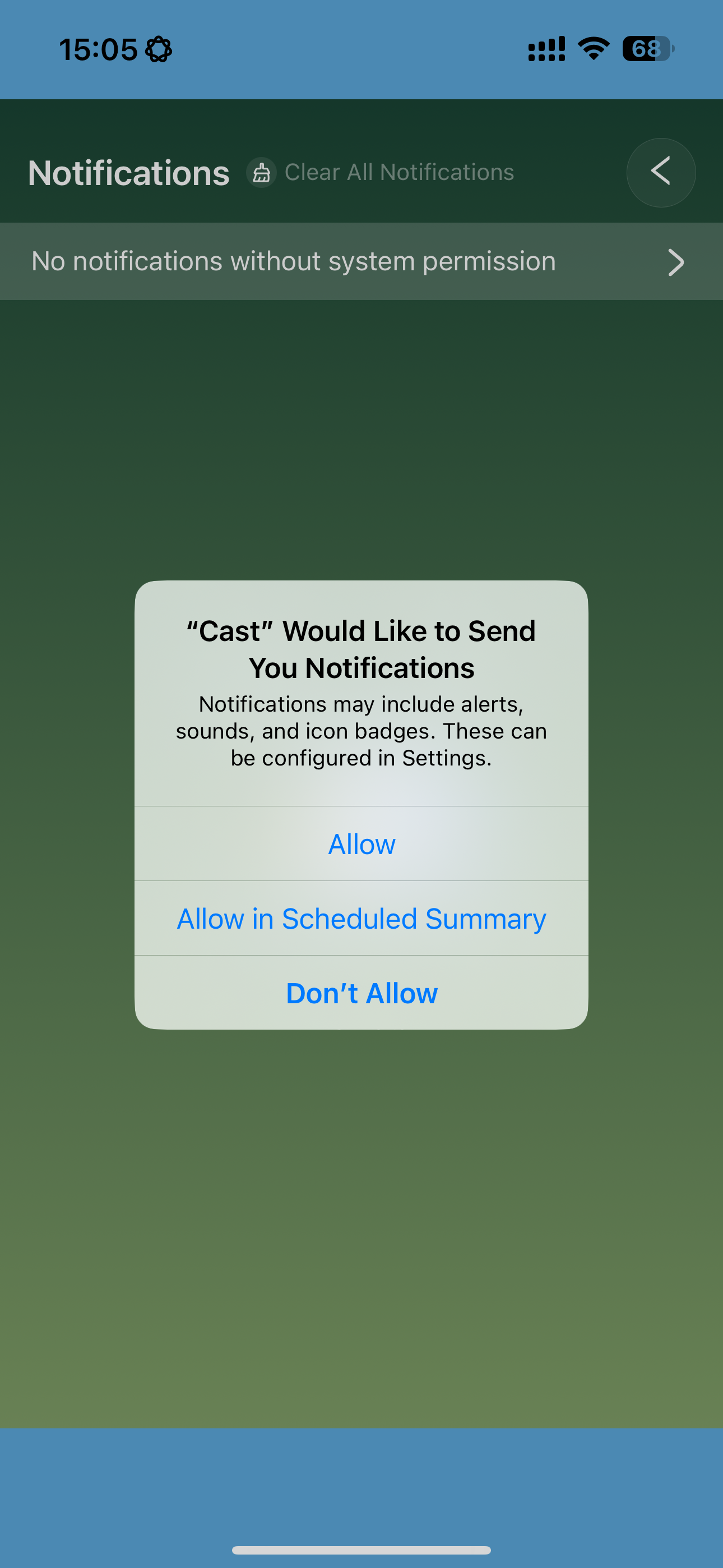
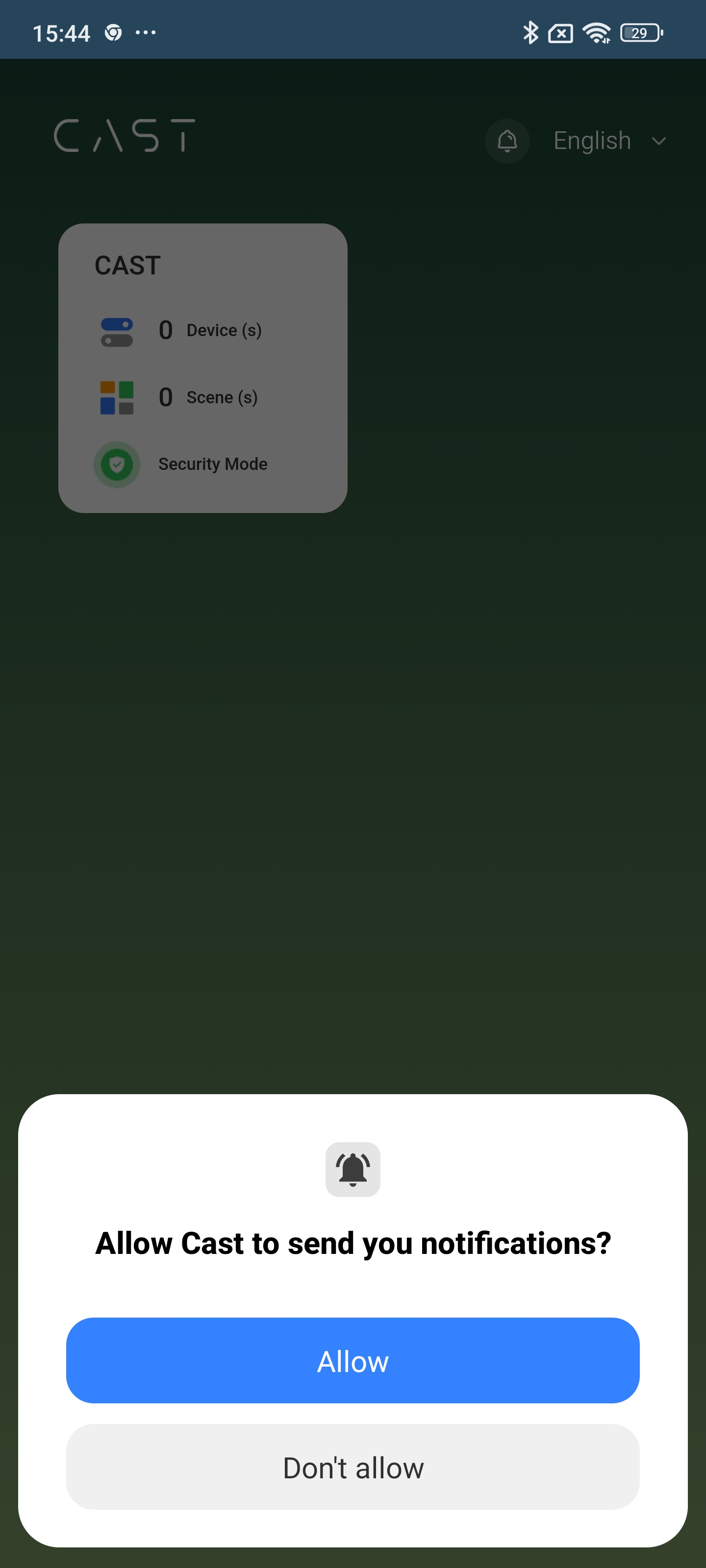
The system may ask you permission for notification, tap Allow.
If your phone didn't ask for permission, please click on the Alarm icon, and click on the banner that says "No notifications without system permission". This move will force a trigger to ask for notification permission.
{% endstep %}
{% step %}
Once you are allowed permission, you are free to explore all the features.
{% endstep %}
{% endstepper %}
{% hint style="warning" %}
The Remote Features use web app technology, and functionality may vary based on your phone's operating system and browser. As previously noted, Safari and Chrome delivered better performance during testing.
{% endhint %}
---
# Agent Instructions
This documentation is published with GitBook. GitBook is the documentation platform designed so that both humans and AI agents can read, navigate, and reason over technical content effectively. Learn more at gitbook.com.
## Querying This Documentation
If you need additional information that is not directly available in this page, you can query the documentation dynamically by asking a question.
Perform an HTTP GET request on the current page URL with the `ask` query parameter, and the optional `goal` query parameter:
```
GET https://cube.ewelink.cc/feature-exploration/remote-access-and-notification.md?ask=&goal=
```
`ask` is the immediate question: it should be specific, self-contained, and written in natural language.
`goal` is optional and describes the broader end goal you are ultimately trying to accomplish on behalf of the user. GitBook uses it to tailor the answer towards what is most useful for that goal.
The response will contain a direct answer to the question and relevant excerpts and sources from the documentation.
Use this mechanism when the answer is not explicitly present in the current page, you need clarification or additional context, or you want to retrieve related documentation sections.