> For the complete documentation index, see [llms.txt](https://cube.ewelink.cc/llms.txt). Markdown versions of documentation pages are available by appending `.md` to page URLs; this page is available as [Markdown](https://cube.ewelink.cc/getting-started/quickstart/nas-devices/ugreen-nas.md).
# UGREEN NAS
## 1. Preparation
Please make sure your setup meets the following requirements:
{% stepper %}
{% step %}
**6GB RAM** installed (recommended) in your UGREEN NAS (4GB for the virtual machine running CUBE OS); Please contact UGREEN for upgrading guides if your unit only has 2GB or less memory.
{% endstep %}
{% step %}
Your NAS has an x86\_64 platform
{% hint style="info" %}
Currently, only x86\_64 architecture is supported by this installation method.
For ARM and other platforms, please turn to other devices and wait for future updates.
{% endhint %}
{% endstep %}
{% step %}
WAN access to download the virtual machine manager
{% endstep %}
{% step %}
Zigbee Adapter (Optional)
If you need to add Zigbee devices, prepare a Zigbee Dongle. Tested Zigbee Dongles include:
> SONOFF ZBDongle-MAX\
> SONOFF ZBDongle-PMG24\
> SONOFF ZBDongle-LMG21\
> SONOFF ZBDongle-E\
> SONOFF ZBDongle-P\
> [Others listed](https://darkxst.github.io/silabs-firmware-builder/) by developer @darkxst
{% hint style="info" %}
For more information on Zigbee configurations and compatibility, please refer to this [guide](/compatibility-check/zigbee.md).
{% endhint %}
{% endstep %}
{% endstepper %}
## 2. Installation
{% stepper %}
{% step %}
Visit this [repo](https://github.com/eWeLinkCUBE/CUBE-OS/releases/latest) to download the CUBE OS image ending with `.vdi`
{% endstep %}
{% step %}
Access to UGREEN dashboard
{% endstep %}
{% step %}
Install `Virtual Machine Manager` from. Launch `Virtual Machine Manager` from the dashboard and switch to the Image page.

{% endstep %}
{% step %}
Click **Create VM**, then select **Import Virtual Machine**. Choose **Import from Disk File**, then click **Next**.

{% endstep %}
{% step %}
If this is your first time setting up, select **Upload image manually**.
{% endstep %}
{% step %}
Locate the downloaded CUBE OS `.vdi` file:
* You can upload it from your local device, or
* Select it from existing files on your NAS.

{% endstep %}
{% step %}
After selecting the image, click **Confirm** to upload and convert the image.
{% endstep %}
{% step %}
Once imported, repeat the **Import Virtual Machine** process:
* The uploaded image will now appear in the dropdown list.
* Select it and click **Next**.

{% endstep %}
{% step %}
Choose a storage volume for the virtual machine and continue.

{% endstep %}
{% endstepper %}
## 3. Configure Virtual Machine Settings
{% stepper %}
{% step %}
Basic Configuration:
* **System type**: Select **Other**
* **vCPUs**: 2 cores (or more if available)
* **Memory**: Allocate **4GB or more**

{% endstep %}
{% step %}
Network Configuration:
* Select **Bridge mode** (Do **not** use Host or NAT)

{% endstep %}
{% step %}
Under USB options, locate and add your Zigbee/Thread USB dongle:
* Click the **+** icon to assign the correct USB port.

{% endstep %}
{% step %}
Set **Bootstrap Type** to **UEFI**.

{% endstep %}
{% endstepper %}
## 4. Booting CUBE OS
{% stepper %}
{% step %}
Back in the VM list, click **Start** to power on the virtual machine.
{% endstep %}
{% step %}
Wait for a few minutes. Click **Connect** to view the VM console:
* If the CUBE OS welcome screen appears, the system has started successfully.
{% endstep %}
{% step %}
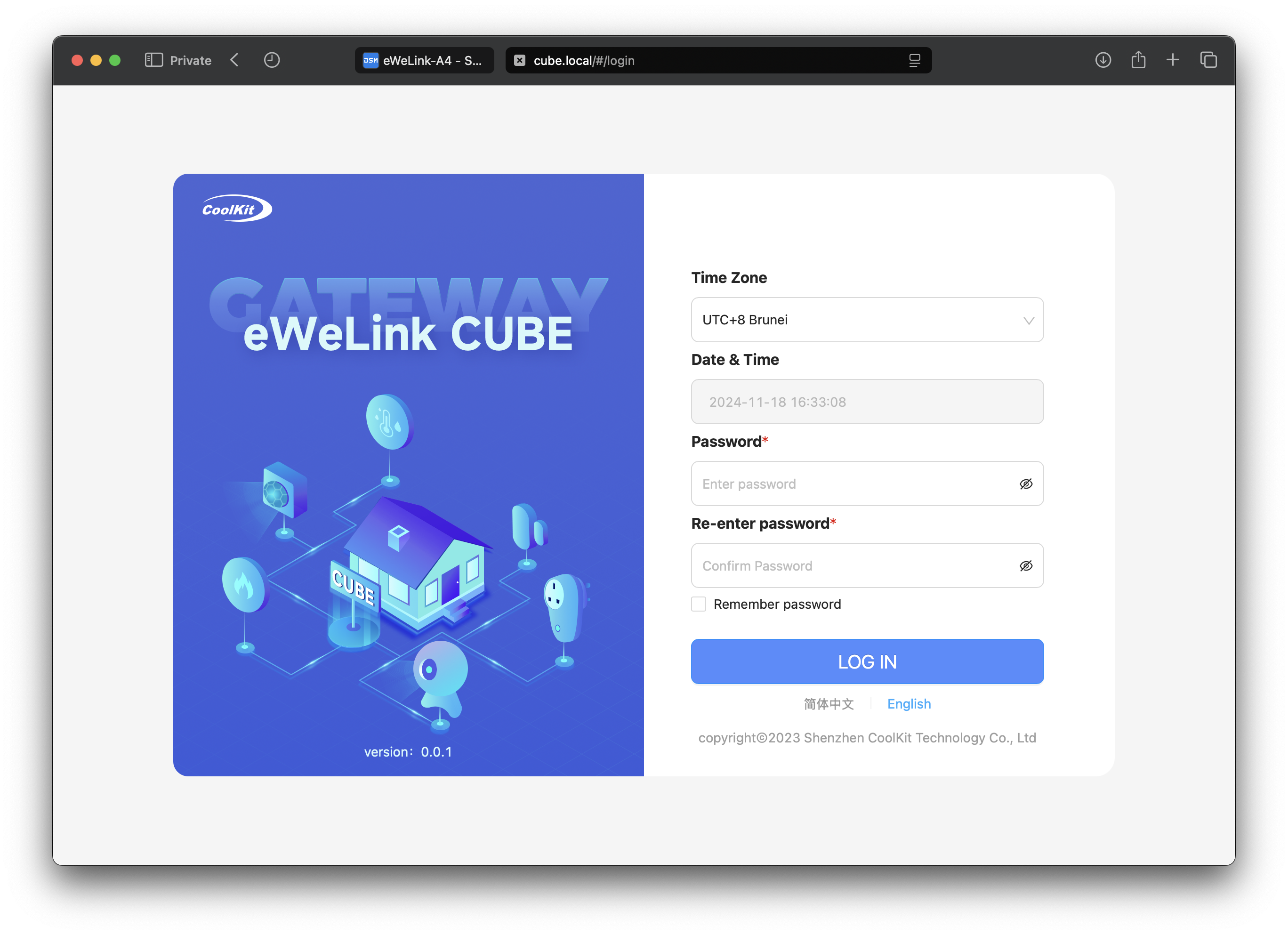
Enter [cube.local](http://cube.local) on your browser to access the onboarding page. You can also access it via IP alternatively.
 {% hint style="info" %}
Upon successful access, a short ID can be viewed on the settings page. Subsequently, access the CUBE OS Web management page using cube-{short id}.local, which is useful for differentiating multiple CUBE OS instances on the same local network.
{% endhint %}
{% endstep %}
{% endstepper %}
---
# Agent Instructions
This documentation is published with GitBook. GitBook is the documentation platform designed so that both humans and AI agents can read, navigate, and reason over technical content effectively. Learn more at gitbook.com.
## Querying This Documentation
If you need additional information that is not directly available in this page, you can query the documentation by asking a question.
Perform an HTTP GET request on the following URL with the `ask` and `goal` query parameters:
```
GET https://cube.ewelink.cc/getting-started/quickstart/nas-devices/ugreen-nas.md?ask=&goal=
```
`ask` is the immediate question: it should be specific, self-contained, and written in natural language.
`goal` is what the user is ultimately trying to achieve, the reason they need the answer. Sharing it helps GitBook give you a better, more relevant answer. A goal is most helpful when it describes the outcome the user wants rather than restating the question. For example, with `ask=how do I create an API token`, a goal like `automate deployments from our CI pipeline` lets GitBook tailor the answer to that use case.
The response will contain a direct answer to the question and relevant excerpts and sources from the documentation.
Use this mechanism when the answer is not explicitly present in the current page, you need clarification or additional context, or you want to retrieve related documentation sections.
{% hint style="info" %}
Upon successful access, a short ID can be viewed on the settings page. Subsequently, access the CUBE OS Web management page using cube-{short id}.local, which is useful for differentiating multiple CUBE OS instances on the same local network.
{% endhint %}
{% endstep %}
{% endstepper %}
---
# Agent Instructions
This documentation is published with GitBook. GitBook is the documentation platform designed so that both humans and AI agents can read, navigate, and reason over technical content effectively. Learn more at gitbook.com.
## Querying This Documentation
If you need additional information that is not directly available in this page, you can query the documentation by asking a question.
Perform an HTTP GET request on the following URL with the `ask` and `goal` query parameters:
```
GET https://cube.ewelink.cc/getting-started/quickstart/nas-devices/ugreen-nas.md?ask=&goal=
```
`ask` is the immediate question: it should be specific, self-contained, and written in natural language.
`goal` is what the user is ultimately trying to achieve, the reason they need the answer. Sharing it helps GitBook give you a better, more relevant answer. A goal is most helpful when it describes the outcome the user wants rather than restating the question. For example, with `ask=how do I create an API token`, a goal like `automate deployments from our CI pipeline` lets GitBook tailor the answer to that use case.
The response will contain a direct answer to the question and relevant excerpts and sources from the documentation.
Use this mechanism when the answer is not explicitly present in the current page, you need clarification or additional context, or you want to retrieve related documentation sections.