> For the complete documentation index, see [llms.txt](https://cube.ewelink.cc/llms.txt). Markdown versions of documentation pages are available by appending `.md` to page URLs; this page is available as [Markdown](https://cube.ewelink.cc/getting-started/add-devices/matter-beta-devices.md).
# Matter (Beta) Devices
A guide to add Matter devices to CUBE OS. You can also share Matter devices from other apps following the provided steps.
CUBE OS has a built-in Matter Hub (Controller) feature, allowing you to add supported Matter devices to your home locally.
{% hint style="info" %}
For compatibility, check the **Supported Accessory** [article](/compatibility-check/matter.md).
{% endhint %}
## 1. For New/Factory Reset Devices
{% stepper %}
{% step %}
### Find Onboarding Code
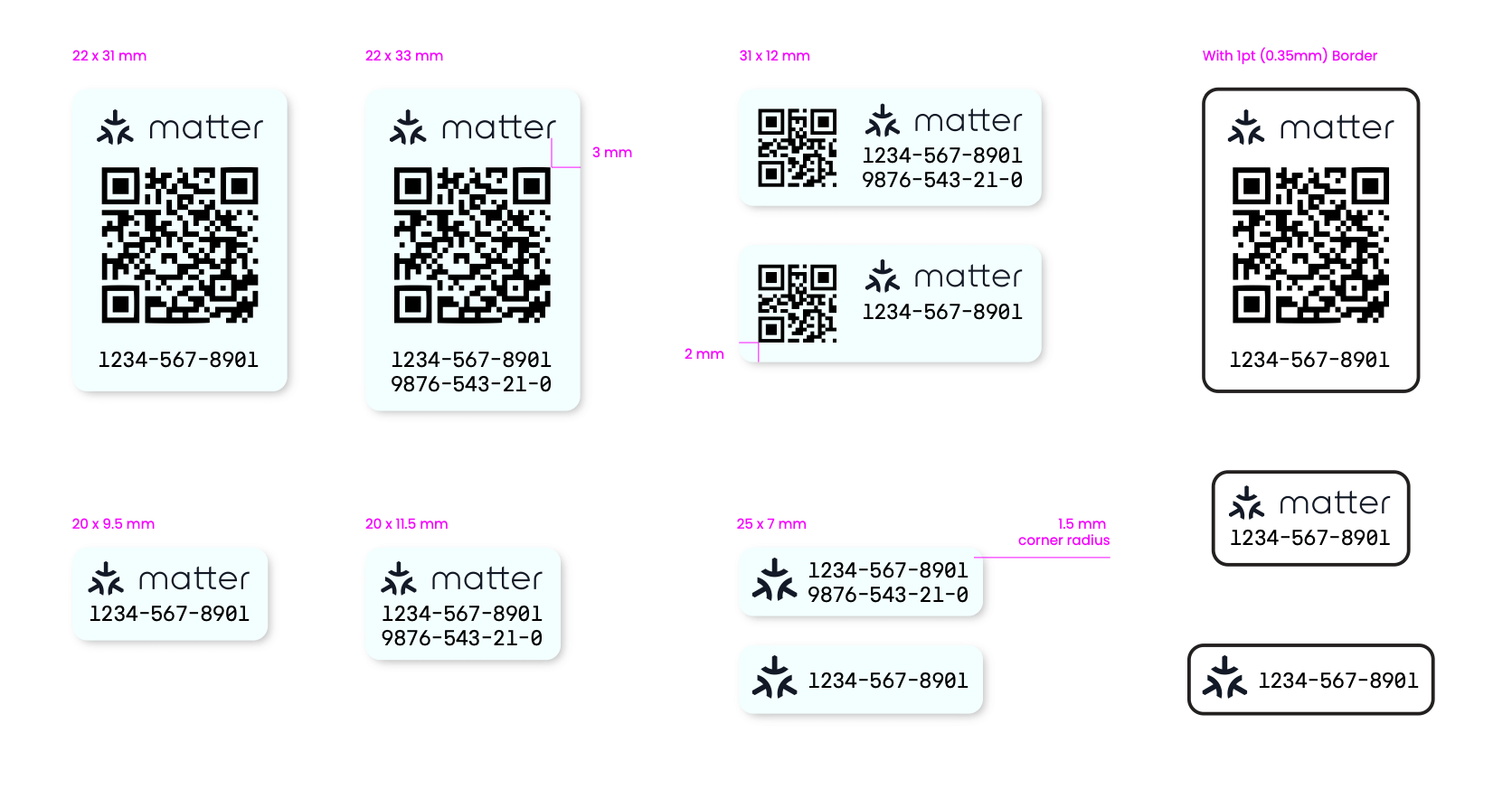
Locate the Matter onboarding code on your product, packaging, or manual. It will look similar to the demo shown below:
*Credit: Connectivity Standards Alliance*
{% hint style="info" %}
Some devices must first be paired with specific apps to generate the code.
For instance, older models of Wiz, and most Matter bridges require this step. In such cases, follow the vendor’s guide to obtain the Matter Onboarding Code.
{% endhint %}
{% endstep %}
{% step %}
Visit your CUBE OS home page.

Click on the `+` button, and select `Add Device`.
{% endstep %}
{% step %}
### 3.1 Auto Option
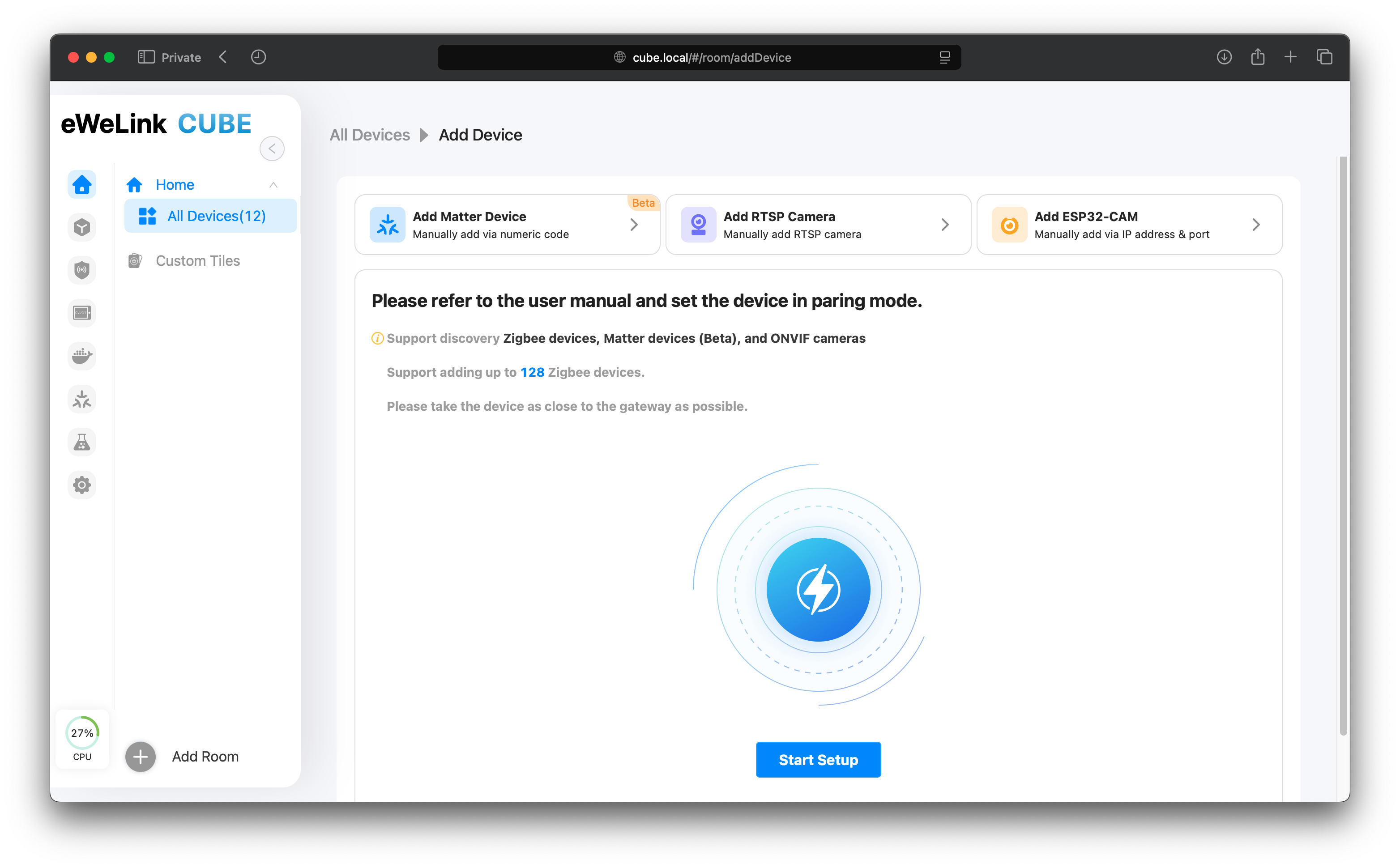
Power on your Matter devices and ensure they are in pairing mode following the manufacturer's guides. Then click `Start Setup`.
Available devices would be listed on this interface. Select the one you want to add.
### 3.2 Manual Option
Click `AddMatter Devices`
{% endstep %}
{% step %}
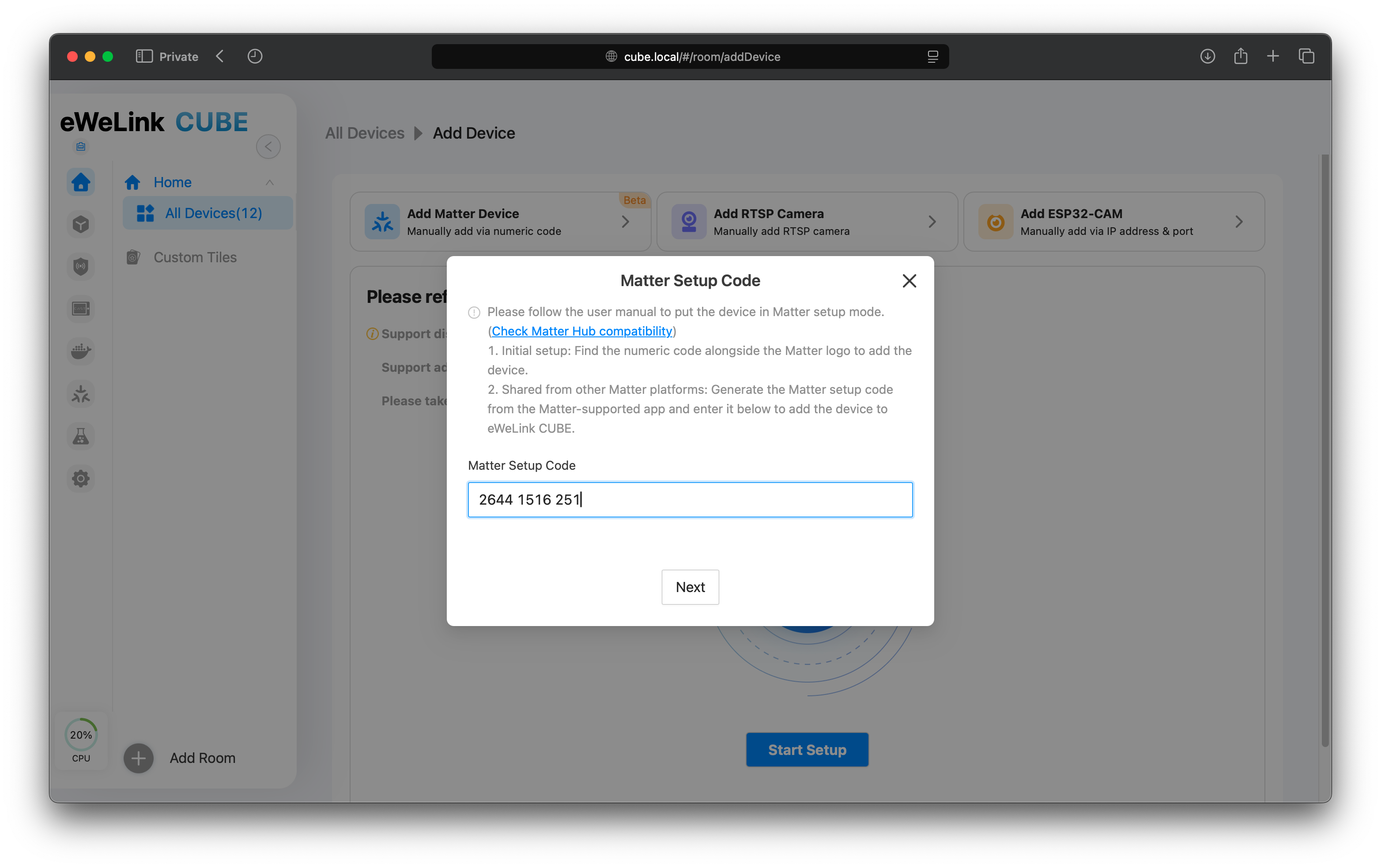
Enter the onboarding code of your devices obtained from [step 1](#for-new-factory-reset-devices).
{% endstep %}
{% step %}
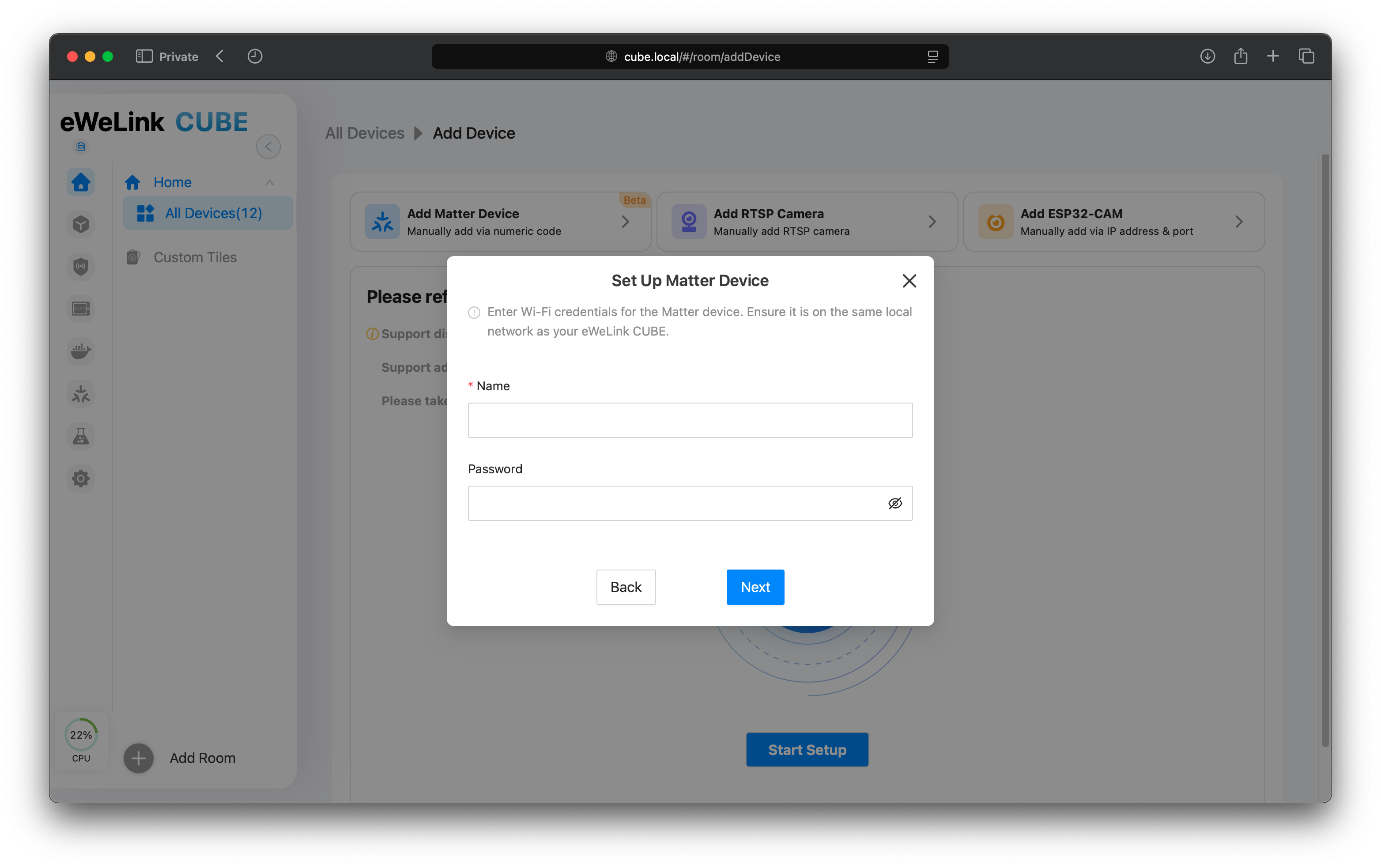
Fill in your Wi-Fi credentials if you are prompted to do so.
Then click `Next`.
{% endstep %}
{% step %}
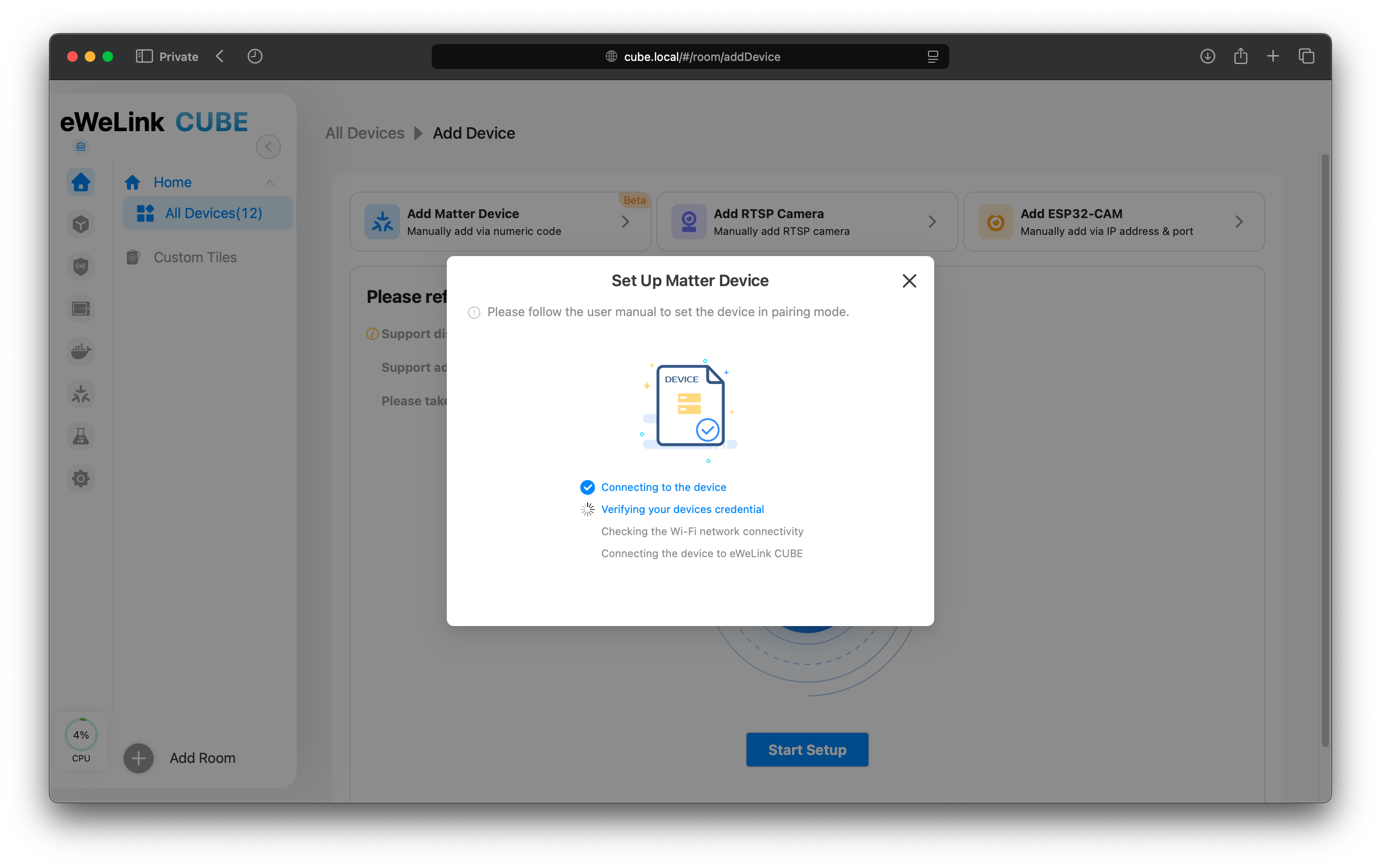
CUBE OS will start to talk with your devices for setups.
{% endstep %}
{% step %}
When finishing adding your device, CUBE OS will promote a window to name it and assign it to a room.
{% endstep %}
{% endstepper %}
## 2. For Devices From Other Apps
For Matter devices already in use, follow these steps to enable pairing and get the onboarding codes:
### **2.1 Apple Home**
#### **2.1.1 Native Matter Devices (e.g. Matter Wi-Fi Plugs)**
{% stepper %}
{% step %}
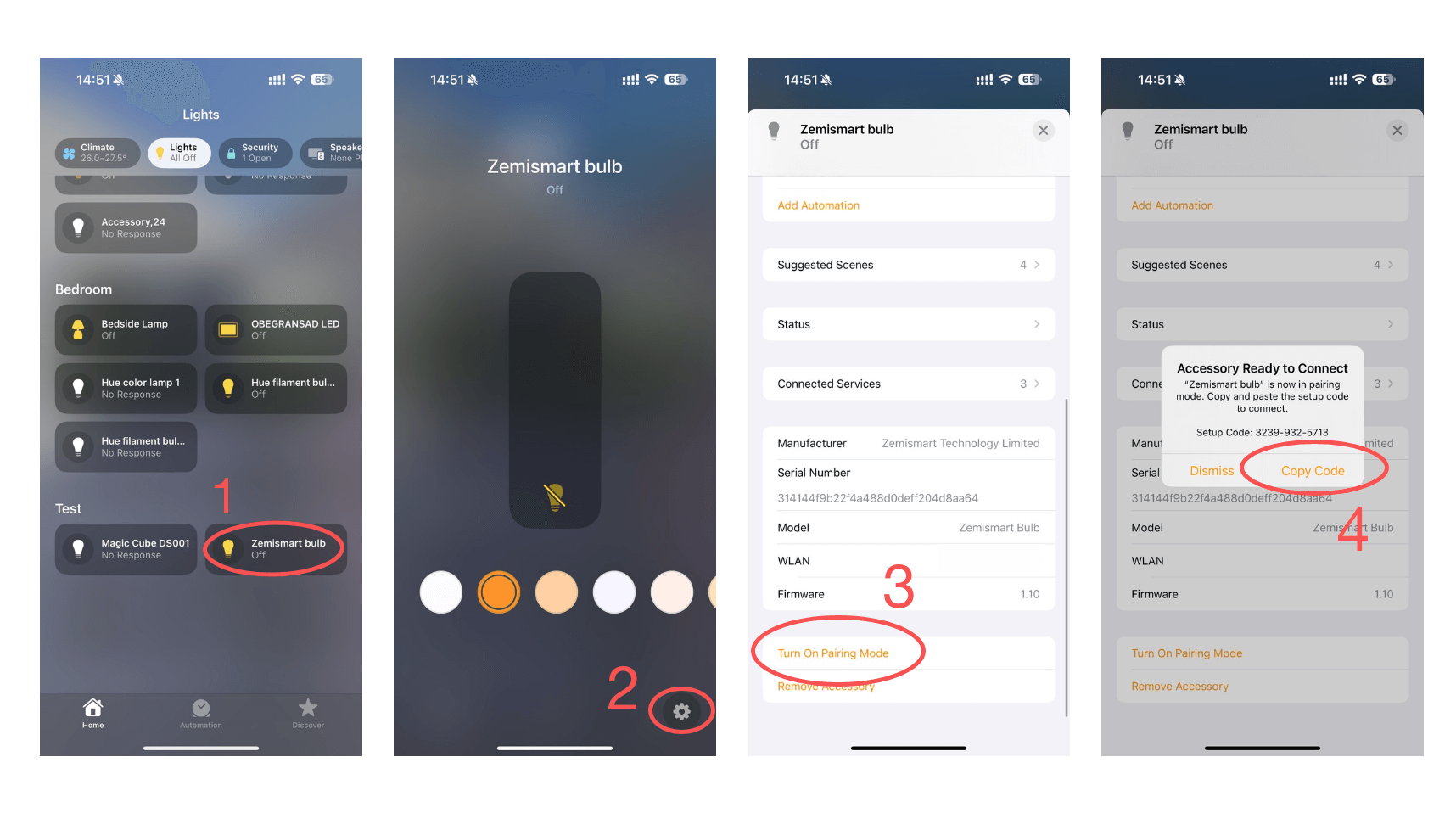
Open the Home app and find the tile of the device you want to share.
{% endstep %}
{% step %}
Open the device's control panel and tap the gear icon.
{% endstep %}
{% step %}
In the device settings page, scroll to the bottom and tap “Turn On Pairing Mode.”
{% endstep %}
{% step %}
Copy the code and follow the pairing guide on the CUBE OS page.
{% endstep %}
{% endstepper %}
#### **2.1.2 For bridged devices like *****Philips Hue lights with Hue Bridge*****:**
{% stepper %}
{% step %}
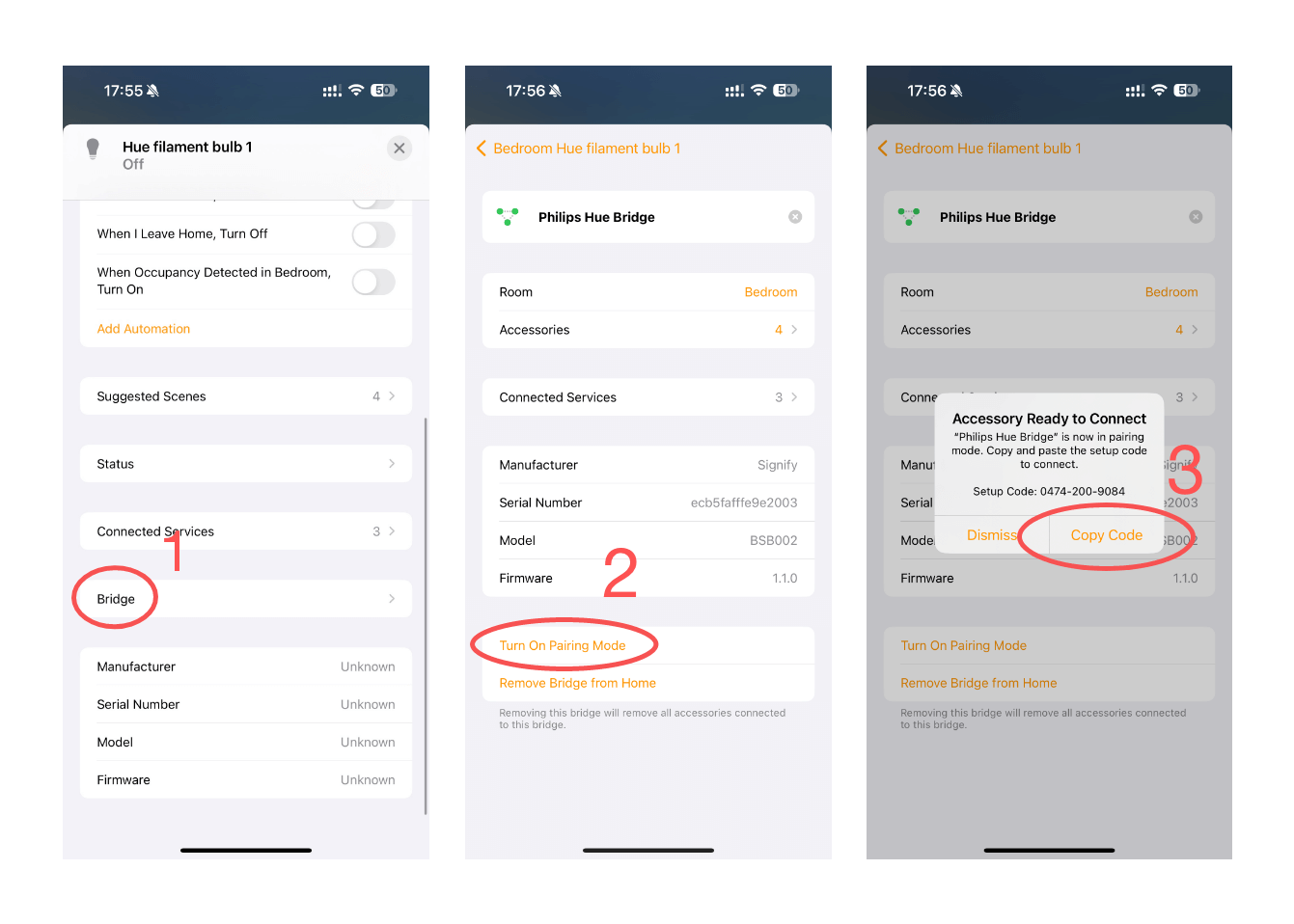
Open the Home app and find the tile of the device you want to share.
{% endstep %}
{% step %}
Open the device's control panel and tap the gear icon.
{% endstep %}
{% step %}
In the **device settings** page, **scroll down** to “**Bridge**” and tap it.
{% endstep %}
{% step %}
This will lead you to the settings page of the bridge that connects your devices, scroll to the bottom and tap “Turn On Pairing Mode.”
{% endstep %}
{% step %}
Copy the code and follow the pairing guide on the CUBE OS page.
{% endstep %}
{% endstepper %}
{% hint style="info" %}
Please Note: This will bring all supported devices attached to the bridge to your CUBE OS.
{% endhint %}
### **2.2 Google Home**
#### **2.2.1 Native Matter Devices (e.g. Matter Wi-Fi Plugs)**
{% stepper %}
{% step %}
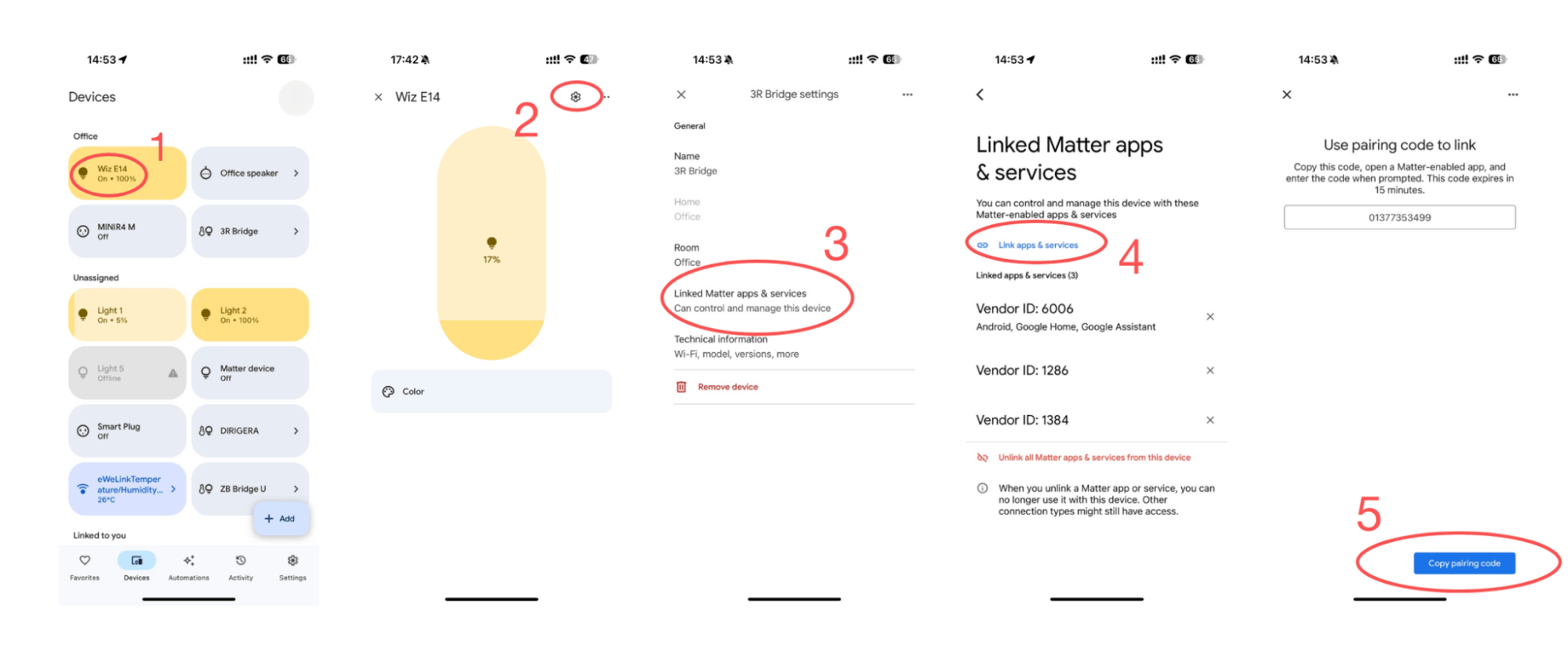
Open the Google Home app.
{% endstep %}
{% step %}
Select the device you want to add to eWeLink.
{% endstep %}
{% step %}
Tap the gear icon for the settings page.
{% endstep %}
{% step %}
Tap “Linked Matter apps & services.”
{% endstep %}
{% step %}
Wait for it to load and press “Link Matter apps & services.”
{% endstep %}
{% step %}
Copy the code and follow the pairing guide in the eWeLink app.
{% endstep %}
{% endstepper %}
#### **2.2.2 For bridged devices like *****Philips Hue lights with Hue Bridge*****:**
For bridged devices, the steps are identical to those in the above section.
### **2.3 Alexa & SmartThings**
Alexa and SmartThings provide official guides to follow:
[How to Set Up an Alexa Connected Matter Device with Another Assistant](https://www.amazon.com/gp/help/customer/display.html?nodeId=T6iLWTtbZygaBJnQhg)
[SmartThings x Matter Integration](https://support.smartthings.com/hc/en-us/articles/11219700390804-SmartThings-x-Matter-Integration)
---
# Agent Instructions
This documentation is published with GitBook. GitBook is the documentation platform designed so that both humans and AI agents can read, navigate, and reason over technical content effectively. Learn more at gitbook.com.
## Querying This Documentation
If you need additional information that is not directly available in this page, you can query the documentation dynamically by asking a question.
Perform an HTTP GET request on the current page URL with the `ask` query parameter, and the optional `goal` query parameter:
```
GET https://cube.ewelink.cc/getting-started/add-devices/matter-beta-devices.md?ask=&goal=
```
`ask` is the immediate question: it should be specific, self-contained, and written in natural language.
`goal` is optional and describes the broader end goal you are ultimately trying to accomplish on behalf of the user. GitBook uses it to tailor the answer towards what is most useful for that goal.
The response will contain a direct answer to the question and relevant excerpts and sources from the documentation.
Use this mechanism when the answer is not explicitly present in the current page, you need clarification or additional context, or you want to retrieve related documentation sections.
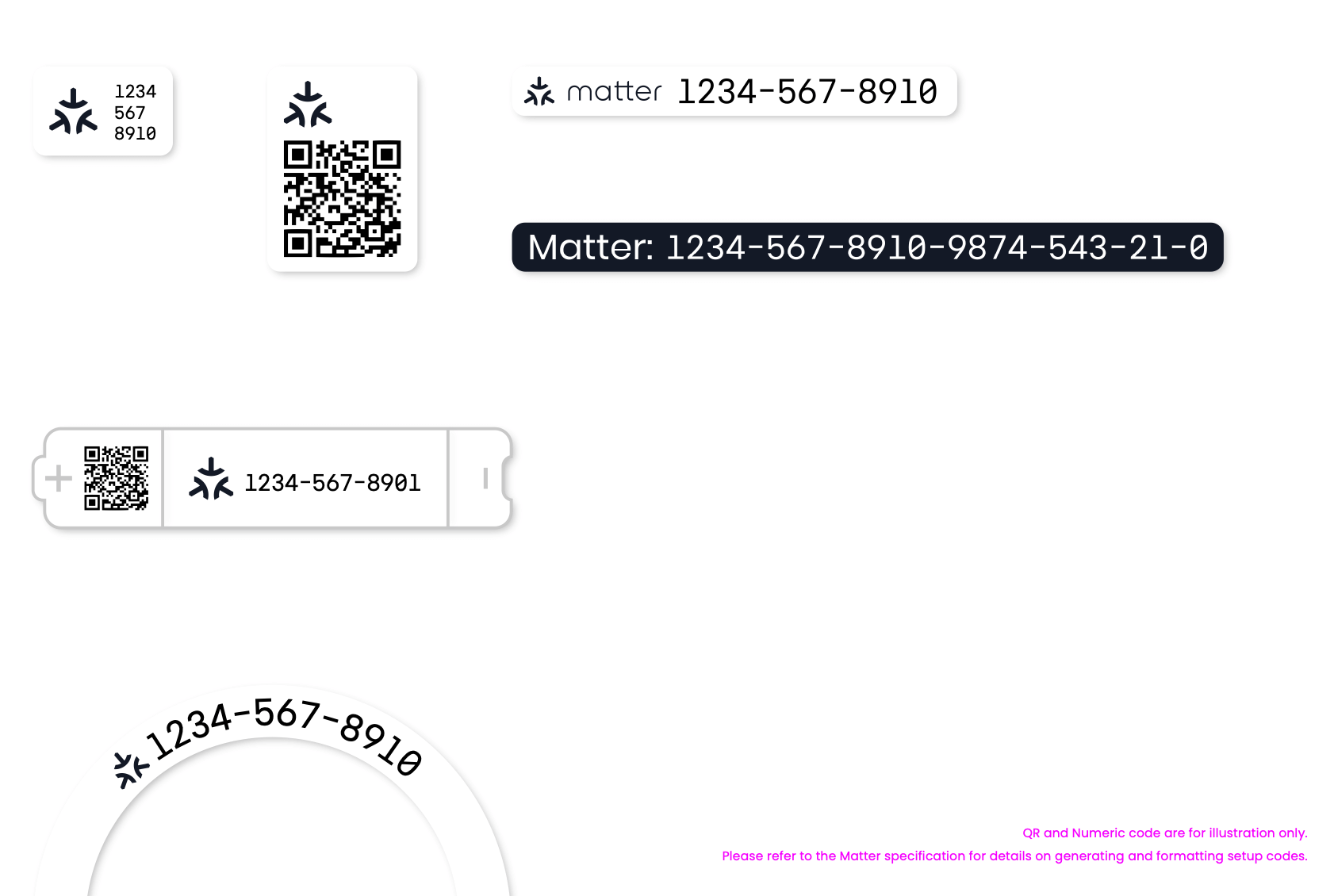 *Credit: Connectivity Standards Alliance*
{% hint style="info" %}
Some devices must first be paired with specific apps to generate the code.
For instance, older models of Wiz, and most Matter bridges require this step. In such cases, follow the vendor’s guide to obtain the Matter Onboarding Code.
{% endhint %}
{% endstep %}
{% step %}
Visit your CUBE OS home page.

Click on the `+` button, and select `Add Device`.
*Credit: Connectivity Standards Alliance*
{% hint style="info" %}
Some devices must first be paired with specific apps to generate the code.
For instance, older models of Wiz, and most Matter bridges require this step. In such cases, follow the vendor’s guide to obtain the Matter Onboarding Code.
{% endhint %}
{% endstep %}
{% step %}
Visit your CUBE OS home page.

Click on the `+` button, and select `Add Device`.
 {% endstep %}
{% step %}
### 3.1 Auto Option
Power on your Matter devices and ensure they are in pairing mode following the manufacturer's guides. Then click `Start Setup`.
Available devices would be listed on this interface. Select the one you want to add.
### 3.2 Manual Option
Click `AddMatter Devices`
{% endstep %}
{% step %}
Enter the onboarding code of your devices obtained from [step 1](#for-new-factory-reset-devices).
{% endstep %}
{% step %}
### 3.1 Auto Option
Power on your Matter devices and ensure they are in pairing mode following the manufacturer's guides. Then click `Start Setup`.
Available devices would be listed on this interface. Select the one you want to add.
### 3.2 Manual Option
Click `AddMatter Devices`
{% endstep %}
{% step %}
Enter the onboarding code of your devices obtained from [step 1](#for-new-factory-reset-devices).
 {% endstep %}
{% step %}
Fill in your Wi-Fi credentials if you are prompted to do so.
Then click `Next`.
{% endstep %}
{% step %}
Fill in your Wi-Fi credentials if you are prompted to do so.
Then click `Next`.
 {% endstep %}
{% step %}
CUBE OS will start to talk with your devices for setups.
{% endstep %}
{% step %}
CUBE OS will start to talk with your devices for setups.
 {% endstep %}
{% step %}
When finishing adding your device, CUBE OS will promote a window to name it and assign it to a room.
{% endstep %}
{% endstepper %}
## 2. For Devices From Other Apps
For Matter devices already in use, follow these steps to enable pairing and get the onboarding codes:
### **2.1 Apple Home**
#### **2.1.1 Native Matter Devices (e.g. Matter Wi-Fi Plugs)**
{% stepper %}
{% step %}
Open the Home app and find the tile of the device you want to share.
{% endstep %}
{% step %}
Open the device's control panel and tap the gear icon.
{% endstep %}
{% step %}
In the device settings page, scroll to the bottom and tap “Turn On Pairing Mode.”
{% endstep %}
{% step %}
Copy the code and follow the pairing guide on the CUBE OS page.

{% endstep %}
{% endstepper %}
#### **2.1.2 For bridged devices like *****Philips Hue lights with Hue Bridge*****:**
{% stepper %}
{% step %}
Open the Home app and find the tile of the device you want to share.
{% endstep %}
{% step %}
Open the device's control panel and tap the gear icon.
{% endstep %}
{% step %}
In the **device settings** page, **scroll down** to “**Bridge**” and tap it.
{% endstep %}
{% step %}
This will lead you to the settings page of the bridge that connects your devices, scroll to the bottom and tap “Turn On Pairing Mode.”

{% endstep %}
{% step %}
Copy the code and follow the pairing guide on the CUBE OS page.
{% endstep %}
{% endstepper %}
{% hint style="info" %}
Please Note: This will bring all supported devices attached to the bridge to your CUBE OS.
{% endhint %}
### **2.2 Google Home**
#### **2.2.1 Native Matter Devices (e.g. Matter Wi-Fi Plugs)**
{% stepper %}
{% step %}
Open the Google Home app.
{% endstep %}
{% step %}
Select the device you want to add to eWeLink.
{% endstep %}
{% step %}
Tap the gear icon for the settings page.
{% endstep %}
{% step %}
Tap “Linked Matter apps & services.”
{% endstep %}
{% step %}
Wait for it to load and press “Link Matter apps & services.”
{% endstep %}
{% step %}
Copy the code and follow the pairing guide in the eWeLink app.
{% endstep %}
{% endstepper %}
{% endstep %}
{% step %}
When finishing adding your device, CUBE OS will promote a window to name it and assign it to a room.
{% endstep %}
{% endstepper %}
## 2. For Devices From Other Apps
For Matter devices already in use, follow these steps to enable pairing and get the onboarding codes:
### **2.1 Apple Home**
#### **2.1.1 Native Matter Devices (e.g. Matter Wi-Fi Plugs)**
{% stepper %}
{% step %}
Open the Home app and find the tile of the device you want to share.
{% endstep %}
{% step %}
Open the device's control panel and tap the gear icon.
{% endstep %}
{% step %}
In the device settings page, scroll to the bottom and tap “Turn On Pairing Mode.”
{% endstep %}
{% step %}
Copy the code and follow the pairing guide on the CUBE OS page.

{% endstep %}
{% endstepper %}
#### **2.1.2 For bridged devices like *****Philips Hue lights with Hue Bridge*****:**
{% stepper %}
{% step %}
Open the Home app and find the tile of the device you want to share.
{% endstep %}
{% step %}
Open the device's control panel and tap the gear icon.
{% endstep %}
{% step %}
In the **device settings** page, **scroll down** to “**Bridge**” and tap it.
{% endstep %}
{% step %}
This will lead you to the settings page of the bridge that connects your devices, scroll to the bottom and tap “Turn On Pairing Mode.”

{% endstep %}
{% step %}
Copy the code and follow the pairing guide on the CUBE OS page.
{% endstep %}
{% endstepper %}
{% hint style="info" %}
Please Note: This will bring all supported devices attached to the bridge to your CUBE OS.
{% endhint %}
### **2.2 Google Home**
#### **2.2.1 Native Matter Devices (e.g. Matter Wi-Fi Plugs)**
{% stepper %}
{% step %}
Open the Google Home app.
{% endstep %}
{% step %}
Select the device you want to add to eWeLink.
{% endstep %}
{% step %}
Tap the gear icon for the settings page.
{% endstep %}
{% step %}
Tap “Linked Matter apps & services.”
{% endstep %}
{% step %}
Wait for it to load and press “Link Matter apps & services.”
{% endstep %}
{% step %}
Copy the code and follow the pairing guide in the eWeLink app.
{% endstep %}
{% endstepper %}