> For the complete documentation index, see [llms.txt](https://cube.ewelink.cc/llms.txt). Markdown versions of documentation pages are available by appending `.md` to page URLs; this page is available as [Markdown](https://cube.ewelink.cc/getting-started/add-devices/ewelink-remote-sub-devices.md).
# eWeLink-Remote Sub-Devices
You can transform the CUBE OS into an eWeLink Remote Gateway, allowing integration of sub-devices like the [**S-MATE 2**](https://sonoff.tech/en-us/products/sonoff-s-mate-extreme-switch-mate/58) **or** [**R5**](https://sonoff.tech/en-us/products/sonoff-switchman-r5-scene-controller/58).
{% hint style="info" %}
**What is the eWeLink-Remote control?**
eWeLink-Remote Control is a unique new remote control solution for SONOFF devices. It provides a more convenient, more reliable, and longer-distance control way for your home appliances.
About the details, please view:
{% endhint %}
## 1. Enable eWeLink-Remote Control in Pilot
{% stepper %}
{% step %}
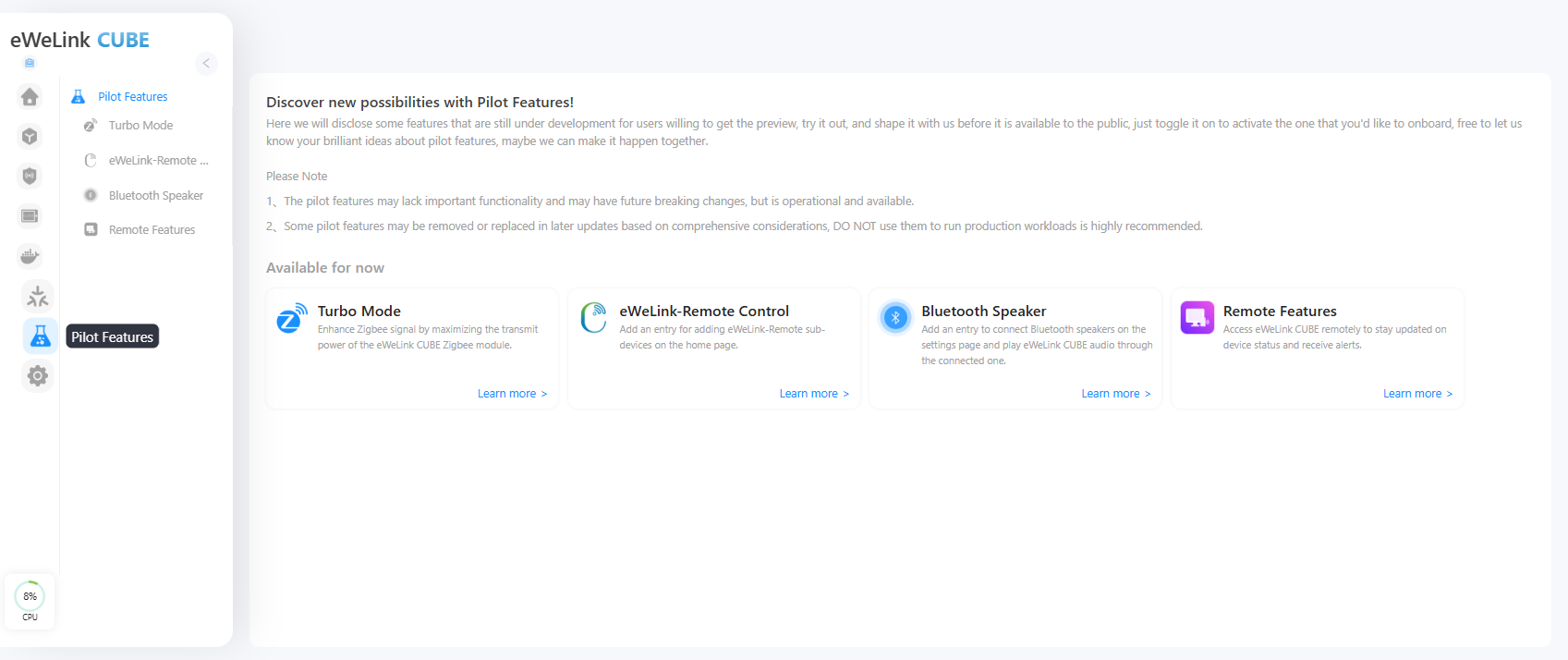
From the left sidebar, go to **Pilot Features**.
{% endstep %}
{% step %}
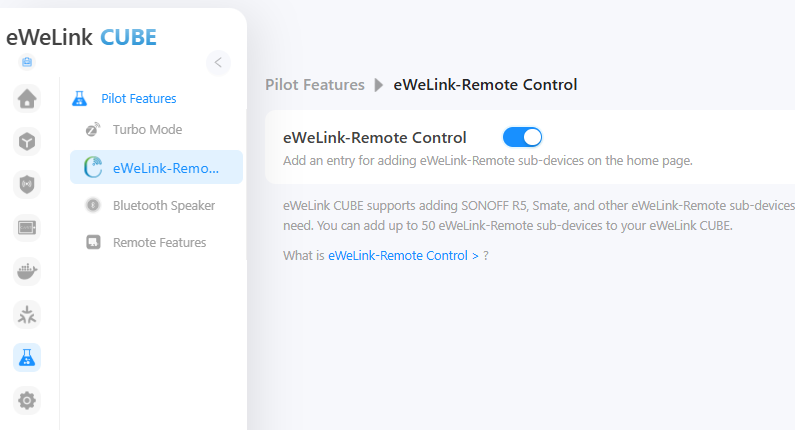
Find **eWeLink-Remote Control** and click **Learn More**. Toggle the switch to **enable** this feature.
{% endstep %}
{% step %}
Once enabled, CUBE OS will activate the eWeLink-Remote protocol and prepare to receive signals from compatible devices.
{% endstep %}
{% endstepper %}
## 2. Add an eWeLink-Remote Sub-Device (Using R5 as Example)
{% stepper %}
{% step %}
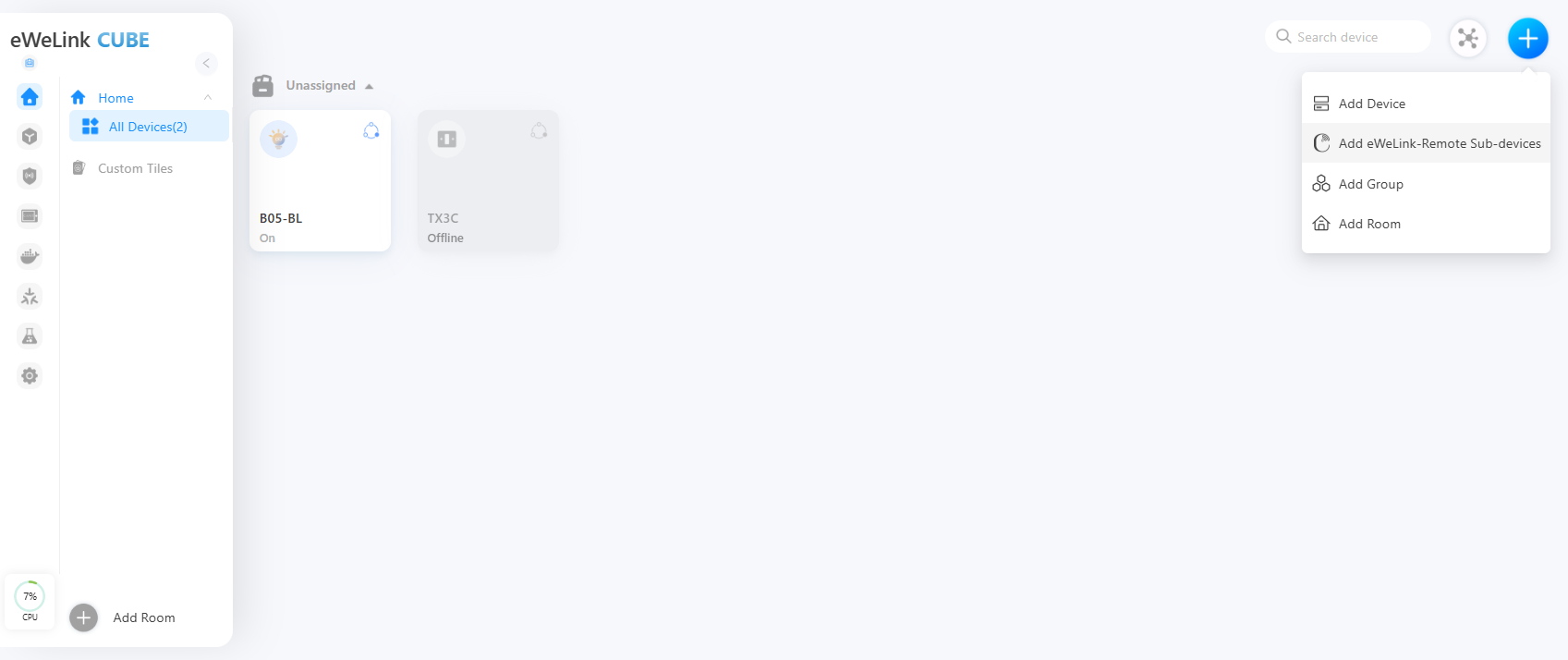
Go back to the **Home** page. Click the **“+”** icon in the top-right corner. Select **eWeLink-Remote Sub-Devices** from the list.
{% endstep %}
{% step %}
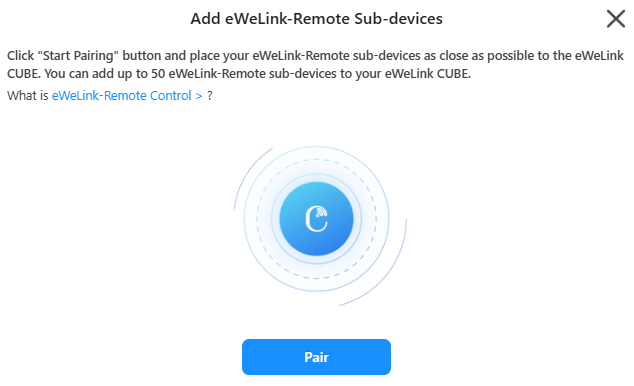
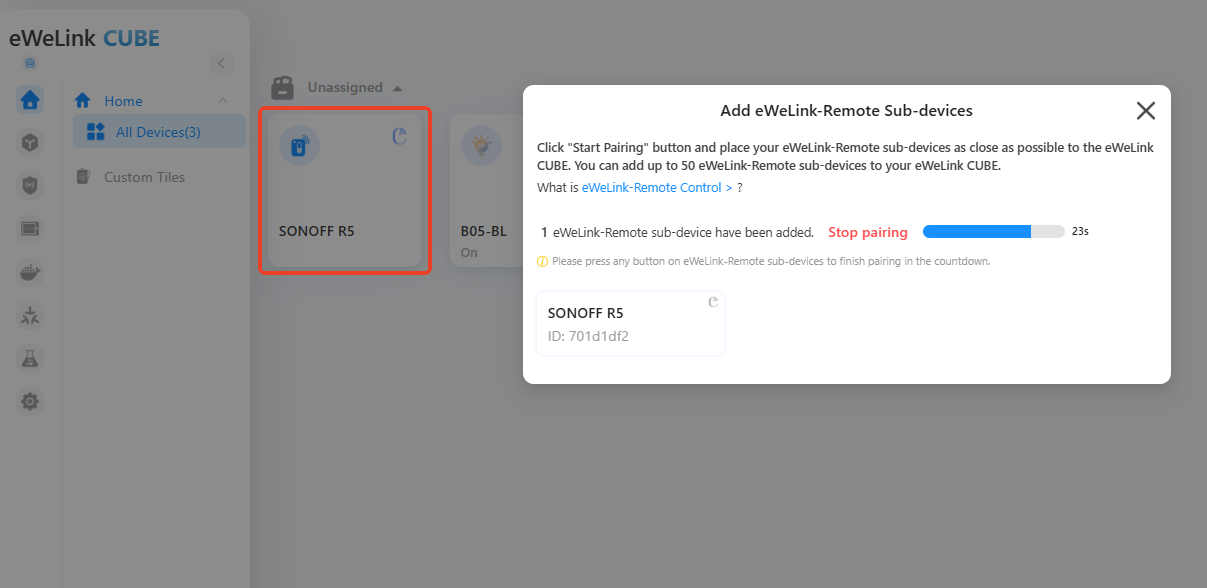
Click **Pair** to enter pairing mode.
{% endstep %}
{% step %}
On your **SONOFF R5**, trigger any button once. This will send a pairing signal.
{% endstep %}
{% step %}
Once pairing is successful, the R5 will appear in your device list.
{% endstep %}
{% endstepper %}
## 3. Configure Smart Scenes for eWeLink-Remote Sub-Devices
After adding your eWeLink-Remote sub-device, you can link it to other smart devices through **Smart Scenes**.
{% stepper %}
{% step %}
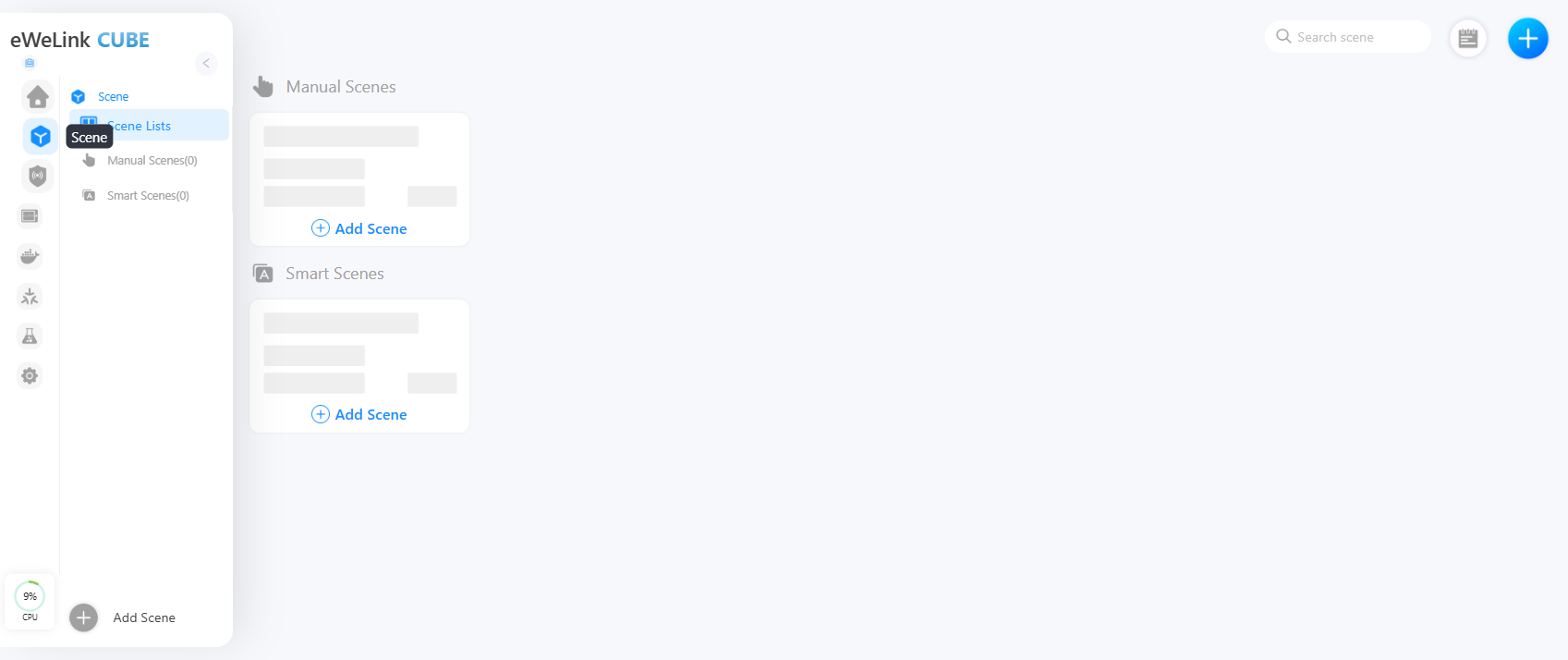
Go to the **Scene** page.
{% endstep %}
{% step %}
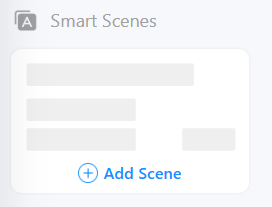
Under the **Smart Scene** tab, click **Add Scene**.
{% endstep %}
{% step %}
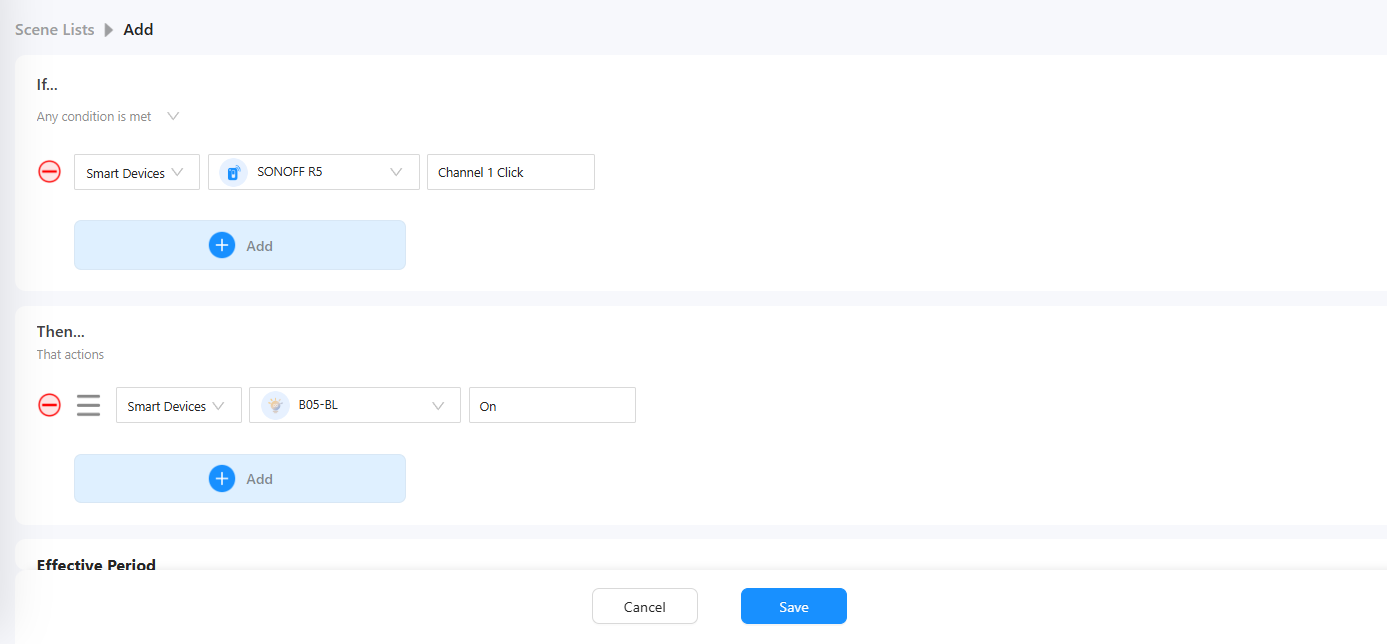
Set up the **If** condition:
**Add Smart Device → SONOFF R5 → Enable Wireless Button → Channel 1 → Click → Done.**
{% endstep %}
{% step %}
Set up the **Then** action:
**Add Smart Device → SONOFF B05-BL → Enable Switch → On → Done.**
{% endstep %}
{% step %}
Save your Smart Scene.
{% endstep %}
{% endstepper %}
Now, when you press the R5 button, the connected B05-BL light will turn on automatically.
---
# Agent Instructions
This documentation is published with GitBook. GitBook is the documentation platform designed so that both humans and AI agents can read, navigate, and reason over technical content effectively. Learn more at gitbook.com.
## Querying This Documentation
If you need additional information that is not directly available in this page, you can query the documentation dynamically by asking a question.
Perform an HTTP GET request on the current page URL with the `ask` query parameter, and the optional `goal` query parameter:
```
GET https://cube.ewelink.cc/getting-started/add-devices/ewelink-remote-sub-devices.md?ask=&goal=
```
`ask` is the immediate question: it should be specific, self-contained, and written in natural language.
`goal` is optional and describes the broader end goal you are ultimately trying to accomplish on behalf of the user. GitBook uses it to tailor the answer towards what is most useful for that goal.
The response will contain a direct answer to the question and relevant excerpts and sources from the documentation.
Use this mechanism when the answer is not explicitly present in the current page, you need clarification or additional context, or you want to retrieve related documentation sections.