# Apple 家庭与 Siri

## 1. 全新设置

{% stepper %}
{% step %}

### 启用 Matter 桥接

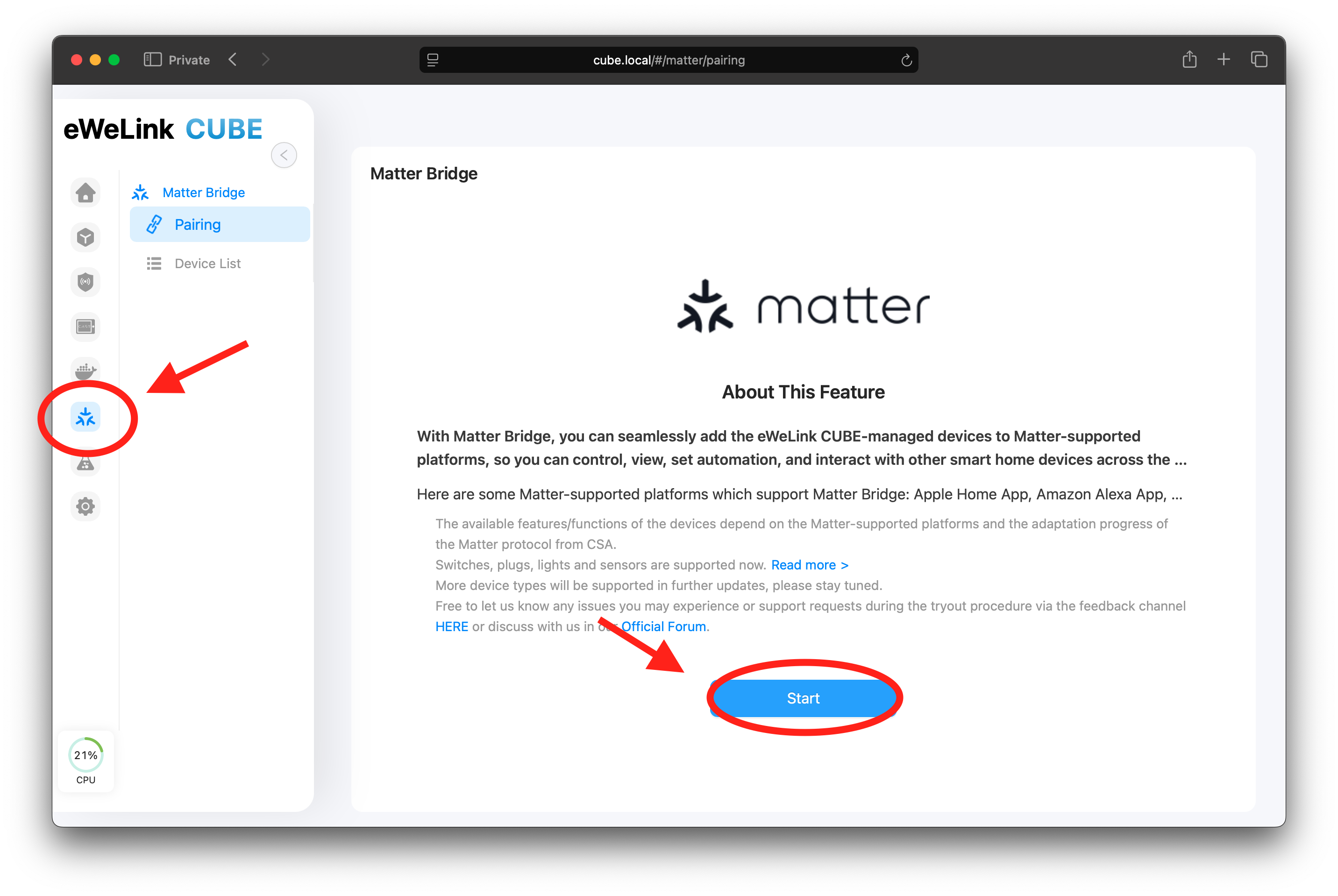
请通过浏览器访问 CUBE OS。点击侧栏的 Matter 徽标，并按照指南启用该功能。

<figure><img src="https://2213833752-files.gitbook.io/~/files/v0/b/gitbook-x-prod.appspot.com/o/spaces%2FCnF8kmk9yw3yiy2mRerq%2Fuploads%2F9lN5GFqDwLTmKVR83iSR%2FScreenshot%202024-12-17%20at%2016.37.55.png?alt=media&#x26;token=aa80f174-43be-4230-8a73-2d9f1005ffa6" alt=""><figcaption></figcaption></figure>

很快，页面应显示一个二维码和一串数字作为将您的设备与其他平台配对的密钥。
{% endstep %}

{% step %}

### 在应用上扫描

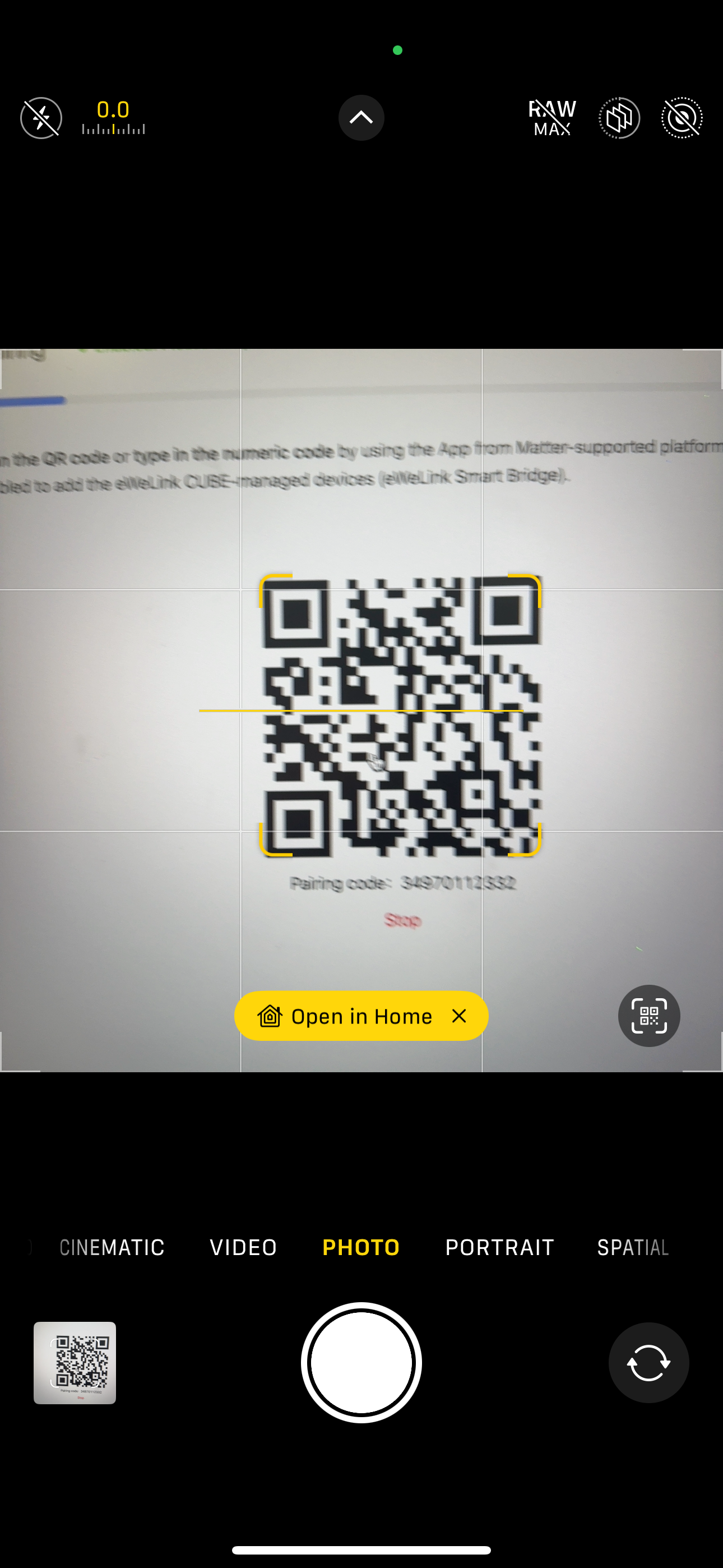
拿起您的 iPhone 或 iPad，打开系统相机，对准二维码。当出现标有“在“家庭”中打开”的黄色提示时，点击它。

<div align="left"><figure><img src="https://2213833752-files.gitbook.io/~/files/v0/b/gitbook-x-prod.appspot.com/o/spaces%2FCnF8kmk9yw3yiy2mRerq%2Fuploads%2FLyyRrmwr1gzoyatPP9Mr%2F47F9274C-9D34-45A4-9ACE-EFB2D7D1AE2C.png?alt=media&#x26;token=c7c328d9-1db3-4480-b9cc-ecf6b95c8977" alt="" width="188"><figcaption></figcaption></figure></div>
{% endstep %}

{% step %}

### 在 Apple 家庭 应用中完成

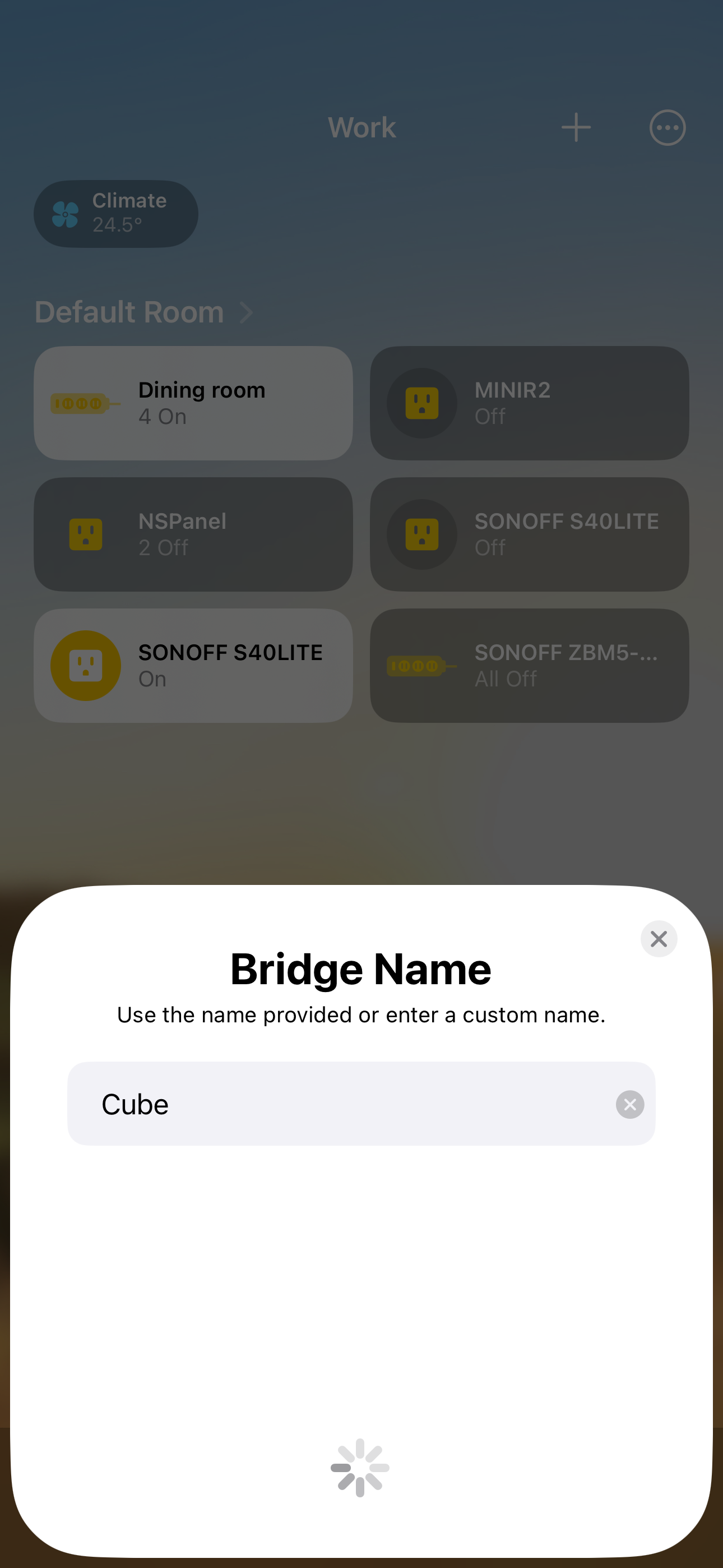
iOS/iPadOS 会将您重定向到 Apple 家庭 应用以添加设备。您可以在应用中随意重命名每个设备并为其分配房间。

<div align="left"><figure><img src="https://2213833752-files.gitbook.io/~/files/v0/b/gitbook-x-prod.appspot.com/o/spaces%2FCnF8kmk9yw3yiy2mRerq%2Fuploads%2FP02qseCQ0fLAd1TnAeP6%2F254FE7B1-D488-4722-9360-A018B59D70D7.png?alt=media&#x26;token=80e20ca7-504d-4891-a31e-d46301f2ed08" alt="" width="188"><figcaption></figcaption></figure></div>
{% endstep %}

{% step %}

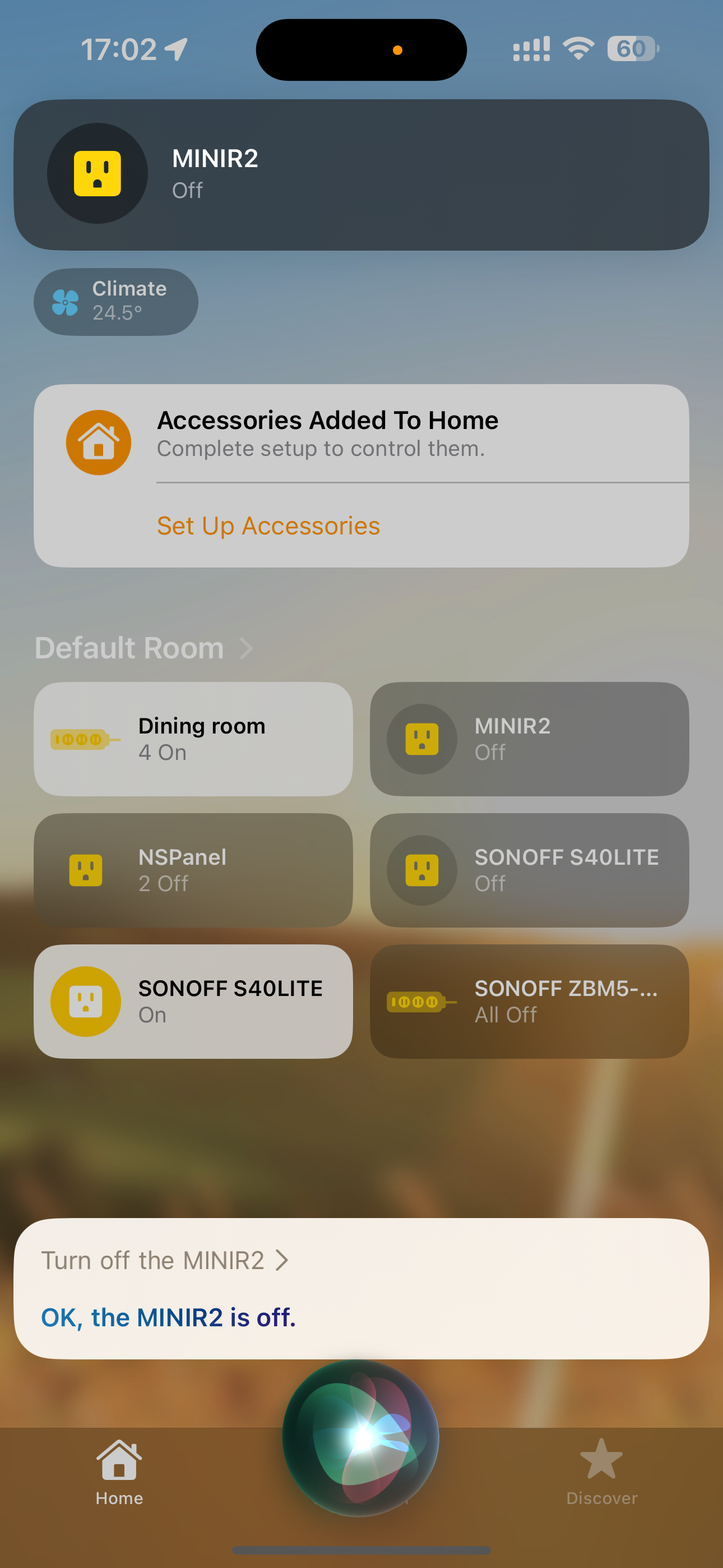
### 试用 Siri 命令

为设备命名完成后，试着用 Siri 进行操作。

<div align="left"><figure><img src="https://2213833752-files.gitbook.io/~/files/v0/b/gitbook-x-prod.appspot.com/o/spaces%2FCnF8kmk9yw3yiy2mRerq%2Fuploads%2FCOMAlL0oDDakJjrsvE0O%2F50D3D0B9-C0C2-4370-8B26-01C72F304DAA.png?alt=media&#x26;token=453e3c6c-7f8c-41ba-96d3-0129fc1b8aec" alt="" width="188"><figcaption></figcaption></figure></div>
{% endstep %}
{% endstepper %}

## 2. 次要设置

如果您已通过 Matter 将设备与某个平台关联，您需要从该平台的应用生成设置代码。

### **2.1 Apple 家庭**

{% stepper %}
{% step %}
打开“家庭”应用，找到要共享的设备面板。
{% endstep %}

{% step %}
打开设备的控制面板并点击齿轮图标。
{% endstep %}

{% step %}
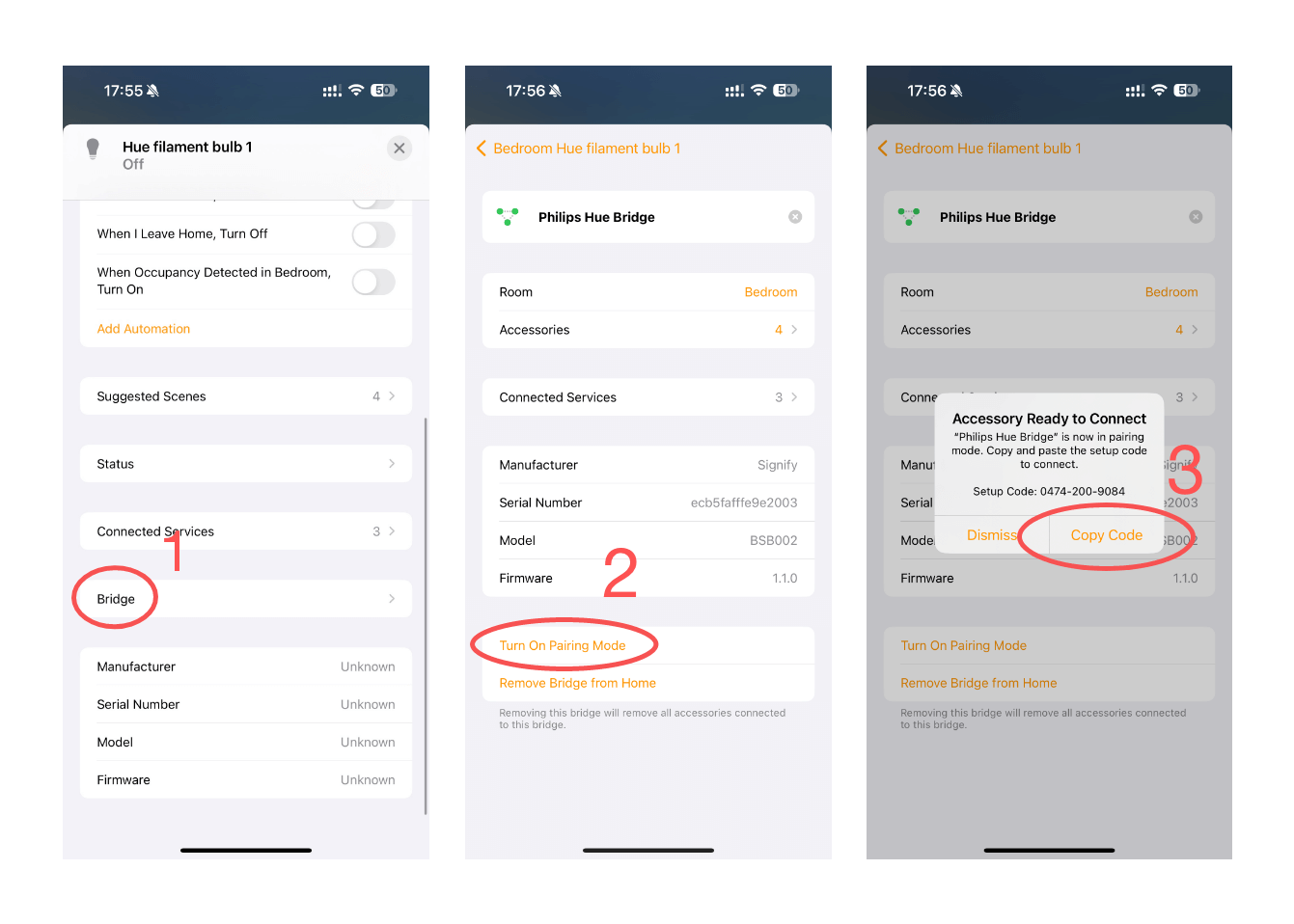
在 **设备设置** 页面， **向下滚动** 到“**桥接**”并点击它。
{% endstep %}

{% step %}
这将带您进入连接设备的桥接设置页面，向下滚动到最底部并点击“开启配对模式”。

![](https://appcms.coolkit.cn/wp-content/uploads/2024/06/Apple-%E2%80%93-Bridge-2-1.png)&#x20;
{% endstep %}

{% step %}
复制该代码并按照 CUBE OS 页面上的配对指南操作。
{% endstep %}
{% endstepper %}

{% hint style="info" %}
请注意：这将把所有附属于该桥接并受支持的设备带入您的 CUBE OS。
{% endhint %}


---

# Agent Instructions: Querying This Documentation

If you need additional information that is not directly available in this page, you can query the documentation dynamically by asking a question.

Perform an HTTP GET request on the current page URL with the `ask` query parameter:

```
GET https://cube.ewelink.cc/english-zh/gong-neng-tan-suo/matter-qiao-jie-lian-jie-ying-yong/apple-jia-ting-yu-siri.md?ask=<question>
```

The question should be specific, self-contained, and written in natural language.
The response will contain a direct answer to the question and relevant excerpts and sources from the documentation.

Use this mechanism when the answer is not explicitly present in the current page, you need clarification or additional context, or you want to retrieve related documentation sections.