> For the complete documentation index, see [llms.txt](https://cube.ewelink.cc/llms.txt). Markdown versions of documentation pages are available by appending `.md` to page URLs; this page is available as [Markdown](https://cube.ewelink.cc/english-zh/gong-neng-tan-suo/guan-li-ni-de-she-bei.md).
# 管理你的设备
在本文中,您将了解 CUBE OS 中的设备,以及如何管理它们以满足您的需求。
## 1. 识别您的设备
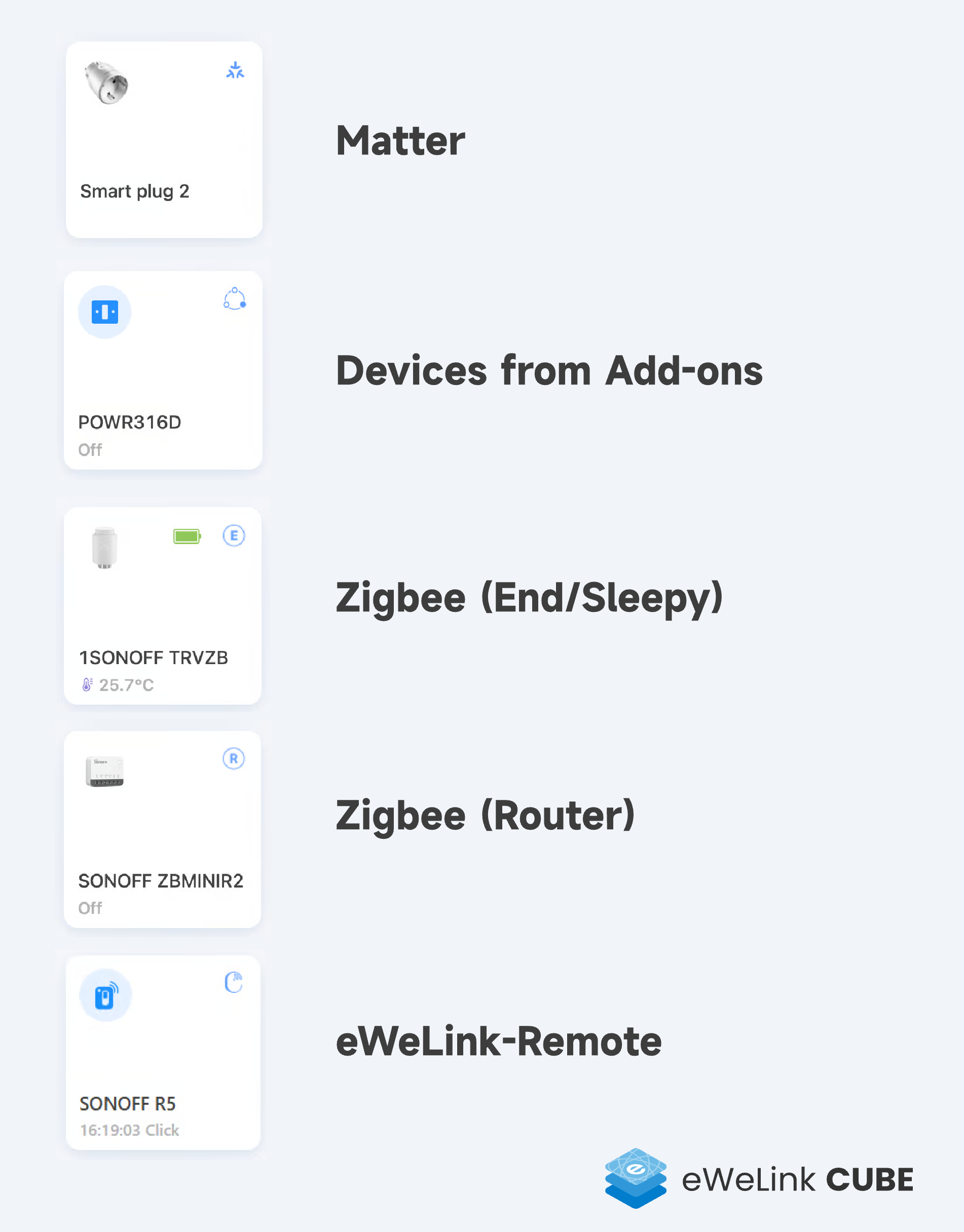
CUBE OS 在设备卡片上使用角标来标识设备的连接方式。
您可能会看到以下类型:
## 2. 重命名您的设备
{% stepper %}
{% step %}
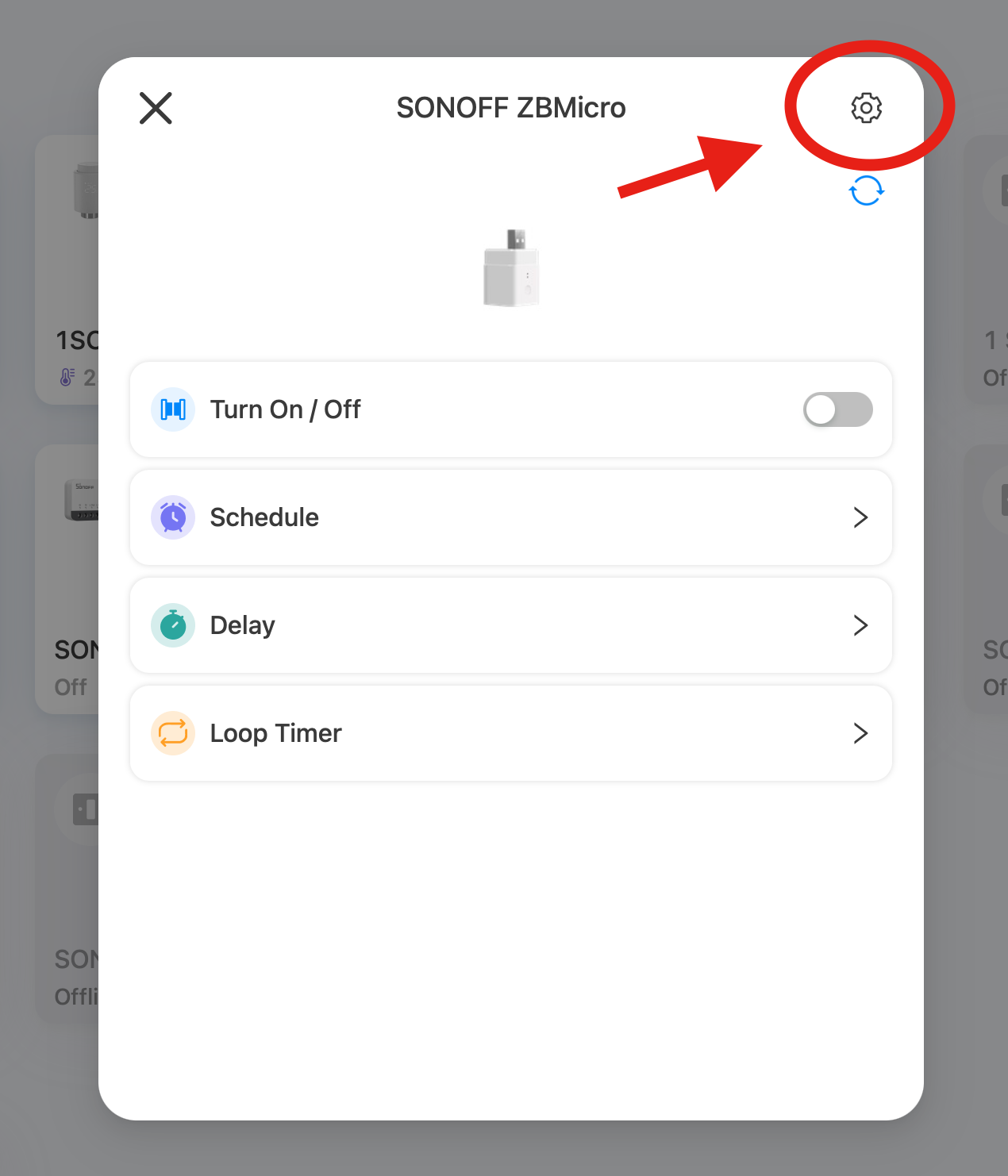
点击您要重命名的设备卡片。
{% endstep %}
{% step %}
点击齿轮图标。
{% endstep %}
{% step %}
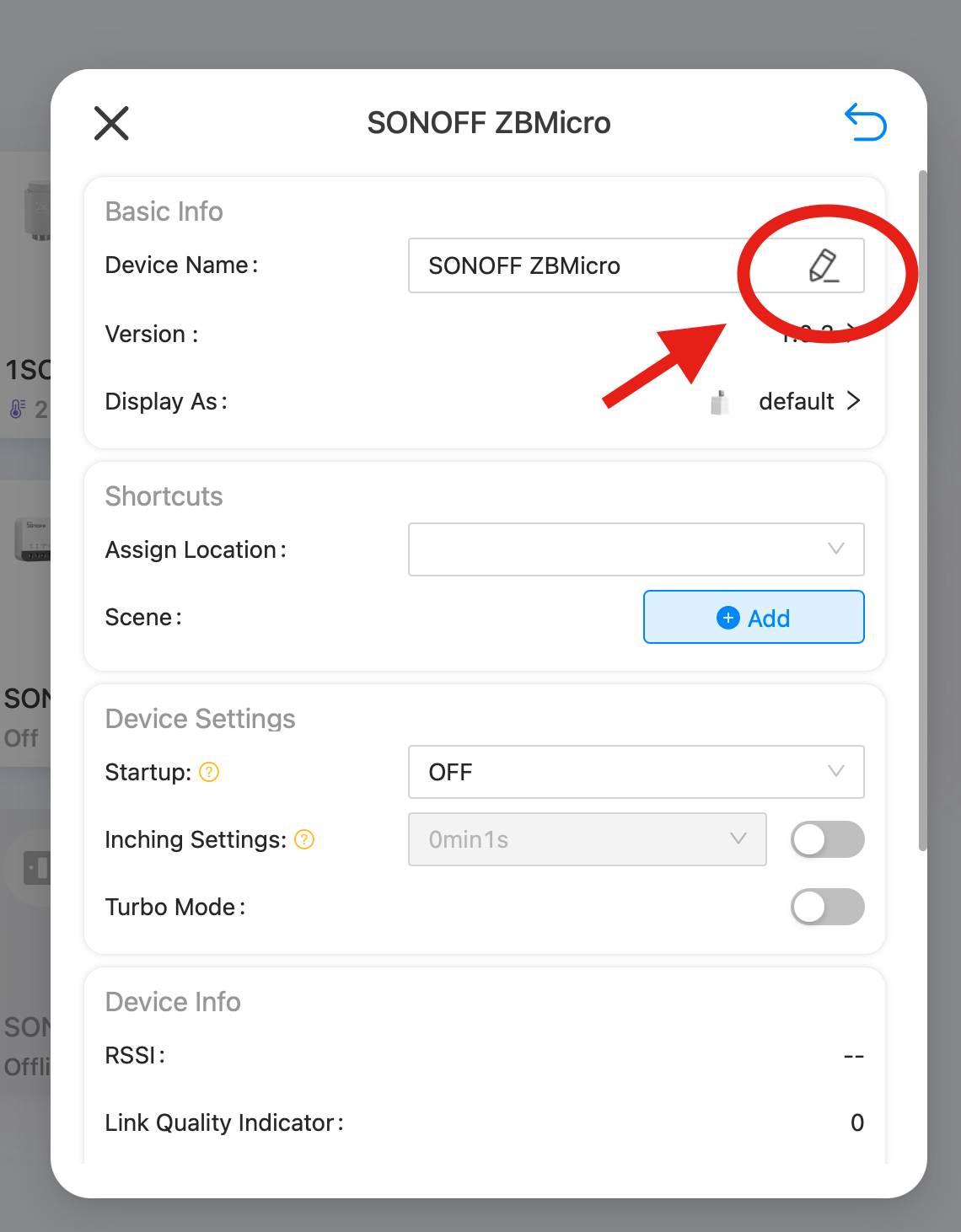
点击编辑图标,然后为您的设备输入新名称。
{% endstep %}
{% step %}
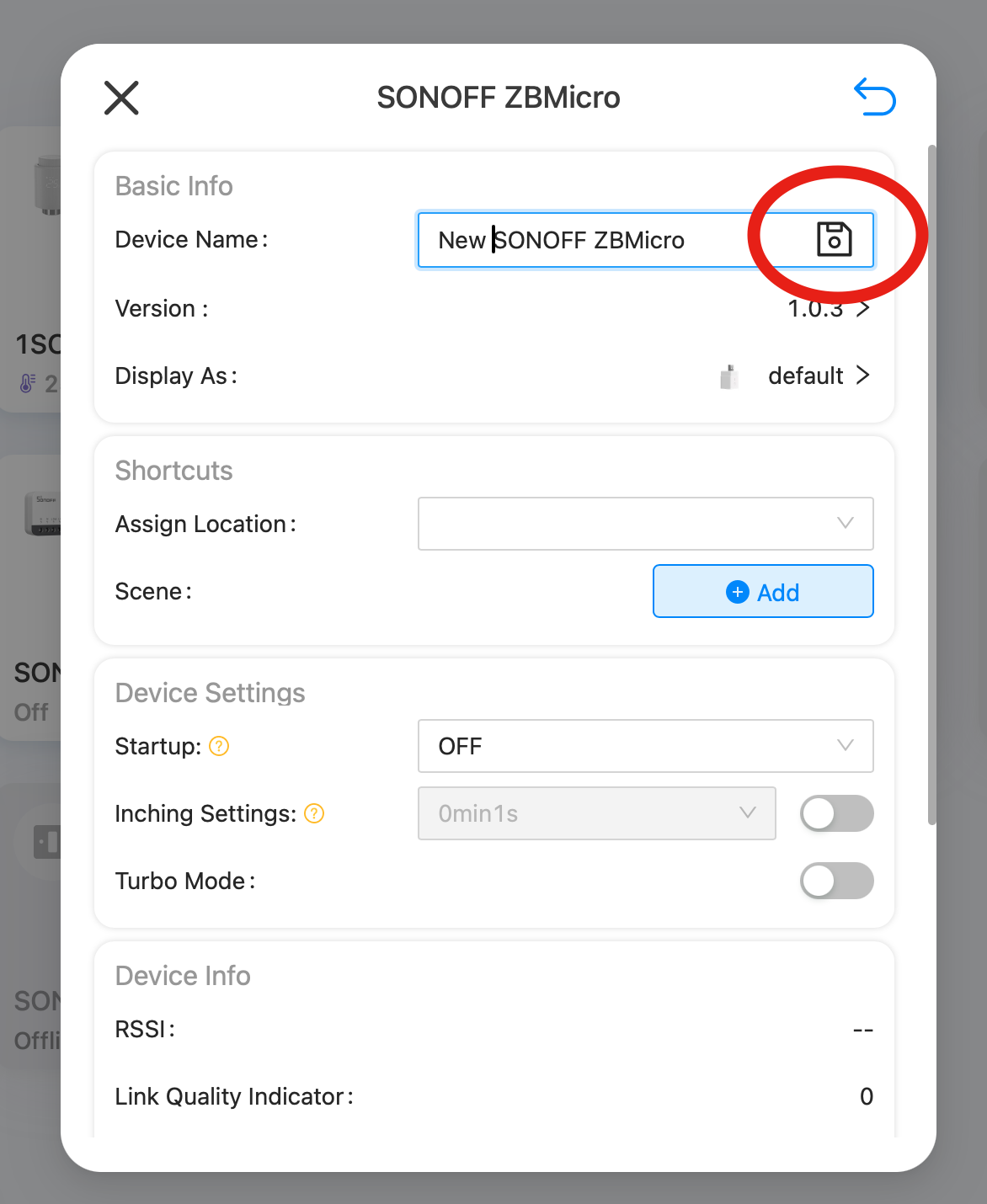
点击保存图标。
{% endstep %}
{% endstepper %}
## 3. 更改设备类型并添加图片
{% stepper %}
{% step %}
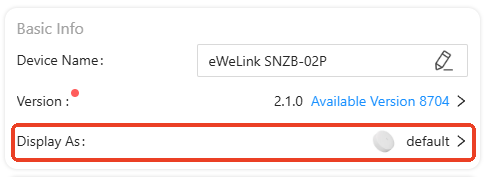
在基本信息选项卡中,您可以更改设备类型。
{% endstep %}
{% step %}
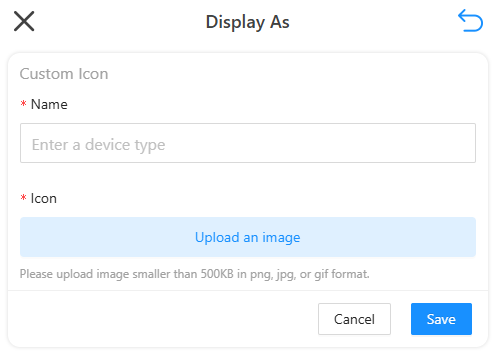
或者您可以自定义其图标。
{% endstep %}
{% endstepper %}
## 4. 删除设备
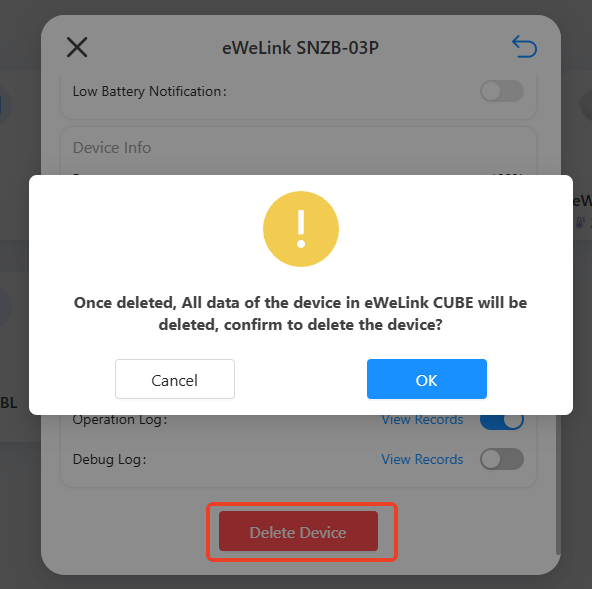
向下滚动到编辑页面底部,您可以找到“删除设备”按钮。
## 5. 指定房间
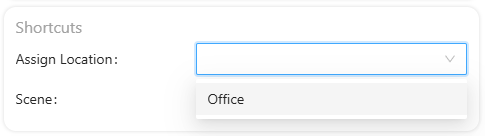
在快捷方式选项卡中,您可以将设备分配到特定位置。
---
# Agent Instructions
This documentation is published with GitBook. GitBook is the documentation platform designed so that both humans and AI agents can read, navigate, and reason over technical content effectively. Learn more at gitbook.com.
## Querying This Documentation
If you need additional information that is not directly available in this page, you can query the documentation dynamically by asking a question.
Perform an HTTP GET request on the current page URL with the `ask` query parameter, and the optional `goal` query parameter:
```
GET https://cube.ewelink.cc/english-zh/gong-neng-tan-suo/guan-li-ni-de-she-bei.md?ask=&goal=
```
`ask` is the immediate question: it should be specific, self-contained, and written in natural language.
`goal` is optional and describes the broader end goal you are ultimately trying to accomplish on behalf of the user. GitBook uses it to tailor the answer towards what is most useful for that goal.
The response will contain a direct answer to the question and relevant excerpts and sources from the documentation.
Use this mechanism when the answer is not explicitly present in the current page, you need clarification or additional context, or you want to retrieve related documentation sections.