> For the complete documentation index, see [llms.txt](https://cube.ewelink.cc/llms.txt). Markdown versions of documentation pages are available by appending `.md` to page URLs; this page is available as [Markdown](https://cube.ewelink.cc/english-th/feature-exploration/matter-bridge/apple-home-siri.md).
# Apple Home และ Siri
## 1. การตั้งค่าใหม่
{% stepper %}
{% step %}
### เปิดใช้งาน Matter Bridge
โปรดเข้าเยี่ยมชม CUBE OS ผ่านเบราว์เซอร์ คลิกที่โลโก้ Matter บนแผงด้านข้าง และทำตามคำแนะนำเพื่อเปิดใช้งานฟีเจอร์นี้
ไม่นานหน้านั้นจะแสดงรหัส QR และชุดตัวเลขเป็นกุญแจเพื่อต่อคู่ (pair) อุปกรณ์ของคุณกับแพลตฟอร์มอื่น ๆ
{% endstep %}
{% step %}
### สแกนบนแอป
หยิบ iPhone หรือ iPad ของคุณแล้วเปิดกล้องระบบ เล็งไปที่รหัส QR เมื่อมีแบนเนอร์สีเหลืองขึ้นพร้อมคำว่า "เปิดในแอปบ้าน" ให้แตะมัน
{% endstep %}
{% step %}
### เสร็จสิ้นในแอป Apple Home
iOS/iPadOS จะพาคุณไปยังแอป Apple Home เพื่อเพิ่มอุปกรณ์ของคุณ คุณสามารถเปลี่ยนชื่ออุปกรณ์แต่ละชิ้นและกำหนดห้องให้กับพวกมันในแอปได้ตามต้องการ
{% endstep %}
{% step %}
### ลองคำสั่ง Siri
เมื่อคุณตั้งชื่ออุปกรณ์เสร็จ ลองเรียกใช้คำสั่งกับ Siri ดู
{% endstep %}
{% endstepper %}
## 2. การตั้งค่าต่อเนื่อง
หากคุณได้เชื่อมต่อกับแพลตฟอร์มผ่าน Matter คุณจะต้องสร้างรหัสการตั้งค่าจากแอปของแพลตฟอร์มนั้น
### **2.1 Apple Home**
{% stepper %}
{% step %}
เปิดแอป Home และค้นหาไทล์ของอุปกรณ์ที่คุณต้องการแชร์
{% endstep %}
{% step %}
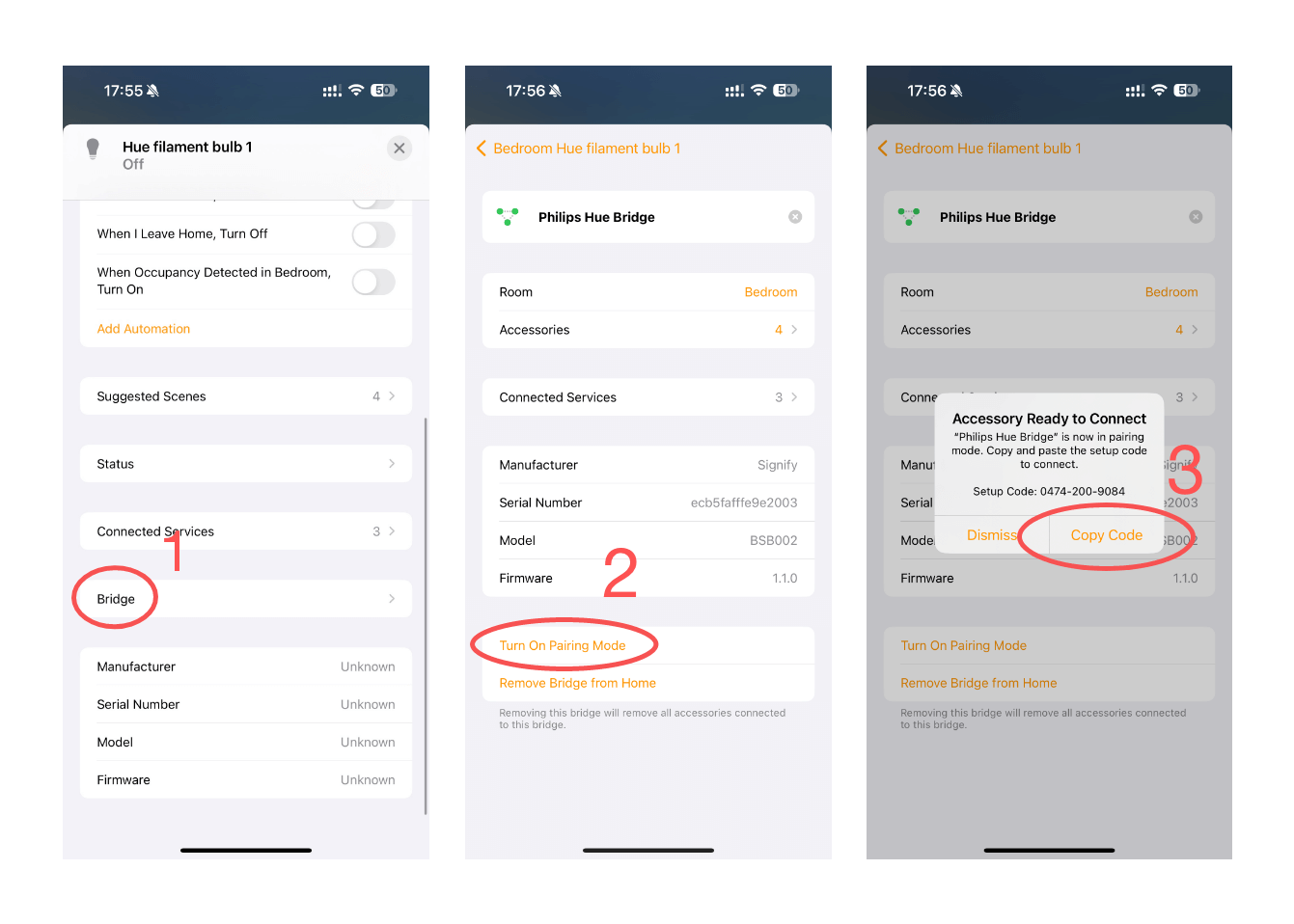
เปิดแผงควบคุมของอุปกรณ์แล้วแตะไอคอนรูปเฟือง
{% endstep %}
{% step %}
ใน **การตั้งค่าอุปกรณ์** หน้า, **เลื่อนลง** ไปที่ “**Bridge**” แล้วแตะมัน
{% endstep %}
{% step %}
สิ่งนี้จะพาคุณไปยังหน้าการตั้งค่าของบริดจ์ที่เชื่อมต่ออุปกรณ์ของคุณ เลื่อนลงมาที่ด้านล่างแล้วแตะ “เปิดโหมดจับคู่”
{% endstep %}
{% step %}
คัดลอกรหัสแล้วทำตามคำแนะนำการจับคู่บนหน้าของ CUBE OS
{% endstep %}
{% endstepper %}
{% hint style="info" %}
โปรดทราบ: สิ่งนี้จะนำอุปกรณ์ที่รองรับทั้งหมดที่เชื่อมต่อกับบริดจ์มาไว้ใน CUBE OS ของคุณ
{% endhint %}
---
# Agent Instructions
This documentation is published with GitBook. GitBook is the documentation platform designed so that both humans and AI agents can read, navigate, and reason over technical content effectively. Learn more at gitbook.com.
## Querying This Documentation
If you need additional information that is not directly available in this page, you can query the documentation dynamically by asking a question.
Perform an HTTP GET request on the current page URL with the `ask` query parameter, and the optional `goal` query parameter:
```
GET https://cube.ewelink.cc/english-th/feature-exploration/matter-bridge/apple-home-siri.md?ask=&goal=
```
`ask` is the immediate question: it should be specific, self-contained, and written in natural language.
`goal` is optional and describes the broader end goal you are ultimately trying to accomplish on behalf of the user. GitBook uses it to tailor the answer towards what is most useful for that goal.
The response will contain a direct answer to the question and relevant excerpts and sources from the documentation.
Use this mechanism when the answer is not explicitly present in the current page, you need clarification or additional context, or you want to retrieve related documentation sections.


