> For the complete documentation index, see [llms.txt](https://cube.ewelink.cc/llms.txt). Markdown versions of documentation pages are available by appending `.md` to page URLs; this page is available as [Markdown](https://cube.ewelink.cc/english-pt/comecando/adicionar-dispositivos/subdispositivos-ewelink-remote.md).
# Subdispositivos eWeLink-Remote
Você pode transformar o CUBE OS em um Gateway Remoto eWeLink, permitindo a integração de subdispositivos como o [**S-MATE 2**](https://sonoff.tech/en-us/products/sonoff-s-mate-extreme-switch-mate/58) **ou** [**R5**](https://sonoff.tech/en-us/products/sonoff-switchman-r5-scene-controller/58).
{% hint style="info" %}
**O que é o controle remoto eWeLink-Remote?**
O Controle Remoto eWeLink-Remote é uma nova solução exclusiva de controle remoto para dispositivos SONOFF. Ele fornece uma forma de controle mais conveniente, mais confiável e de maior alcance para seus eletrodomésticos.
Sobre os detalhes, consulte:
{% endhint %}
## 1. Ative o eWeLink-Remote Control no Pilot
{% stepper %}
{% step %}
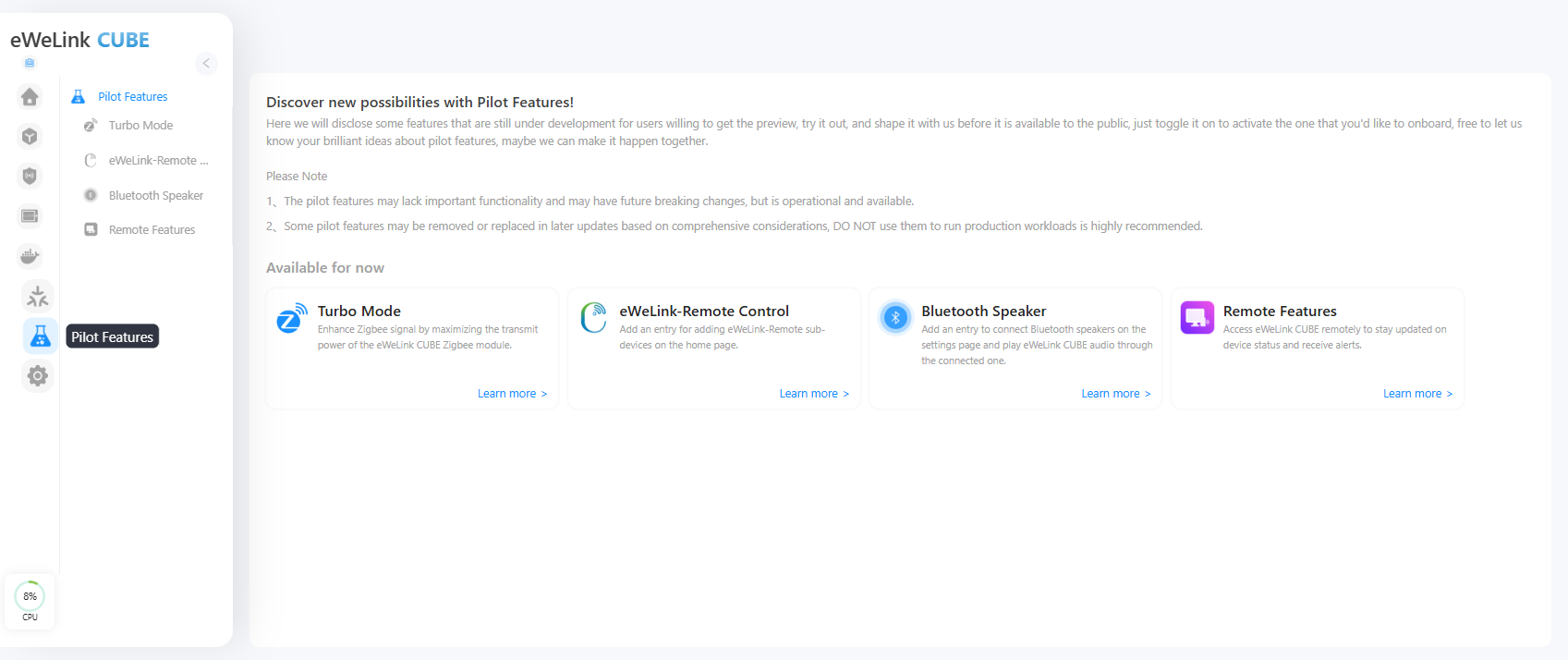
No menu lateral esquerdo, vá para **Recursos do Pilot**.
{% endstep %}
{% step %}
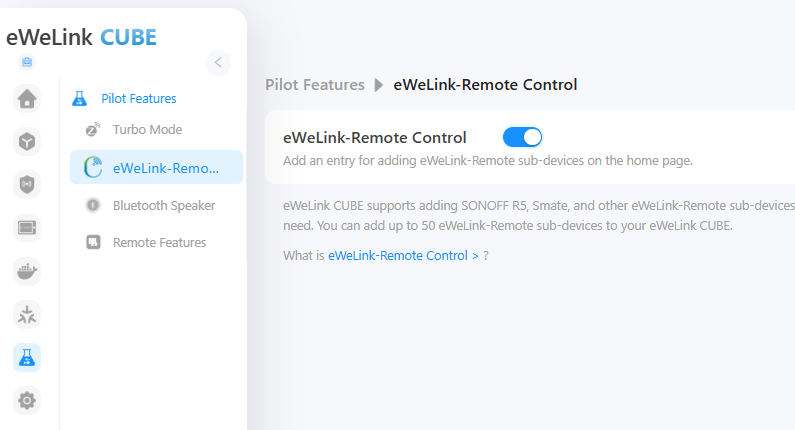
Encontre **eWeLink-Remote Control** e clique em **Saiba Mais**. Ative o interruptor para **enable** essa função.
{% endstep %}
{% step %}
Uma vez ativado, o CUBE OS irá ativar o protocolo eWeLink-Remote e se preparar para receber sinais de dispositivos compatíveis.
{% endstep %}
{% endstepper %}
## 2. Adicione um Subdispositivo eWeLink-Remote (Usando o R5 como Exemplo)
{% stepper %}
{% step %}
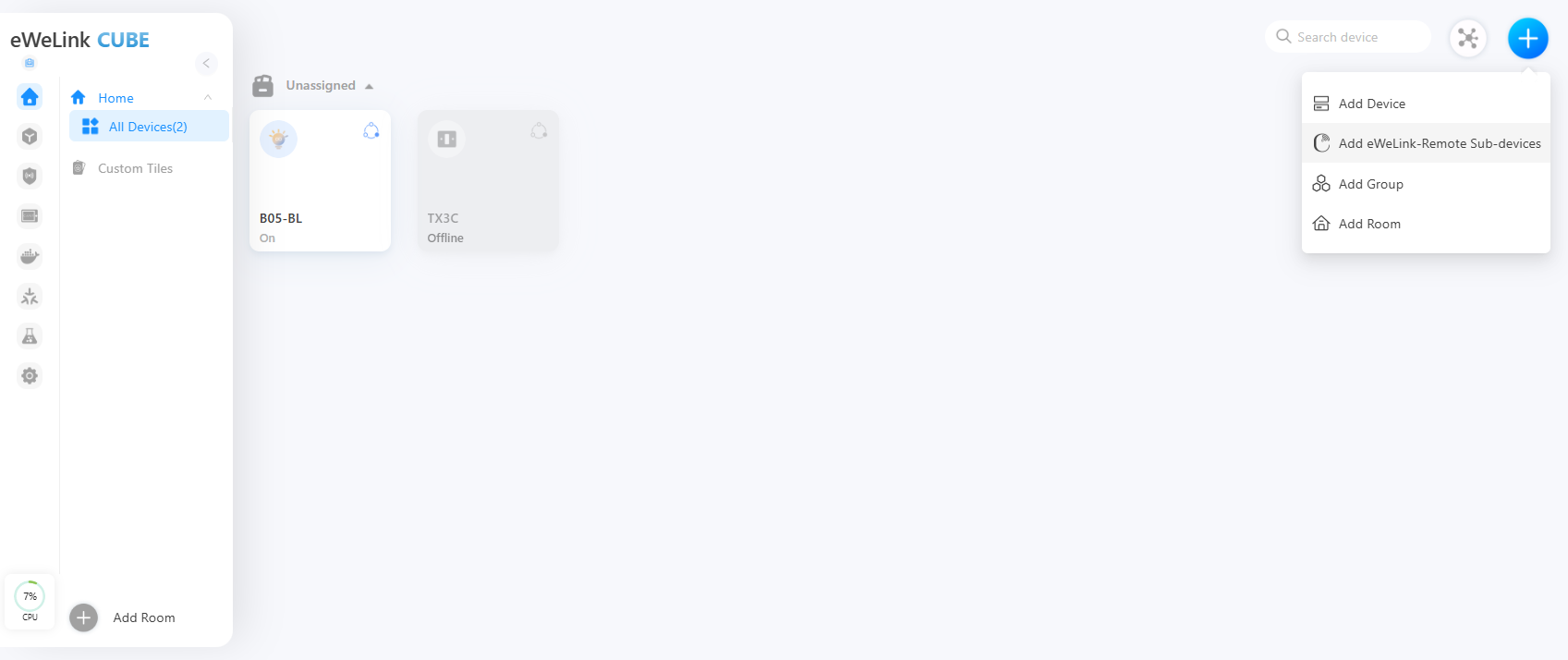
Volte para a **página Inicial** . Clique no **“+”** ícone no canto superior direito. Selecione **Subdispositivos eWeLink-Remote** na lista.
{% endstep %}
{% step %}
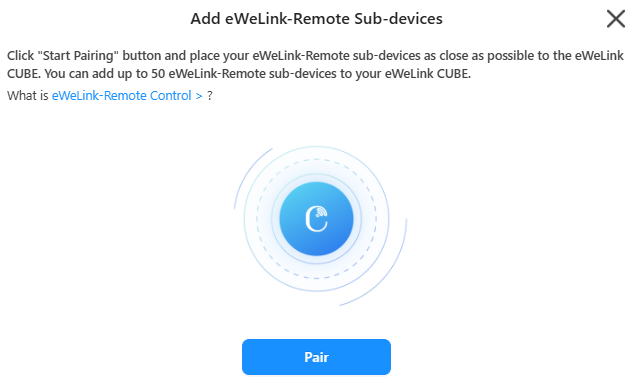
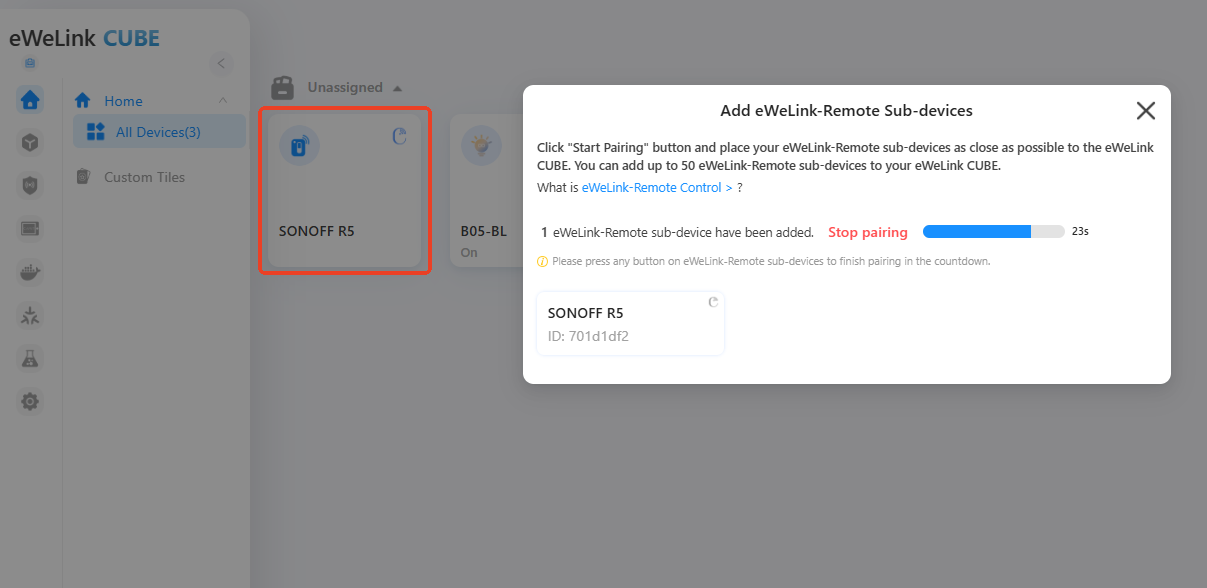
Clique **Emparelhar** para entrar no modo de pareamento.
{% endstep %}
{% step %}
No seu **SONOFF R5**, pressione qualquer botão uma vez. Isso enviará um sinal de pareamento.
{% endstep %}
{% step %}
Uma vez que o pareamento for bem-sucedido, o R5 aparecerá na sua lista de dispositivos.
{% endstep %}
{% endstepper %}
## 3. Configure Cenas Inteligentes para Subdispositivos eWeLink-Remote
Depois de adicionar seu subdispositivo eWeLink-Remote, você pode vinculá-lo a outros dispositivos inteligentes através de **Cenas Inteligentes**.
{% stepper %}
{% step %}
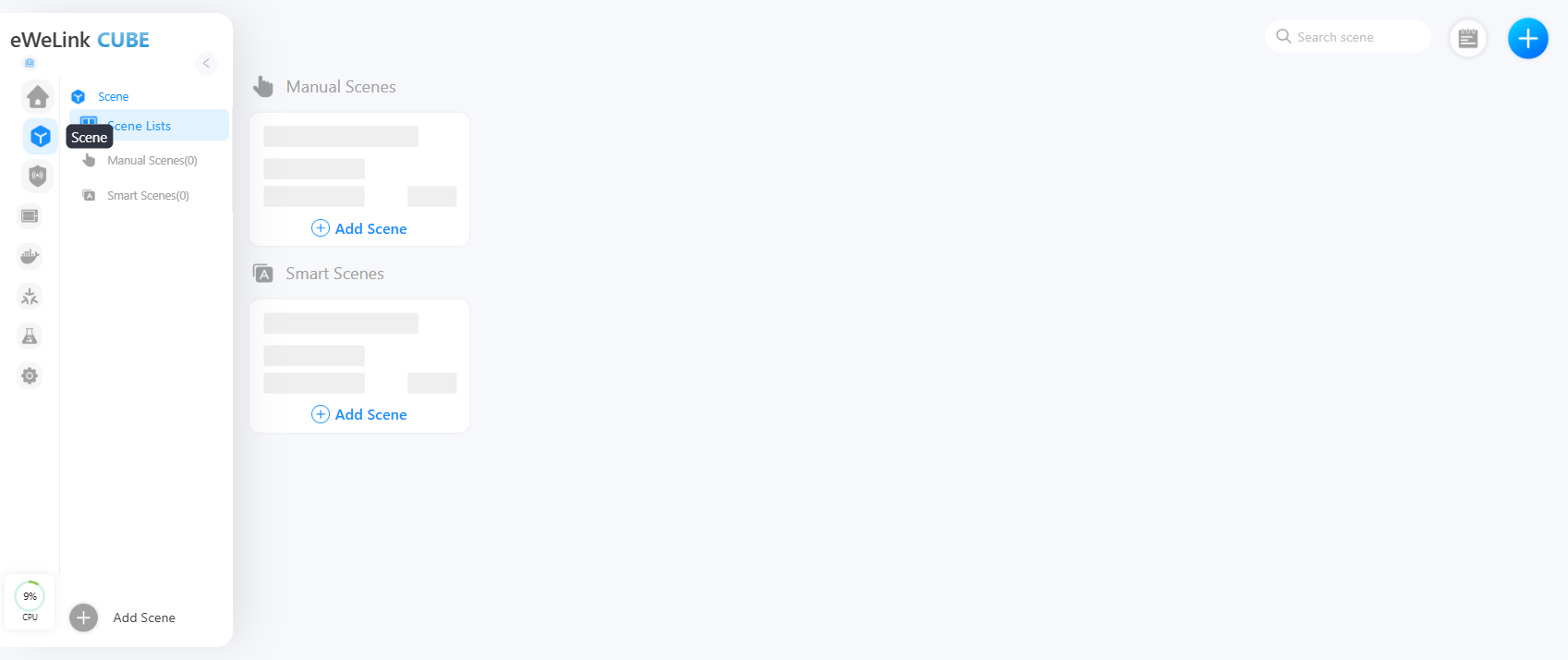
Vá para a **página de Cena** .
{% endstep %}
{% step %}
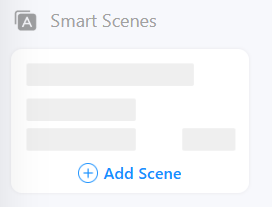
Na aba **Cena Inteligente** , clique em **Adicionar Cena**.
{% endstep %}
{% step %}
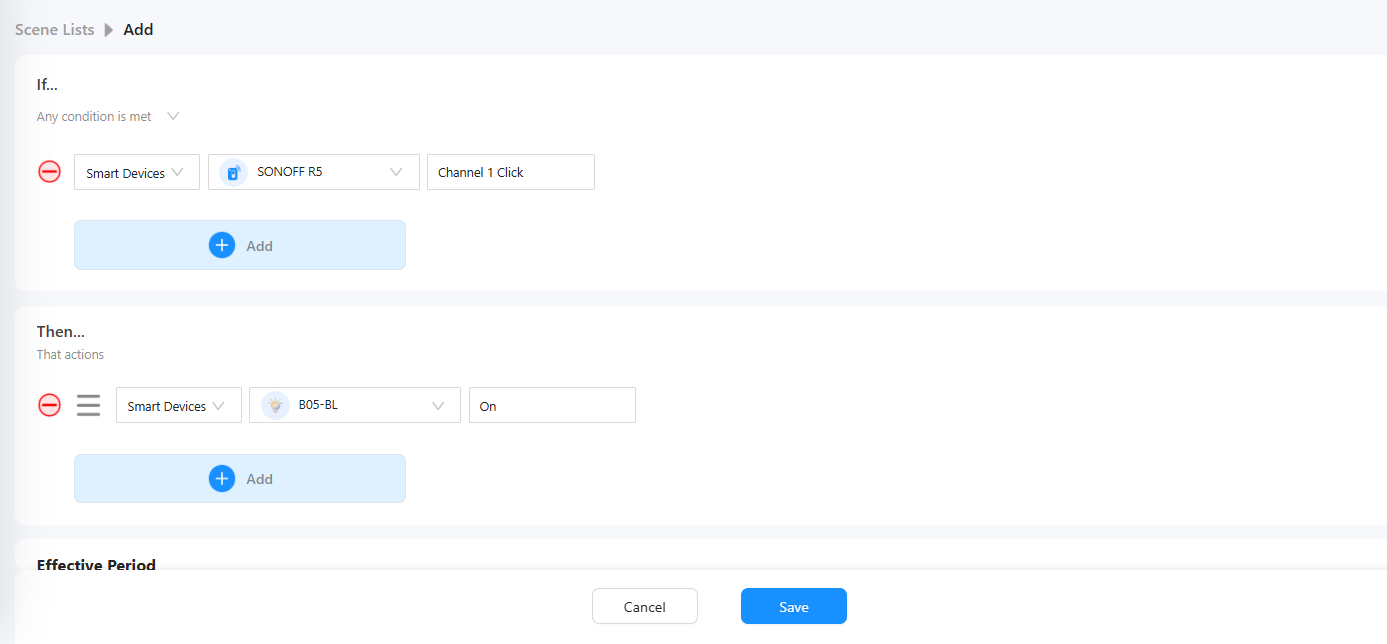
Configure o **Se** condição:
**Adicionar Dispositivo Inteligente → SONOFF R5 → Habilitar Botão Sem Fio → Canal 1 → Clique → Concluído.**
{% endstep %}
{% step %}
Configure o **Em seguida,** ação:
**Adicionar Dispositivo Inteligente → SONOFF B05-BL → Habilitar Interruptor → Ligado → Concluído.**
{% endstep %}
{% step %}
Salve sua Cena Inteligente.
{% endstep %}
{% endstepper %}
Agora, quando você pressionar o botão do R5, a luz B05-BL conectada acenderá automaticamente.
---
# Agent Instructions
This documentation is published with GitBook. GitBook is the documentation platform designed so that both humans and AI agents can read, navigate, and reason over technical content effectively. Learn more at gitbook.com.
## Querying This Documentation
If you need additional information that is not directly available in this page, you can query the documentation by asking a question.
Perform an HTTP GET request on the following URL with the `ask` and `goal` query parameters:
```
GET https://cube.ewelink.cc/english-pt/comecando/adicionar-dispositivos/subdispositivos-ewelink-remote.md?ask=&goal=
```
`ask` is the immediate question: it should be specific, self-contained, and written in natural language.
`goal` is what the user is ultimately trying to achieve, the reason they need the answer. Sharing it helps GitBook give you a better, more relevant answer. A goal is most helpful when it describes the outcome the user wants rather than restating the question. For example, with `ask=how do I create an API token`, a goal like `automate deployments from our CI pipeline` lets GitBook tailor the answer to that use case.
The response will contain a direct answer to the question and relevant excerpts and sources from the documentation.
Use this mechanism when the answer is not explicitly present in the current page, you need clarification or additional context, or you want to retrieve related documentation sections.