> For the complete documentation index, see [llms.txt](https://cube.ewelink.cc/llms.txt). Markdown versions of documentation pages are available by appending `.md` to page URLs; this page is available as [Markdown](https://cube.ewelink.cc/cube-os-ru/izuchenie-funkcii/matter-bridge-svyaz-s-prilozheniyami/apple-home-i-siri.md).
# Apple Home и Siri
## 1. Новая установка
{% stepper %}
{% step %}
### Включить Matter Bridge
Пожалуйста, перейдите в CUBE OS через браузер. Нажмите на логотип Matter на боковой панели и следуйте инструкциям, чтобы включить функцию.
Вскоре на странице должен появиться QR‑код и строка цифр в качестве ключей для сопряжения вашего устройства с другими платформами.
{% endstep %}
{% step %}
### Сканировать в приложении
Возьмите iPhone или iPad и откройте системную Камеру, направив её на QR‑код. Когда появится жёлтое уведомление с надписью «Открыть в Дом», нажмите на него.
{% endstep %}
{% step %}
### Завершение в приложении Apple Home
iOS/iPadOS перенаправит вас в приложение Apple Home для добавления ваших устройств. При желании вы можете переименовать каждое устройство и назначить им комнаты в приложении.
{% endstep %}
{% step %}
### Попробуйте команды Siri
Когда вы закончите с именами устройств, опробуйте их с помощью Siri.
{% endstep %}
{% endstepper %}
## 2. Дополнительная настройка
Если вы уже связали платформу через Matter, вам потребуется сгенерировать коды настройки в приложении этой платформы.
### **2.1 Apple Home**
{% stepper %}
{% step %}
Откройте приложение Home и найдите плитку устройства, которым хотите поделиться.
{% endstep %}
{% step %}
Откройте панель управления устройством и нажмите на значок шестерёнки.
{% endstep %}
{% step %}
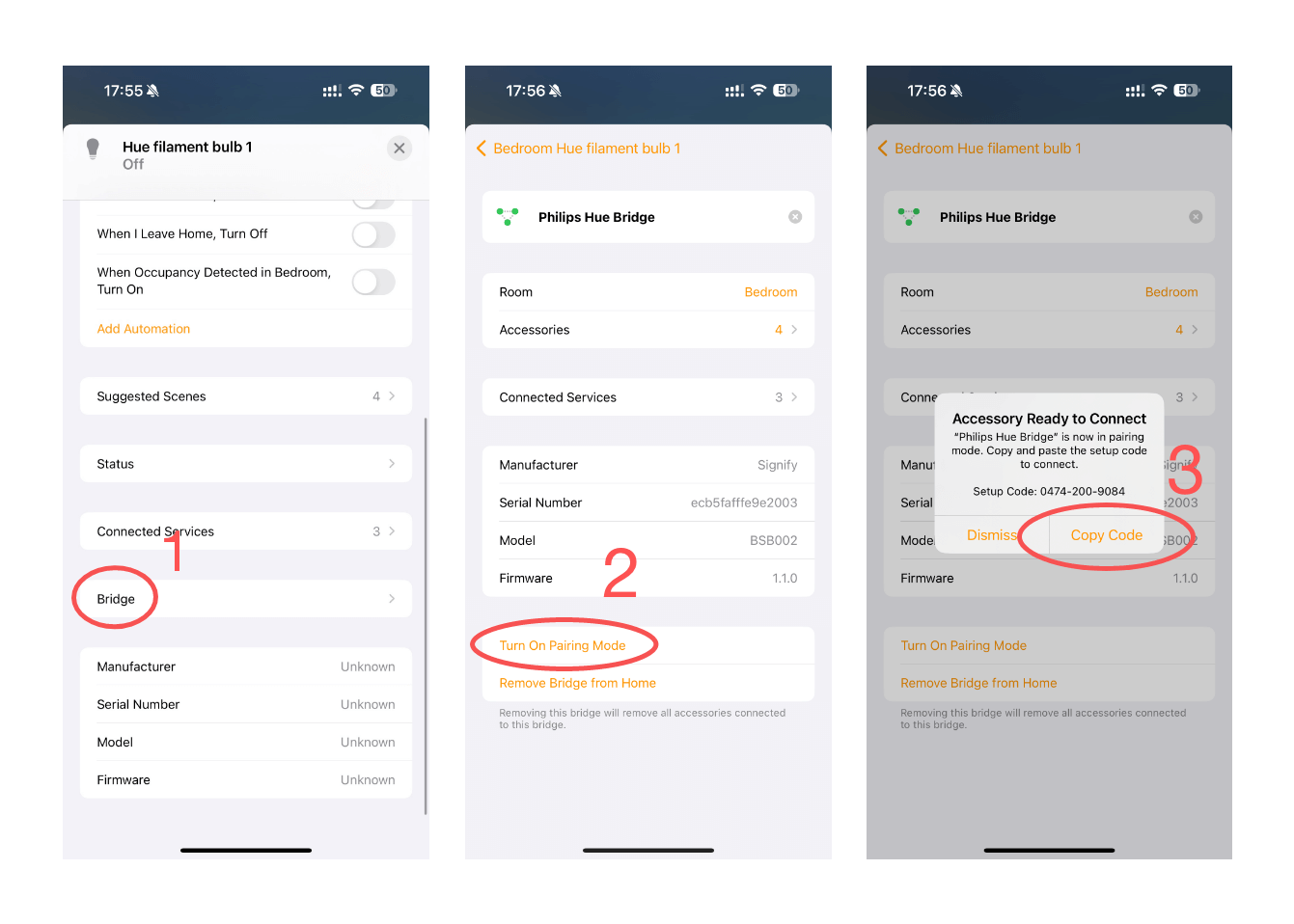
На странице **настроек устройства** , **прокрутите вниз** до «**Мост**» и нажмите на него.
{% endstep %}
{% step %}
Это приведёт вас на страницу настроек моста, который соединяет ваши устройства; прокрутите вниз и нажмите «Включить режим сопряжения».
{% endstep %}
{% step %}
Скопируйте код и следуйте руководству по сопряжению на странице CUBE OS.
{% endstep %}
{% endstepper %}
{% hint style="info" %}
Примечание: это добавит все поддерживаемые устройства, подключённые к мосту, в вашу CUBE OS.
{% endhint %}
---
# Agent Instructions
This documentation is published with GitBook. GitBook is the documentation platform designed so that both humans and AI agents can read, navigate, and reason over technical content effectively. Learn more at gitbook.com.
## Querying This Documentation
If you need additional information that is not directly available in this page, you can query the documentation by asking a question.
Perform an HTTP GET request on the following URL with the `ask` and `goal` query parameters:
```
GET https://cube.ewelink.cc/cube-os-ru/izuchenie-funkcii/matter-bridge-svyaz-s-prilozheniyami/apple-home-i-siri.md?ask=&goal=
```
`ask` is the immediate question: it should be specific, self-contained, and written in natural language.
`goal` is what the user is ultimately trying to achieve, the reason they need the answer. Sharing it helps GitBook give you a better, more relevant answer. A goal is most helpful when it describes the outcome the user wants rather than restating the question. For example, with `ask=how do I create an API token`, a goal like `automate deployments from our CI pipeline` lets GitBook tailor the answer to that use case.
The response will contain a direct answer to the question and relevant excerpts and sources from the documentation.
Use this mechanism when the answer is not explicitly present in the current page, you need clarification or additional context, or you want to retrieve related documentation sections.


