> For the complete documentation index, see [llms.txt](https://cube.ewelink.cc/llms.txt). Markdown versions of documentation pages are available by appending `.md` to page URLs; this page is available as [Markdown](https://cube.ewelink.cc/cube-os-es/exploracion-de-funciones/docker-y-complemento.md).
# Docker y complemento
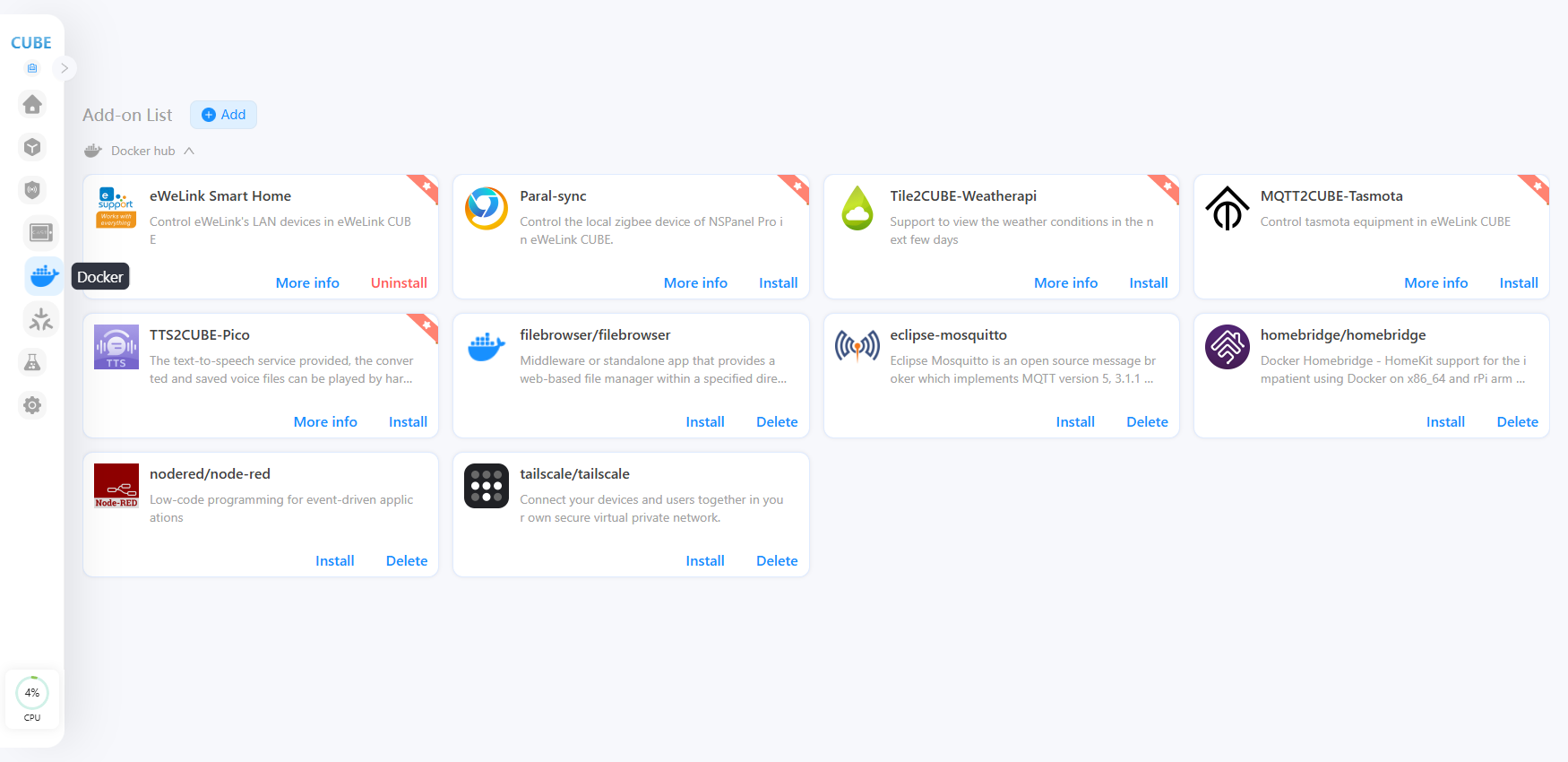
Al descargar distintos complementos en Docker, puedes habilitar que CUBE OS obtenga más capacidades y se vuelva más completo y confiable.
Los siguientes son 2 ejemplos para mostrar cómo usar las funciones de complementos en CUBE OS.
## eWeLink Smart Home
Sincroniza los dispositivos compatibles con eWeLink con CUBE y contrólalos. El tutorial se refiere a: [Dispositivos Wi-Fi eWeLink (capaces de LAN)](/cube-os-es/comenzando/anadir-dispositivos/dispositivos-wi-fi-ewelink.md).
## Node-RED
Programación low-code para aplicaciones impulsadas por eventos.
{% stepper %}
{% step %}
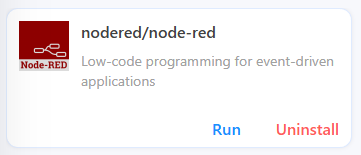
Instala y ejecuta el complemento Node-Red.
{% endstep %}
{% step %}
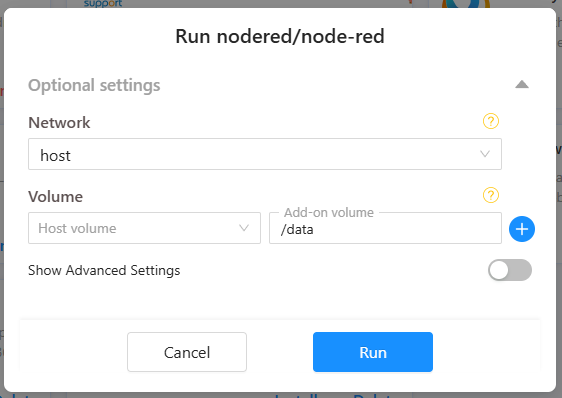
Haz clic en 'RUN' para abrir la configuración, selecciona la red como 'host' y rellena otros parámetros según tus necesidades, luego pulsa 'RUN'.
{% endstep %}
{% step %}
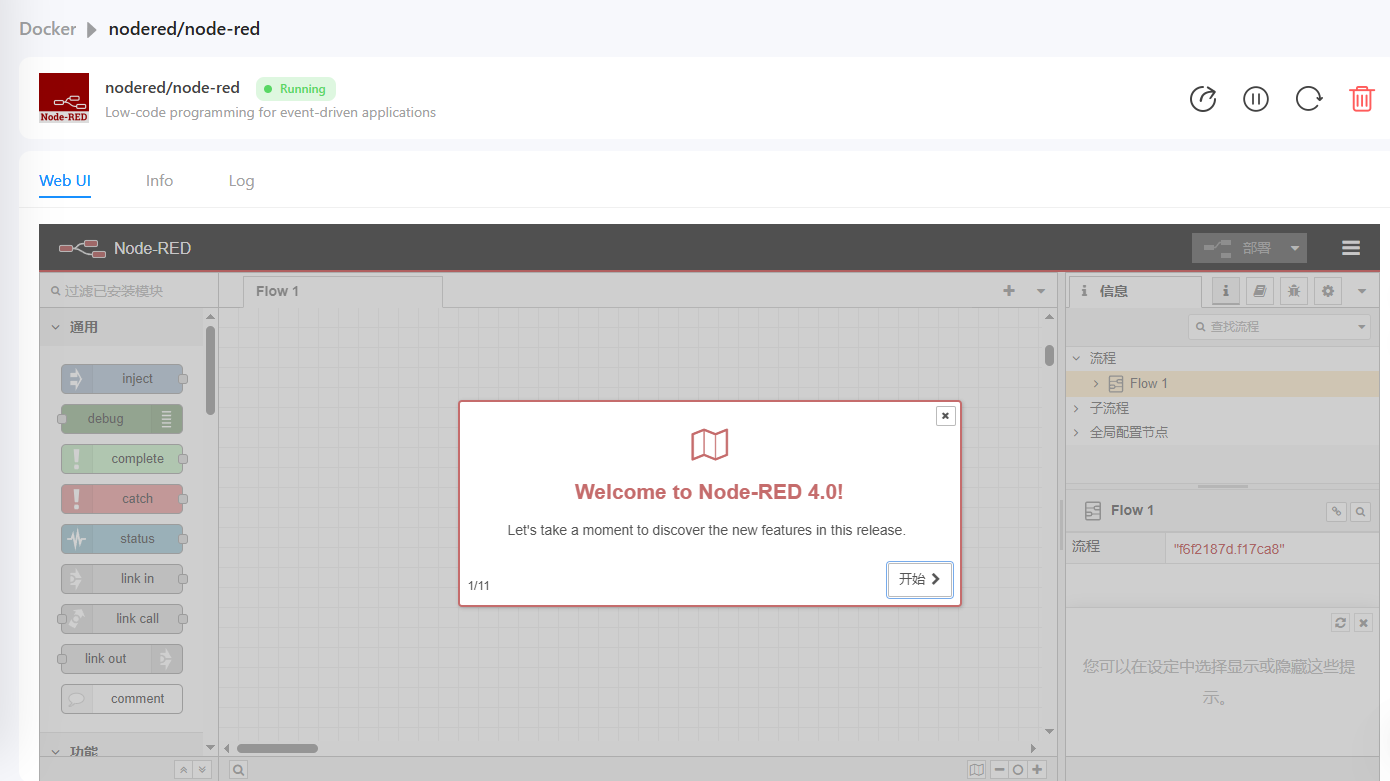
Espera un momento y abre una nueva pestaña del navegador para visitar la página de Node-Red, la URL por defecto es ihost.local:1880 o la IP del iHost:1880 (por ejemplo, 192.168.1.232:1880, puedes encontrar la IP en la página de administración de tu router.)
{% endstep %}
{% endstepper %}
---
# Agent Instructions
This documentation is published with GitBook. GitBook is the documentation platform designed so that both humans and AI agents can read, navigate, and reason over technical content effectively. Learn more at gitbook.com.
## Querying This Documentation
If you need additional information that is not directly available in this page, you can query the documentation by asking a question.
Perform an HTTP GET request on the following URL with the `ask` and `goal` query parameters:
```
GET https://cube.ewelink.cc/cube-os-es/exploracion-de-funciones/docker-y-complemento.md?ask=&goal=
```
`ask` is the immediate question: it should be specific, self-contained, and written in natural language.
`goal` is what the user is ultimately trying to achieve, the reason they need the answer. Sharing it helps GitBook give you a better, more relevant answer. A goal is most helpful when it describes the outcome the user wants rather than restating the question. For example, with `ask=how do I create an API token`, a goal like `automate deployments from our CI pipeline` lets GitBook tailor the answer to that use case.
The response will contain a direct answer to the question and relevant excerpts and sources from the documentation.
Use this mechanism when the answer is not explicitly present in the current page, you need clarification or additional context, or you want to retrieve related documentation sections.