> For the complete documentation index, see [llms.txt](https://cube.ewelink.cc/llms.txt). Markdown versions of documentation pages are available by appending `.md` to page URLs; this page is available as [Markdown](https://cube.ewelink.cc/blog/add-onvif-compatible-cameras/how-to-connect-your-onvif-compatible-cameras-to-ewelink-cube-os.md).
# How to Connect Your ONVIF Compatible Cameras to eWeLink CUBE OS
Setup and Compatibility
CUBE OS supports discovering and adding **any ONVIF compatible camera**, making it easy to build a unified, local, and privacy-first monitoring setup for your smart home.\
This guide walks you through how to connect your ONVIF compatible cameras to eWeLink CUBE OS and get them streaming in minutes.
***
### **1. Before You Start**
To ensure a smooth setup, make sure the following requirements are met before adding an ONVIF compatible camera to CUBE OS:
✔ **Your camera's ONVIF feature is enabled**\
Open your camera's configuration page (usually via its IP address) and ensure that **ONVIF support is turned on**.
✔ **Your ONVIF compatible camera is connected to your home network**\
Either via Wi-Fi or Ethernet, depending on the device.
✔ **Your camera and CUBE OS are on the same LAN / VLAN / subnet**\
This ensures successful discovery during the setup process.
✔ **You have the camera's login credentials ready**\
CUBE OS will require these to authenticate access to the video stream and ONVIF services.
Once all of the above are prepared, you're ready to add your camera into CUBE OS.
### **2. Add ONVIF Compatible Cameras in CUBE OS**
CUBE OS makes the process simple with auto-discovery via ONVIF.
{% stepper %}
{% step %}
**Open the CUBE OS Web Console**
Visit the CUBE OS web UI from your browser.
{% endstep %}
{% step %}
**Add a Camera Device**
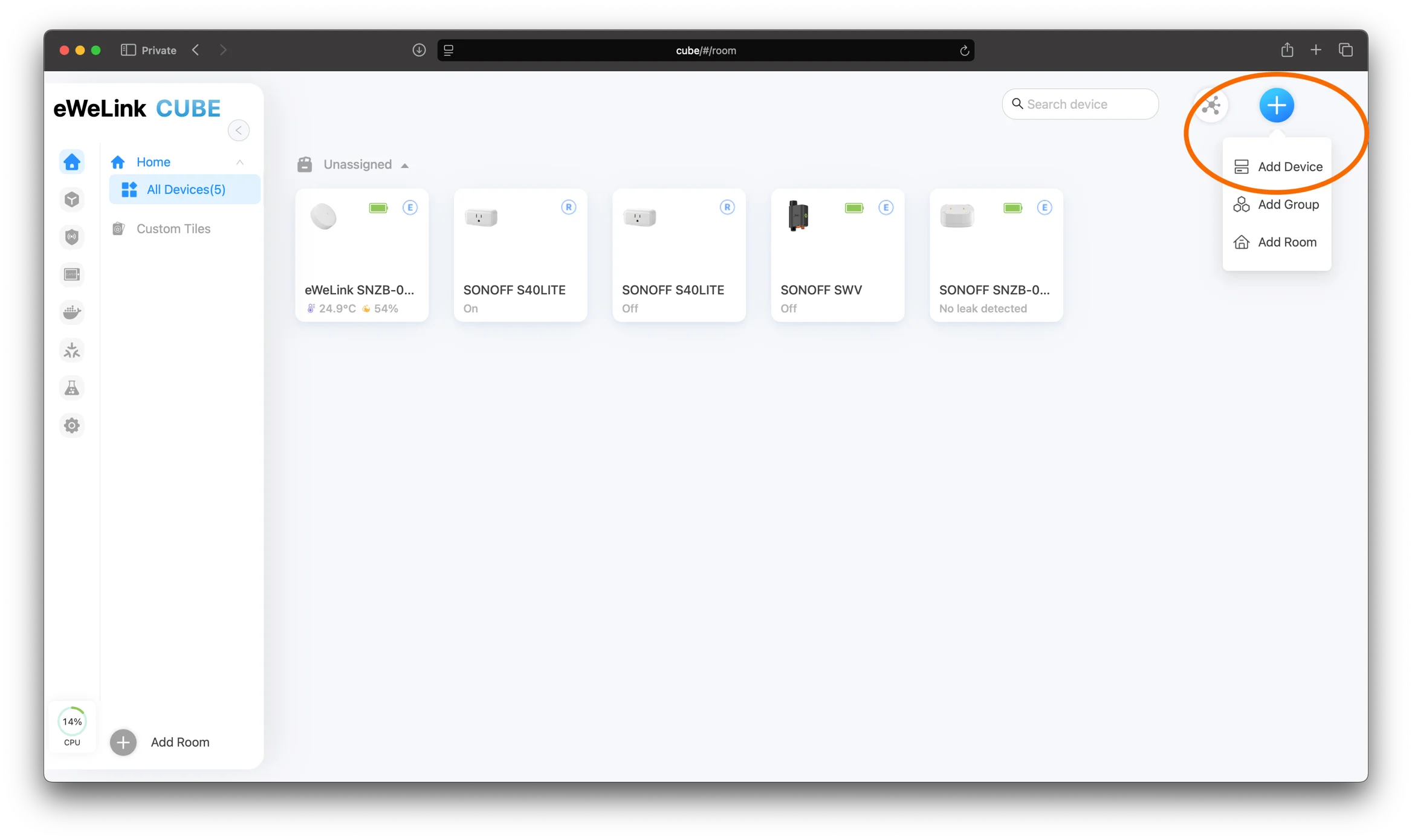
Click **Add Device** and then click **Start Setup.** CUBE OS will immediately scan your local network for ONVIF compatible cameras.
{% endstep %}
{% step %}
**Select Your Camera**
When your camera appears in the discovery list:
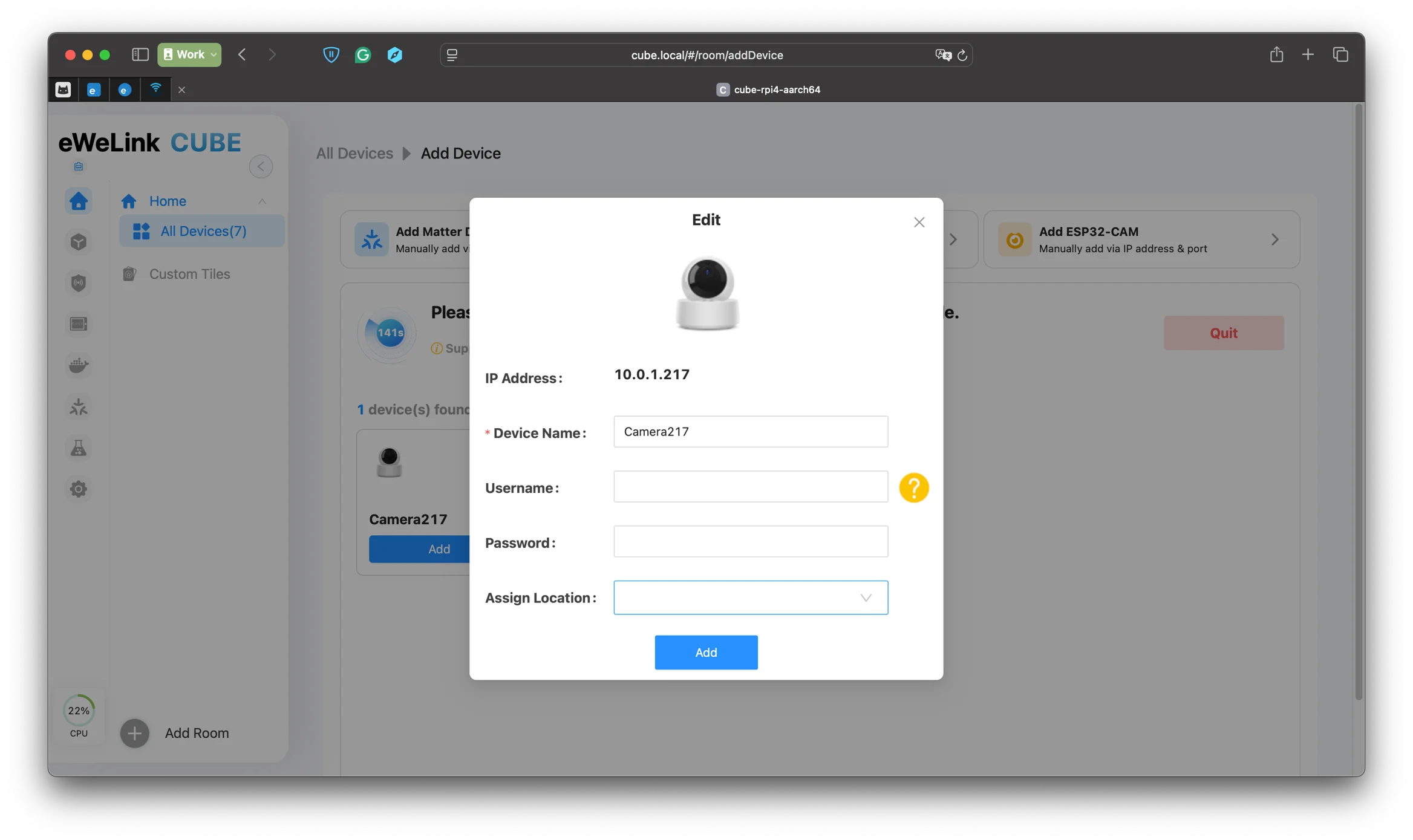
* Click it
* Enter the authentication credentials
{% endstep %}
{% step %}
**Finish & Preview**
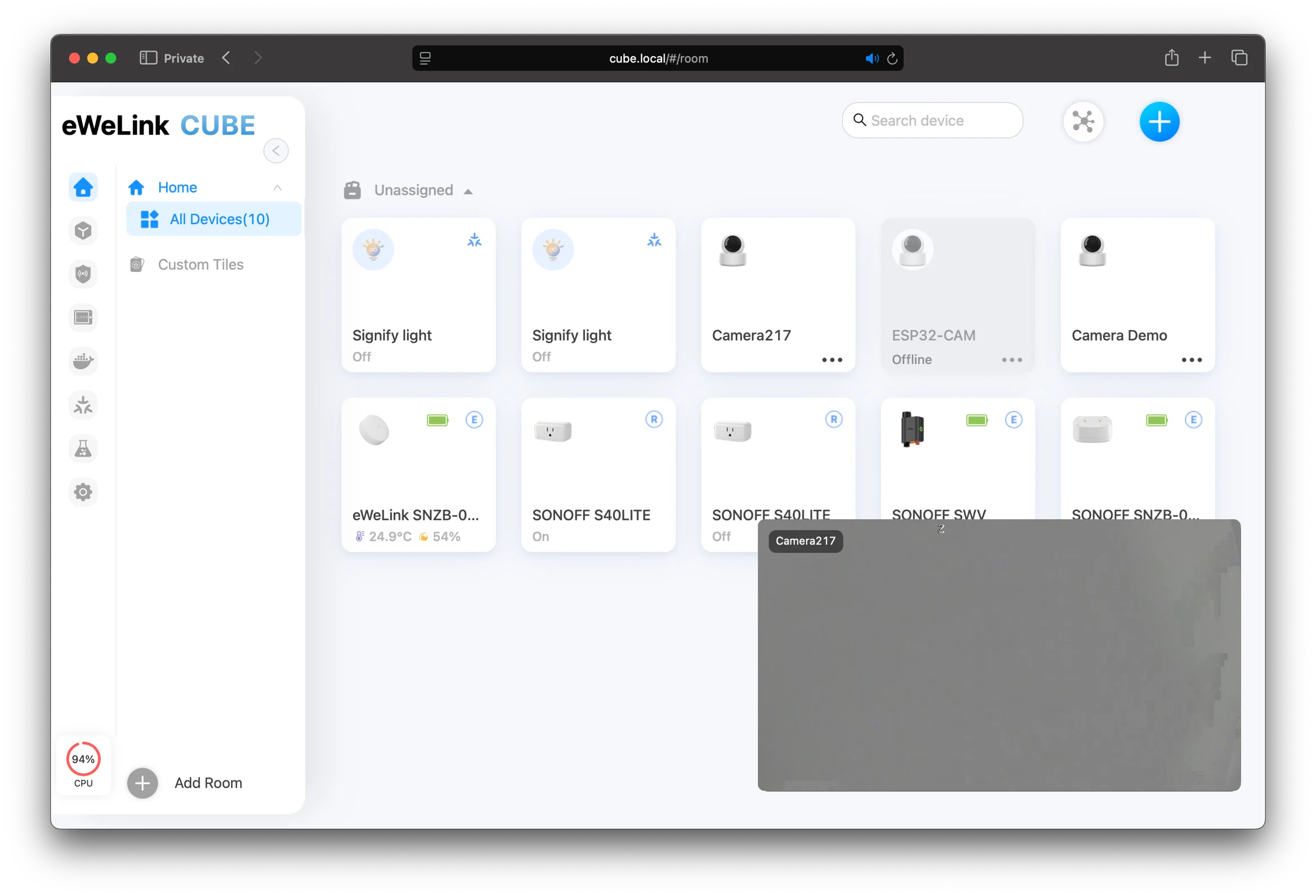
Once added, go back to **All Devices**. Click your camera, and view the real-time video stream instantly.
You should now see your ONVIF-compatible camera live inside CUBE OS.
{% endstep %}
{% endstepper %}
### **3. Supported Features**
ONVIF compatible cameras added to CUBE OS support:
🎥 Real-time live streaming
🔎 Auto-discovery on LAN
🕹 PTZ control (when supported by the camera)
🚨 Motion event detection
⚡ Local processing with no cloud dependency
🤖 Camera driven automations (covered in a later tutorial)
This means your ONVIF camera becomes a fully functional component of your smart home.
### **4. Camera Compatibility**
CUBE OS works with most ONVIF compatible cameras from various brands.\
You can verify whether your model is ONVIF compliant here:
👉 **ONVIF Conformant Product List**\
### **5. Summary**
Connecting an ONVIF compatible camera to CUBE OS is straightforward -\
auto-discovery, simple credential input, and instant live streaming.
Your camera now runs locally, integrates cleanly, and becomes the foundation for more advanced camera driven smart home automations.
---
# Agent Instructions
This documentation is published with GitBook. GitBook is the documentation platform designed so that both humans and AI agents can read, navigate, and reason over technical content effectively. Learn more at gitbook.com.
## Querying This Documentation
If you need additional information that is not directly available in this page, you can query the documentation dynamically by asking a question.
Perform an HTTP GET request on the current page URL with the `ask` query parameter, and the optional `goal` query parameter:
```
GET https://cube.ewelink.cc/blog/add-onvif-compatible-cameras/how-to-connect-your-onvif-compatible-cameras-to-ewelink-cube-os.md?ask=&goal=
```
`ask` is the immediate question: it should be specific, self-contained, and written in natural language.
`goal` is optional and describes the broader end goal you are ultimately trying to accomplish on behalf of the user. GitBook uses it to tailor the answer towards what is most useful for that goal.
The response will contain a direct answer to the question and relevant excerpts and sources from the documentation.
Use this mechanism when the answer is not explicitly present in the current page, you need clarification or additional context, or you want to retrieve related documentation sections.